
Structure a course: sections and lessons
How to structure a course in Studio: create, rename, order, duplicate, hide and delete sections and lessons.
The structure of a course consists of sections, and every section contains lessons. You create and order them in the Course content area. Changes are saved automatically.
Before you start
- You have the Create courses task in Hub. Without it, you only see the structure and can open lessons, but you cannot change anything.
- A microlearning has exactly one lesson. Its structure is locked.
- The interface says “section”. The messages after deleting and the backups say “chapter”. They mean the same thing.
How to structure a course
-
Open the course. The structure is in the Course content area. If the course has nothing yet, it says “No lessons yet.”
-
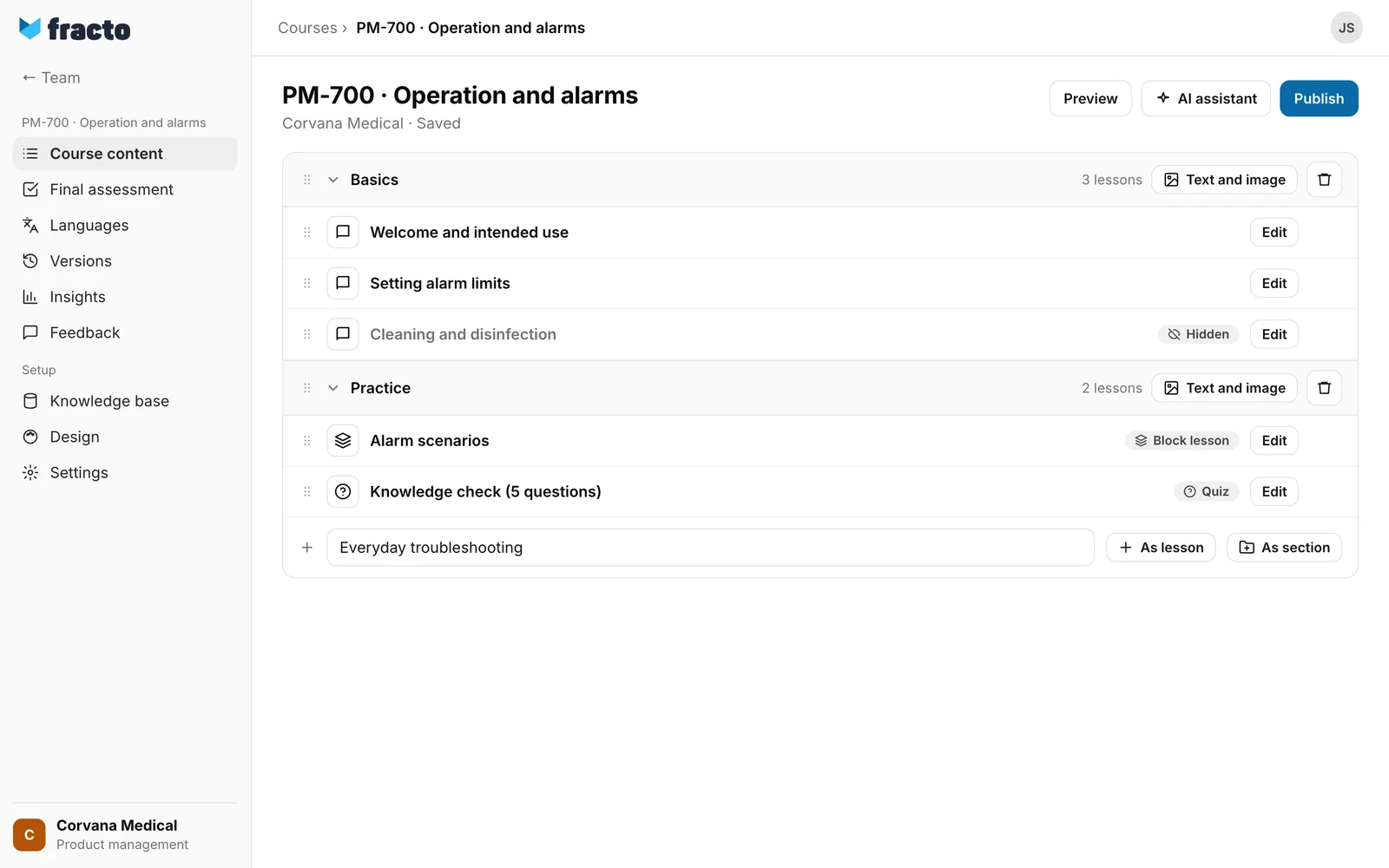
Create a lesson or a section at the bottom of the list: enter a title in the field “Title for a new lesson or section…”. As lesson (or the Enter key) creates a lesson, As section (or Shift+Enter) creates a section. Both buttons are disabled while the field is empty. The cursor stays in the field, so you can enter the next title right away.
-
The new lesson is at the end of the last section and is still empty. A new section is at the end and has no lessons (“Drag a lesson here or add one below”). If the course has no section at all, the first lesson creates one automatically. In the course language it is named, for example, “Chapter 1”. As long as there is only this one default section, Studio shows no section heading. Create a second section and the headings appear.
-
To fill a lesson, click its row or Edit. The lesson editor opens (see “Edit a lesson with blocks”). In a narrow window the Edit button is missing and the row is enough.
-
To rename a section, click its title (“Click to rename”). The Enter key applies the name, Esc discards it. You rename a lesson through the More options menu (the three dots at the right of the row) → Rename. On wide screens the menu appears when you point at the row. An empty name changes nothing.
-
To change the order, drag the Move lesson or Move section handle to the new place. You can also drag lessons into another section. The handles can also be used with the keyboard.
-
With the icon left of the title you change the lesson’s icon (Change icon). A picker opens with the search “Search icon…”.
-
For a section you can set an introduction text and an image, once section headings are visible: click Text and image in the section row. In a narrow window the button shows only the icon. Enter the Introduction text (up to 5,000 characters), choose an image with Choose image (later Replace image or Remove image) and click Done. With Collapse and Expand you hide the lessons of a section in the list for your own view only.
You know it worked when: the save status changes through “Saving…” to “Saved”.
Manage lessons
In the More options menu of a lesson you find:
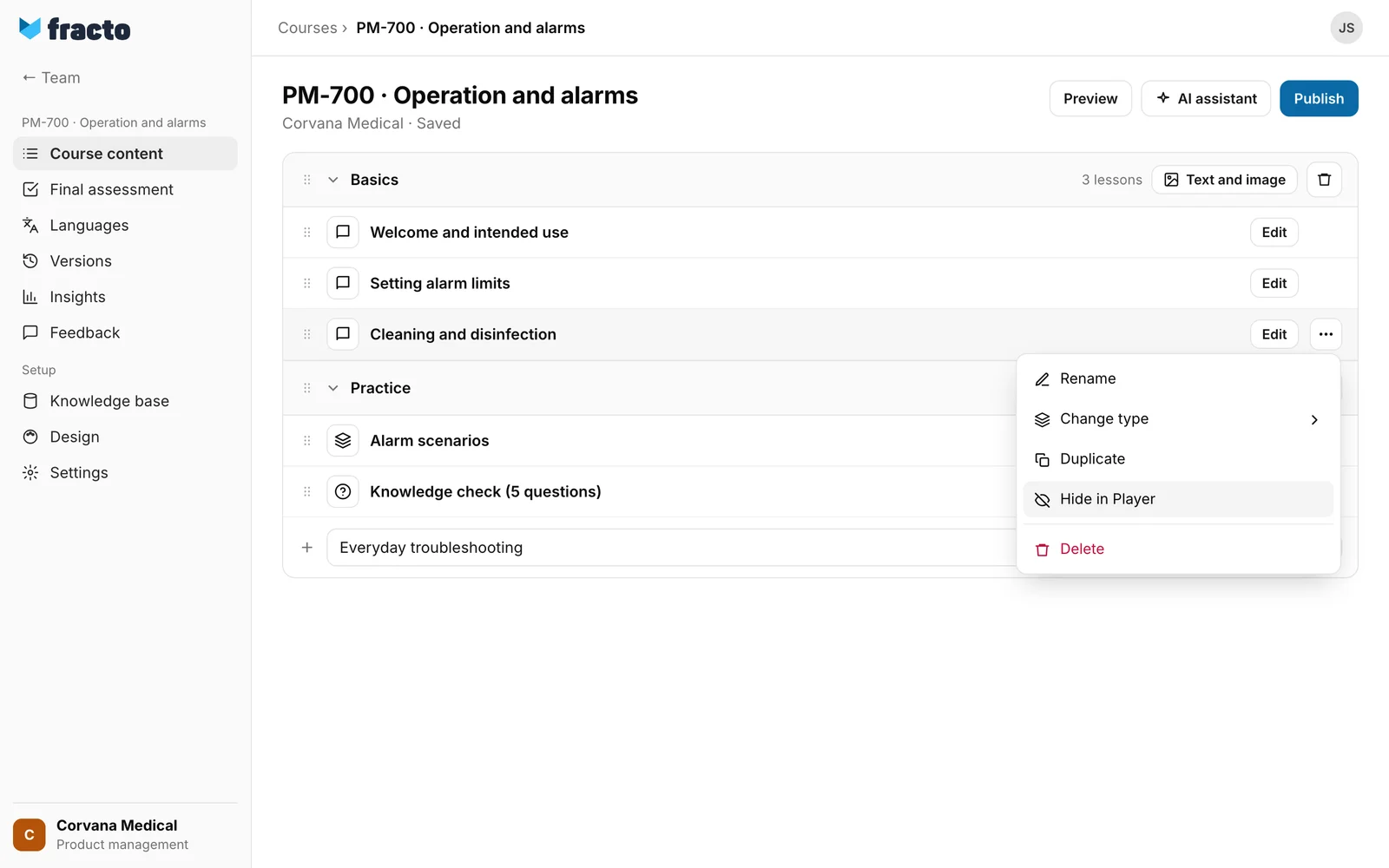
- Change type: choose Lesson (“Lesson: teach a topic with learning content.”), Quiz (“Quiz: check knowledge with questions.”) or Block lesson (“Block lesson: combine different content blocks.”). The app asks: “Change the lesson type? Existing blocks and their order are preserved; no questions or content are converted automatically.” Confirm with Change type. In the list, a lesson of type Quiz or Block lesson carries a badge.
- Duplicate: the copy is called “Title (copy)”, sits right after the original and contains copies of all blocks.
- Hide in Player: the lesson stays in the draft and carries the Hidden badge. Learners do not see it. Show in Player makes it visible again. The last visible lesson cannot be hidden (“At least one lesson must stay visible.”).
- Delete: the app does not ask. It creates a backup first. If that works, it shows “Lesson “…” deleted.” with Undo and “A backup is available under Versions.” If the backup does not work, the lesson is deleted anyway and there is no Undo.
You delete a section with the trash icon in the section row (Delete section). The last remaining section has none. The app asks, for example: “Delete section “Practice”? Its lessons will be moved to “Basics”, keeping their order. The lessons and their blocks will be preserved.” The lessons move to the previous section, or to the next one for the first section, to the end of the target section. They keep their order among themselves but sit after the lessons that were already there. Then it says “Chapter “Practice” deleted.”, with Undo if the backup worked.
What happens next
- Fracto backs up the open course every 15 minutes, but only if the draft has changed since the last backup, and before every deletion. The last 20 backups stay, for 14 days at most. Under Versions, you bring back deleted items with Restore chapter or Restore lesson (see “Restore an earlier version”).
- Learners see the structure only after publishing. They never see hidden lessons. The Player shows the title, text and image of a section in the course overview (see “Publish a course”).
- If the course is already published, the kind of change decides whether a correction is enough. These go as a correction: titles of lessons and sections, and the text and image of a section. For everything else about the structure, Fracto requires a new version when you publish: creating, deleting, duplicating, moving, hiding or showing lessons or sections, changing the type, and changing a lesson’s icon. Then it says “Changed lesson structure requires a new version.” (see “Versions and corrections”).
If it does not work
| Message | What it means |
|---|---|
| Saving failed (HTTP …). | The last change was not saved. It stays open and goes out again with your next change. |
| The changes could not be saved. | The same, without a status number, for example when the connection drops. |
| Another person has changed the course. Reload before continuing. | Someone changed the course in the meantime. The message replaces the save status, and a click on it reloads the page. Your last change is then gone. |
| At least one lesson must stay visible. | You wanted to hide the last visible lesson. The menu entry is disabled. |
| Undo did not work. You can find the backup under Versions. | The deletion could not be reversed. Bring the lesson back from the backup. |
| Course could not be loaded. Please try again. | Also “… (HTTP …)”. The structure could not be loaded. Reload the page. |
Checked on 6 November 2026 against the current Fracto release.
