
Review and approve a course
How to review a submitted course in Studio: write review notes, then approve the whole course or request changes.
An author has submitted a course for review and chosen you as the reviewer. You read the frozen course version, write review notes, and then decide for the whole course: approve it or request changes.
Before you start
- You have the review task in the workspace in Studio, and the request is assigned to you. If you are only a reviewer, Studio shows your role as “Reviewer”. You see only courses for which you have a review request.
- You review a version that was frozen on submission. The view says Read-only review version. You do not change the course, you write notes.
- Your decision applies to the whole course: course overview, lessons, final assessment and knowledge base. There is no partial approval for single lessons.
- The person who submitted the course cannot decide their own request.
How to review a course
-
Open the request. Use the button Open review in the email or the notice, or Review requests in Studio. There, each request shows the course, “Pinned version”, “Submitted by”, “Due date” and the author’s message. For an open request, click Open review.
-
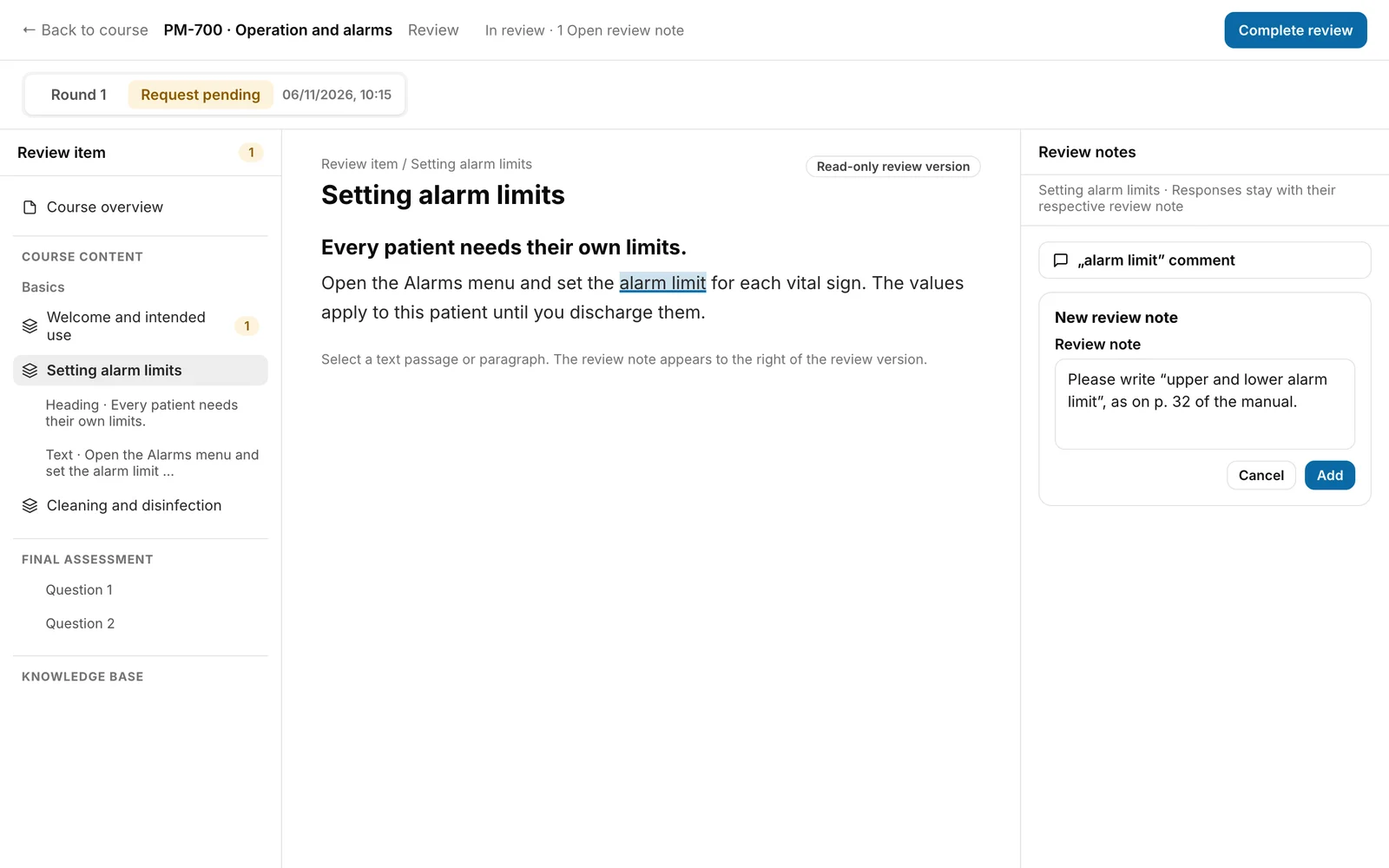
On the left, under Review item, choose what you read: Course overview, a lesson or one of its blocks, the Final assessment with its questions, or the Knowledge base. The number on an entry shows the open review notes. On narrow screens the list is collapsed and the Review notes column sits below the content.
-
Select a passage or a paragraph. Fracto shows a button with your selection and “comment”. Click it, write under Review note and click Add. Without a selection, Add general review note attaches a note to the whole review item.
-
You can Edit and Remove your own notes of the current round and close them with Resolve. A resolved note can be brought back with Reopen. The author’s replies appear with the note they belong to, and you reply with Reply. Resolved notes are hidden. “Show resolved (1)” shows them again.
-
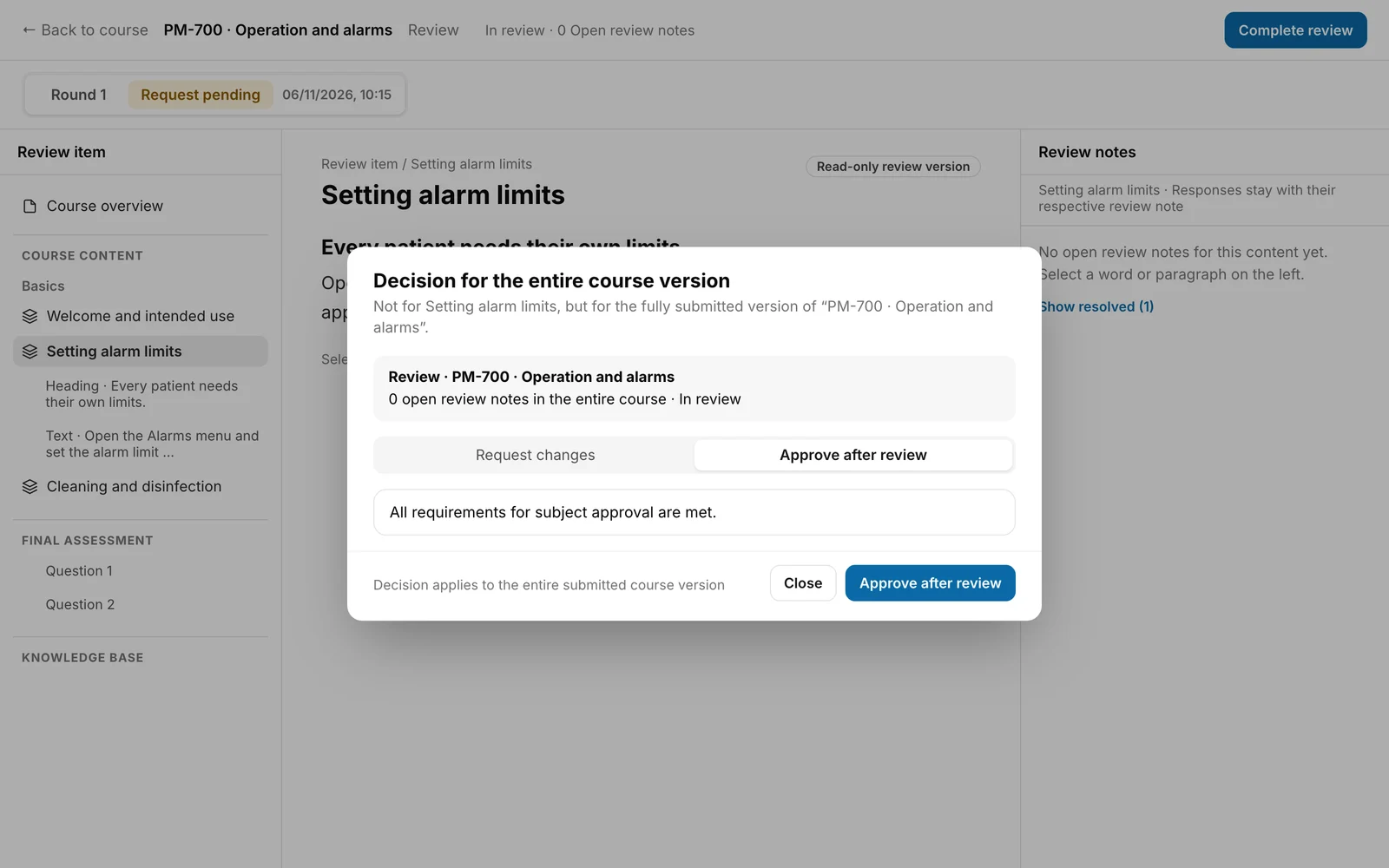
Click Complete review at the top. The dialog Decision for the entire course version has two tabs. It opens on Request changes:
- Request changes: under Summary for the author, write what needs to change overall. Without text the button is disabled. Apply suggested wording replaces the text in the field with a standard sentence containing the number of open notes. Your open review notes stay visible where they are, and the course goes back for revision.
- Approve after review: this works only if no review note is open, including none from earlier rounds, and the version contains a frozen knowledge base. Otherwise the tab says, for example, “Approval is not yet possible: 2 review notes are open.” and the button is disabled. Resolve the notes first. Notes that another person wrote in this round cannot be resolved by you in the interface. While they are open, approval stays disabled.
-
Click the button of the chosen tab, Request changes or Approve after review.
You know it worked when Studio opens Review requests. The request no longer has an Open review button and shows your notes under Your past review notes. You cannot withdraw a decision in Studio.
What happens next
- The person who submitted the course and the course owner get a notice and an email, unless they have switched these notices off. The subject reads “Review approved:
” or “Changes requested: ”. For requested changes, your summary appears in the email, cut to the first 240 characters. This applies only to people who may work in the workspace at that moment, and for email only with an address on file. - Approve does not publish anything. The author publishes the approved version.
- After Request changes, the author revises the course and resubmits it. That is “Round 2” of the same review. A person who only reviews sees only their own rounds. If you are a different person from round 1, you do not see the open notes from round 1 and cannot resolve them. You then cannot approve. Request changes and ask the author to choose the person from the previous round for the next round. If you reviewed round 1 yourself, you see the following: The bar at the top lists your rounds, and you switch with a click. The view shows under New since the previous review round: which areas changed. Your open notes from round 1 are marked “Open review note from the previous review round”. If the author reported a correction, it says “Author reports correction implemented · subject confirmation pending”. Resolve after review closes the note, and View previous review version lets you compare.
If it does not work
| Message | What it means |
|---|---|
| This version cannot be approved because the final assessment is not ready for publication. Request changes so it can be completed. | The final assessment has a gap, for example no active question. Request changes. |
| The review could not be approved. | The server refused the approval, and the view does not name the reason. Possible reasons: review notes are still open, also from earlier rounds that you cannot see here. The round history is incomplete. The version has no knowledge base. Reload the page and check these points. |
| The change request could not be sent. | Try again. |
| This older review version has no frozen knowledge base. The course must be resubmitted for full subject approval. | The version dates from before the frozen knowledge base. Request changes and ask the author to resubmit. |
| Translations are read-only. Review notes belong to the source text. Switch to the source language to read or write notes. | You are looking at a translation. You write notes only in the source language. |
| The review request could not be loaded. | Reload the page. |
| Review area could not be loaded. Please try again. | Reload the page. |
| Review requests could not be loaded. | The list under Review requests could not be loaded. Reload the page. |
If Review requests shows only “No review requests yet”, no course is assigned to you yet. New assignments appear there once you reload the page.
Checked on 6 November 2026 against the current Fracto release.
