
Take the final exam
How to start, pause and submit the final exam of a course, and how to read the result, waiting time and credential.
With the final exam you show that you have mastered the course content. If you pass it, a certificate can be issued.
Before you start
- Depending on the course, the exam is Required or Optional. It shows in the lesson list of the course page next to Final exam. If it is optional, the course is completed without it. You still need to pass it to receive a certificate.
- You have started the course. Before that, the Assessment tab says: “Start the course first.”
- Whether you must finish all lessons first is up to the course. If so, the tab says “Still locked:” with your progress, for example “Work through the lessons first. Then you can start the assessment.” See “Finish a lesson: what is still open”. If the course does not require that and you pass the exam before the lessons, the course is completed only with the lessons.
- The number of questions, pass mark, time limit, number of attempts and waiting time between attempts are set by the course. They are shown in the tab before you start.
- Plan some undisturbed time. If the exam has a time limit, it runs from the start. Even without a time limit, you must submit a begun attempt within 90 minutes. After that it ends and counts as used. The Player does not show this.
- For accredited courses (with a continuing education certificate), a form for your details appears instead of Start assessment. It says: “Complete your continuing education profile before starting the exam.”
- During the exam, lesson content, knowledge, forum and AI tutor are locked.
How to take the exam
-
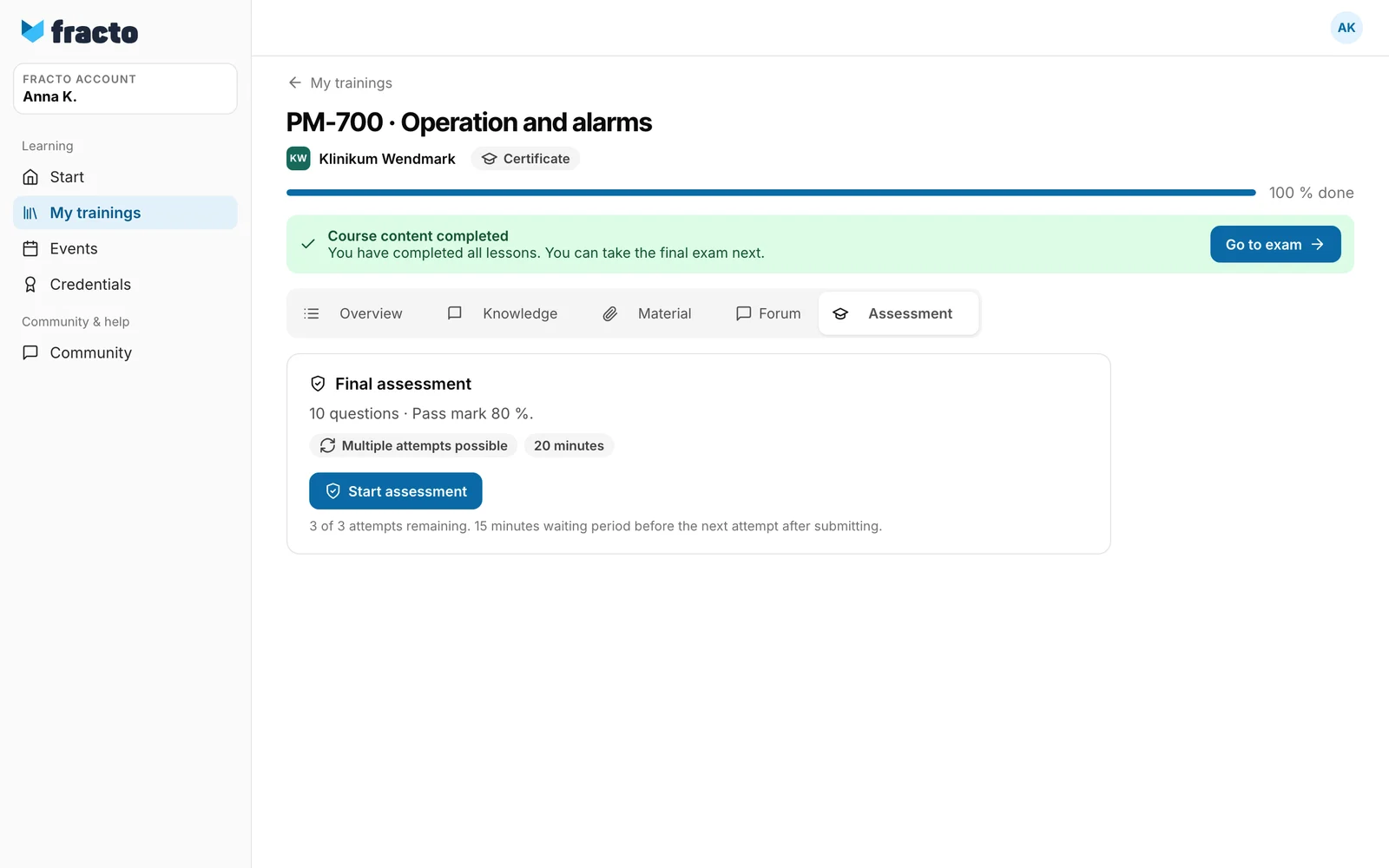
Open the course page. Once the exam is unlocked, it shows “Course content completed” with the Go to exam button. For an optional exam the note says “Course completed”. The button opens the Assessment tab. You also get there via the tab itself or the Final exam row in the lesson list.
-
The tab names the number of questions and the pass mark (“10 questions · Pass mark 80 %.”), if more than one attempt is allowed, Multiple attempts possible, and the time limit, plus the remaining attempts.
-
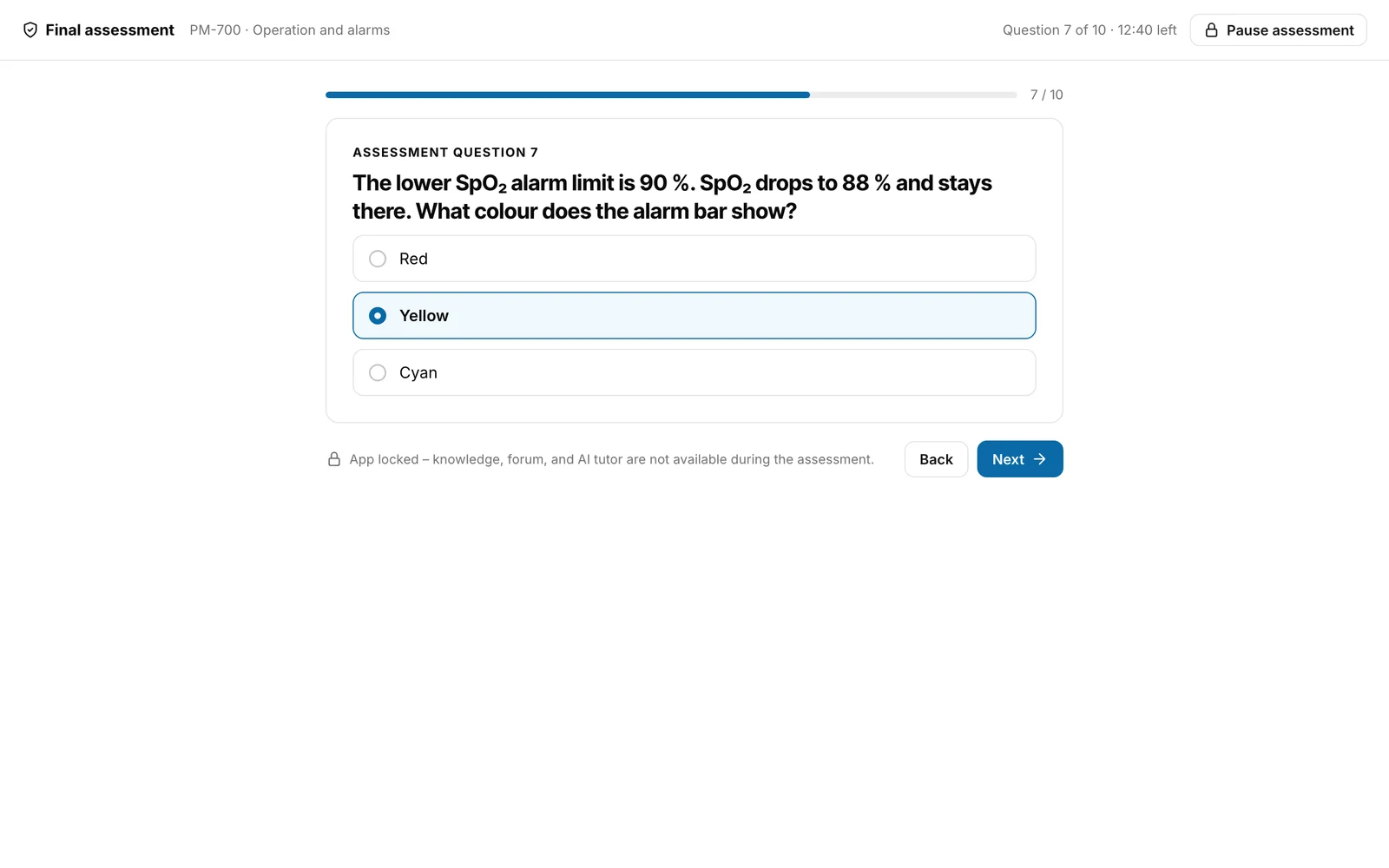
Click Start assessment. The exam fills the whole window. This is when your attempt begins. It counts once you submit or the time runs out. At the top it says “Question 1 of 10” and, if there is a time limit, the time left.
-
Answer the question. If a question has several correct answers (“Several answers are correct.”), choose several. If it names a number, for example “Select 2 answers.”, Next and, on the last question, Submit assessment are active only once you have chosen exactly that many. An incomplete matching is not scored.
-
Use Next and Back to move between questions and change answers. During the exam there is no feedback on a single question. Fracto saves your answers continuously.
-
On the last question, click Submit assessment. The Player does not warn you about unanswered questions, so go through them once more with Back first.
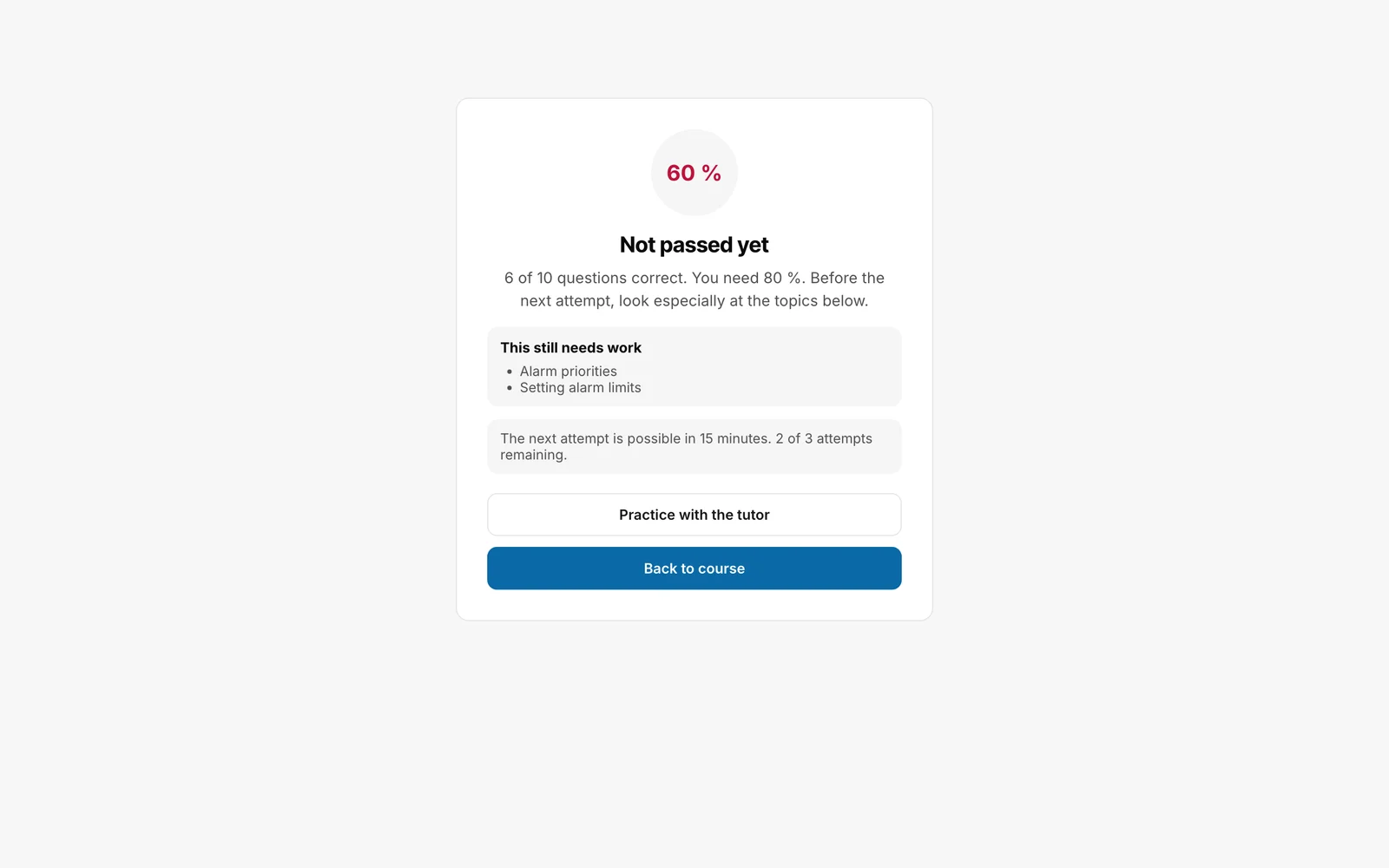
You know it worked when a window shows your result as a percentage with Passed or Not passed yet and the line “9 of 10 questions correct. You need 80 %.”
Pausing the exam
- Click Pause assessment at the top right. The dialog says: “The exam timer keeps running. Learning areas and exam aids stay locked until you continue the exam.” Pause now leaves the exam, Stay in the exam keeps you in.
- After that you reach only Start, My trainings, Events, Credentials, My Fracto account, Inbox and Announcements. The top shows “Assessment paused:” with the course title, the question you were on and, with a time limit, the time left, plus “the timer keeps running”. The note is tied to this browser: on another device it is missing. There you continue via the Assessment tab and Start assessment. Resume assessment takes you back to your saved answers.
- If you open the exam again before the time is up, it continues with your saved answers.
- If the time runs out, the attempt is over. Answers can no longer be changed or submitted, and they are not scored. The attempt counts as used. You see the waiting time at the latest when you open the exam again.
What happens next
- Passed: The tab shows the result, and no further submission is needed. After passing, the note “Course content completed” disappears, and the lesson list shows Passed instead of Required or Optional. About the credential the tab shows one of these lines: “You’ll find your credential under “Credentials” – it stays with you permanently, even if the institution changes.”, “Assessment passed. Certificate status is being checked.”, “Issuance of your credential is being reviewed.”, “Your publisher is still setting up the certificate. It will appear here later.” or “No credential is issued for this course.” If your job title is missing, it says: “Your certificate will be issued once your job title has been entered. Please contact your training manager.” If the course has after-course questions, Answer the after-course questions appears.
- Not passed yet: What you see about the result is set by the course. Either only the overall result (“For assessment security you only see your overall result.”, as shown in the tab), the topics under “This still needs work”, or feedback on every question. If the course sets a waiting time, a new attempt is possible only after it: “The next attempt is possible in 15 minutes.” The tab then shows Try again, first grey with “… waiting time remaining – possible again from …”, then active. The waiting time is there to stop the exam from being solved by trial and error. Use the time to look at the lessons again. Some courses allow unlimited attempts (“Unlimited attempts possible.”).
- After the last failed attempt, the Player first shows a waiting time: “Your attempt limit is reached; after this lockout no further attempt is possible.” Then the button is locked with “You have used all available attempts. Another assessment attempt is not possible for this course version.” If your institution resets the course, you have all attempts again.
- Practice with the tutor in the result window, with Passed as well as Not passed yet, takes you back to the course and opens the tutor’s review questions. The tutor does not reveal the exam solution.
If it does not work
| Message | What it means |
|---|---|
| Start the course first. | The exam is locked until Start course. |
| Exam content gate not met. | The course requires all lessons before the exam. The tab shows your progress, for example “60 % of the lessons completed. The exam unlocks at 100 %.” |
| There is a waiting period between attempts. 12 minutes remaining. | Wait until the time is up. The tab also shows the time of day. |
| You have used all available attempts. | No more attempts are possible for this course version. Ask your institution whether it can reset the course. |
| Exam temporarily unavailable. | The exam cannot be started right now, for example because of a problem with grading. The attempt that did not start does not count. |
| Time expired | The time is up. The attempt is over. |
| Grading is taking longer than expected. Open the assessment again in a few minutes; the result will then be ready. | Your submission arrived and is still being graded. Do not submit again. |
| Grading failed technically. This attempt does not count – please try again later. | Grading failed. The attempt does not count, and your answers are gone. Begin a new attempt later. |
| Exam evaluation failed. This attempt does not count. | The same, when grading fails right at submission. |
| You have sent too many requests. Wait a moment and try again. | Too many requests in a short time. Wait a moment and submit again. |
| Exam attempt expired. | You submitted after the time ran out. The attempt is over. |
| Exam version withdrawn. | The exam of this course can no longer be started. |
| This course is no longer in your institution’s assortment. Your access has ended; your certificates remain valid. | Your institution removed the course from its offer. |
| The save could not be confirmed. Reload this window before continuing. | Reload the page. |
| You continued in another window. We loaded the latest state. Unsaved changes from this window were discarded. | You opened the same exam in two windows. The latest state applies. |
| Your draft could not be saved. Your answers are still here. Try again before pausing. | Saving failed. Wait a moment and pause only then. |
| The exam could not be paused. Your answers are still here. Try again. | Click Pause assessment again. |
| Invalid exam submission. | The submission was rejected. Check your answers and submit again. |
| Network error. Please try again. | The connection dropped. Submit again once you are back online. |
| This course has no final assessment. | There is no exam for this course. |
Checked on 6 November 2026 against the current Fracto release.
