
Import a PDF or PowerPoint as a course
How to turn a PDF or PowerPoint file into a course in Studio: each page or slide becomes a lesson, and you choose and name the pages.
You have a finished document, for example a briefing as a PowerPoint. The import turns every page or slide into its own lesson, exactly as it was designed. The AI changes nothing.
Before you start
- You need the Studio rights to create courses and to import. If one is missing, Create new or From PDF or PowerPoint is not there. The import is only available when you create a new course.
- You can upload PDF, PowerPoint (.pptx, .ppt), Word (.docx, .doc) and OpenDocument (.odp, .odt), up to 200 MB and up to 300 pages.
- The file must not be password-protected.
- Office files are converted on the server. Fonts may differ slightly if they are not embedded, and animations and transitions are missing. For an exact result, save the file as PDF first.
How to import a document
-
In the course overview, click Create new and choose From PDF or PowerPoint. Enter a Title, check the Source language and click Create course. The course is in the folder you currently have open. Then the page Create from PDF or PowerPoint opens.
-
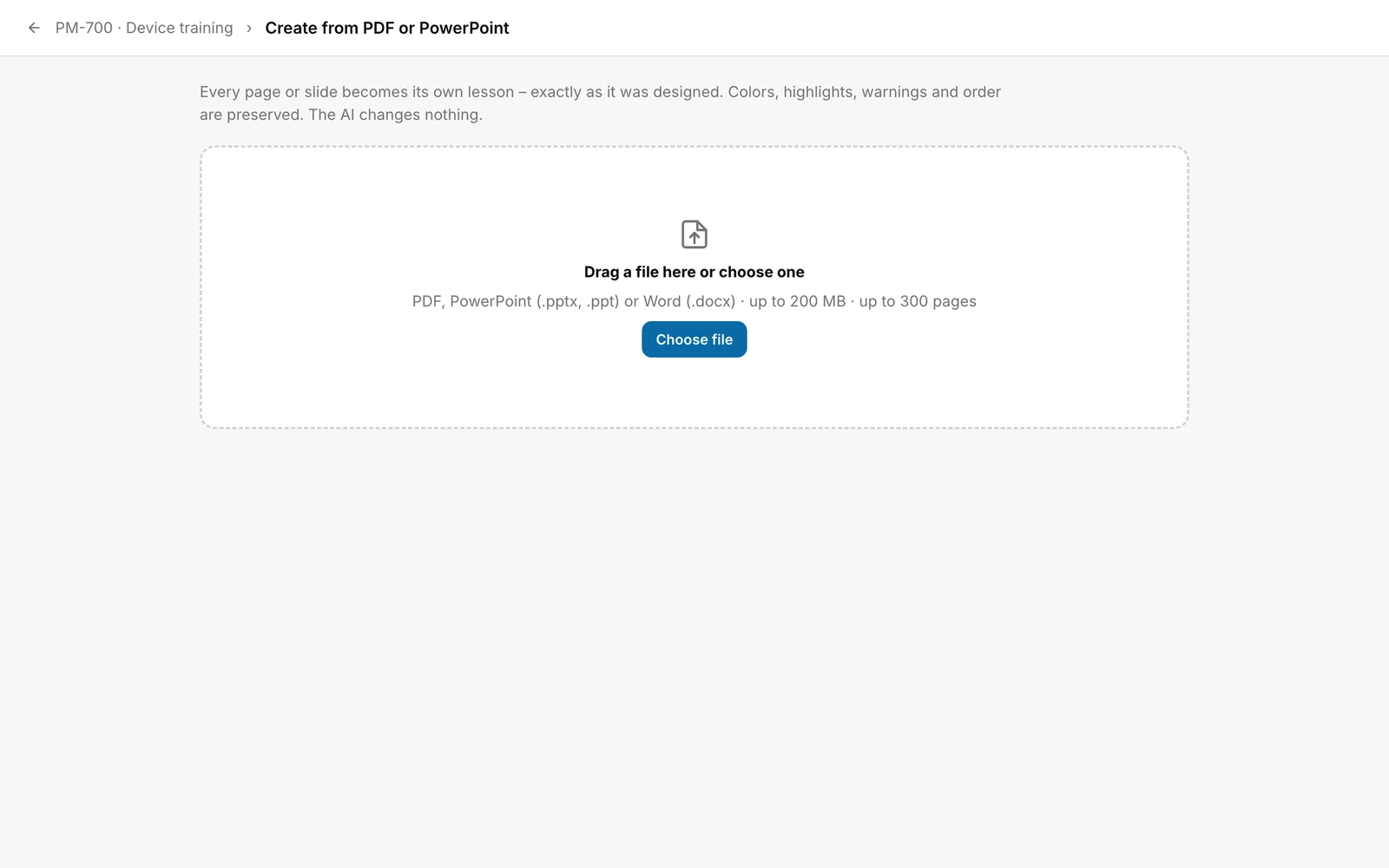
Drag the file into the area or choose it with Choose file. Upload progress appears, then “Preparing pages”. Large presentations can take up to a minute.
-
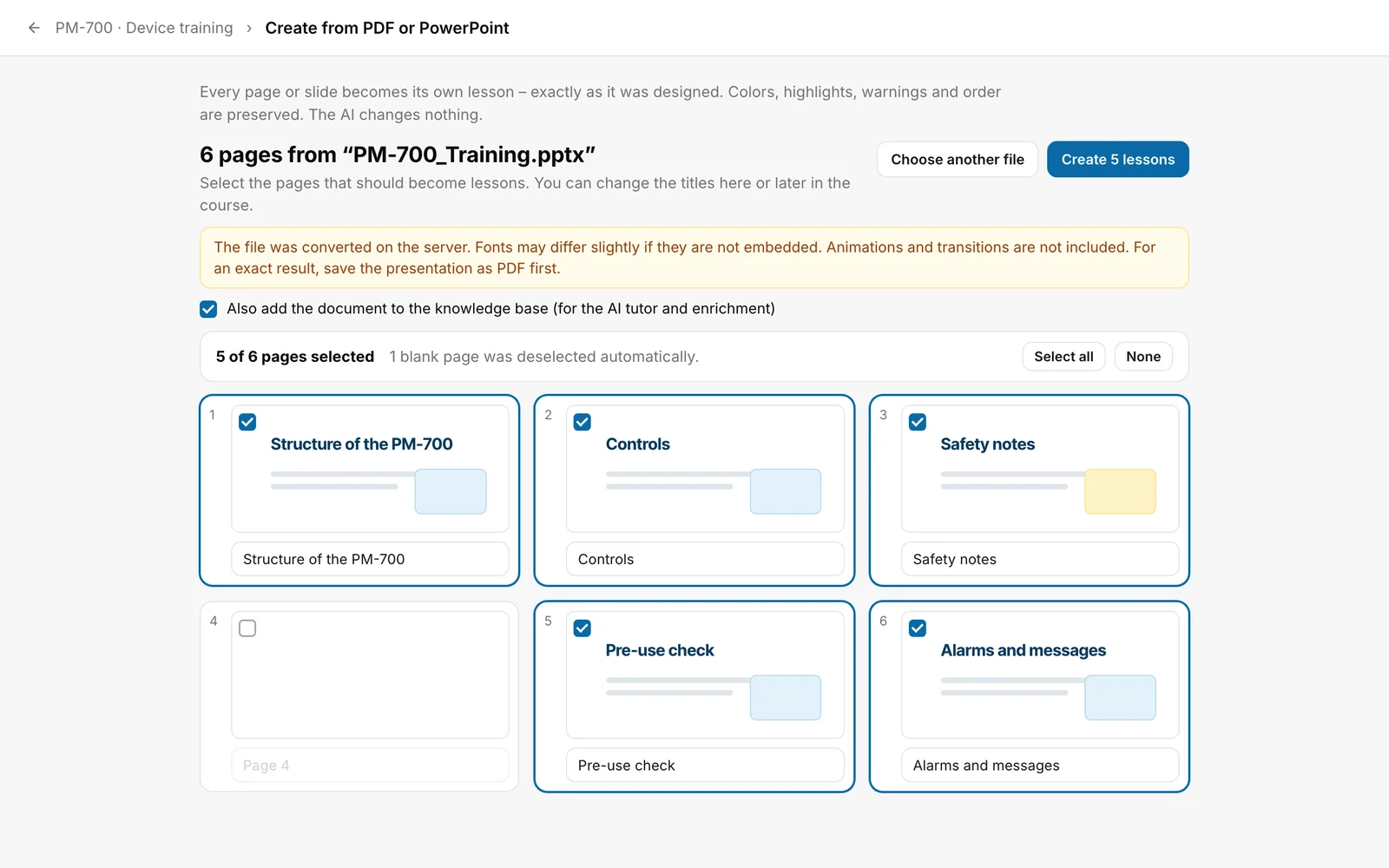
Check the preview. Each page has a checkbox and a field for the lesson title. The app fills in the title it recognises on the page. Change it if needed. If you leave a title field empty, the lesson is called “Page 4” with the page number. The title field of a deselected page is disabled. If the app finds pages that are nearly blank, it deselects them and says so (“1 blank page was deselected automatically.”). If all pages are nearly blank, all stay selected. Select all and None change the selection. For Office files, a notice about the conversion appears above the preview.
-
Above the pages, the box “Also add the document to the knowledge base (for the AI tutor and enrichment)” is ticked. Untick it if the file should not go into the knowledge base of the course.
-
Click the button at the top with the number of lessons (“Create 5 lessons”). If no page is selected, the button is disabled.
You know it worked when the course page opens. The app then shows an AI style suggestion for the course. The lesson list ends with a new chapter named after the file without its extension, with the selected pages as lessons.
What happens afterwards
- Each lesson contains the page as an image. You change the title, the order and further blocks, for example knowledge checks, in the lesson editor (see “Edit a lesson with blocks”).
- With the knowledge base box ticked, the file is also in the knowledge base of the course. Adding it there only runs after the lessons have been created.
- If you choose Choose another file before creating lessons, you discard the preview. Nothing has been created then.
- Learners only see the course after it is published (see “Publish a course”).
If it does not work
| Message | What it means |
|---|---|
| This file format is not supported. Please upload a PDF, PowerPoint or Word file. | The extension is not one of the allowed formats. |
| The file is larger than 200 MB. | Make the file smaller or split it. |
| The document has more than 300 pages. Please split it. | Split the document into several files. |
| The file is password-protected. Please remove the protection and upload it again. | Save a version without password protection. |
| The file could not be read. Is it damaged or empty? | The file is damaged or has nothing readable in it. |
| Conversion is currently unavailable. Save the file as PDF and try again. | The file could not be converted or prepared just now. Save Office files as PDF. With a PDF, try again later. |
| Too many uploads are running right now. Please try again in a few seconds. | The server is busy. Wait a moment. |
| The import failed. Please try again or save the file as a PDF first. | General error while preparing the pages. |
| Processing took too long. Please try again later or split the document. | The app gives up after 20 minutes. |
| The import failed (status …). | Another error. The number helps support. This also applies when the connection is interrupted. |
| The lessons could not be saved (status …). | Creating them in the course failed; loading the current course can also be the cause. The preview stays. Try again. |
| Another person has changed the course. Nothing was overwritten. Check the preview and try again. | Someone else changed the course while your preview was open. |
| The lessons were created, but the file could not be added to the knowledge base. | The lessons are in the course. Only adding the file to the knowledge base failed. Use Back to course to go to the course. |
Checked on 6 November 2026 against the current Fracto release.
