
Manage certificate profiles
How to create certificate profiles in Hub, set the default, rename, archive and restore them, and how authors in Studio choose one for a course.
A certificate profile is a certificate of its own in your workspace, with languages, design and fields. Courses choose a profile. Without a choice, the default profile applies. This lets you, for example, issue a different certificate for device training than for product knowledge.
Before you start
- You have the Administer workspace task in Hub. Fracto Support sees the profiles read-only.
- You know what the profiles should be called. Authors see the name when they choose a profile for their course.
How to create a profile
-
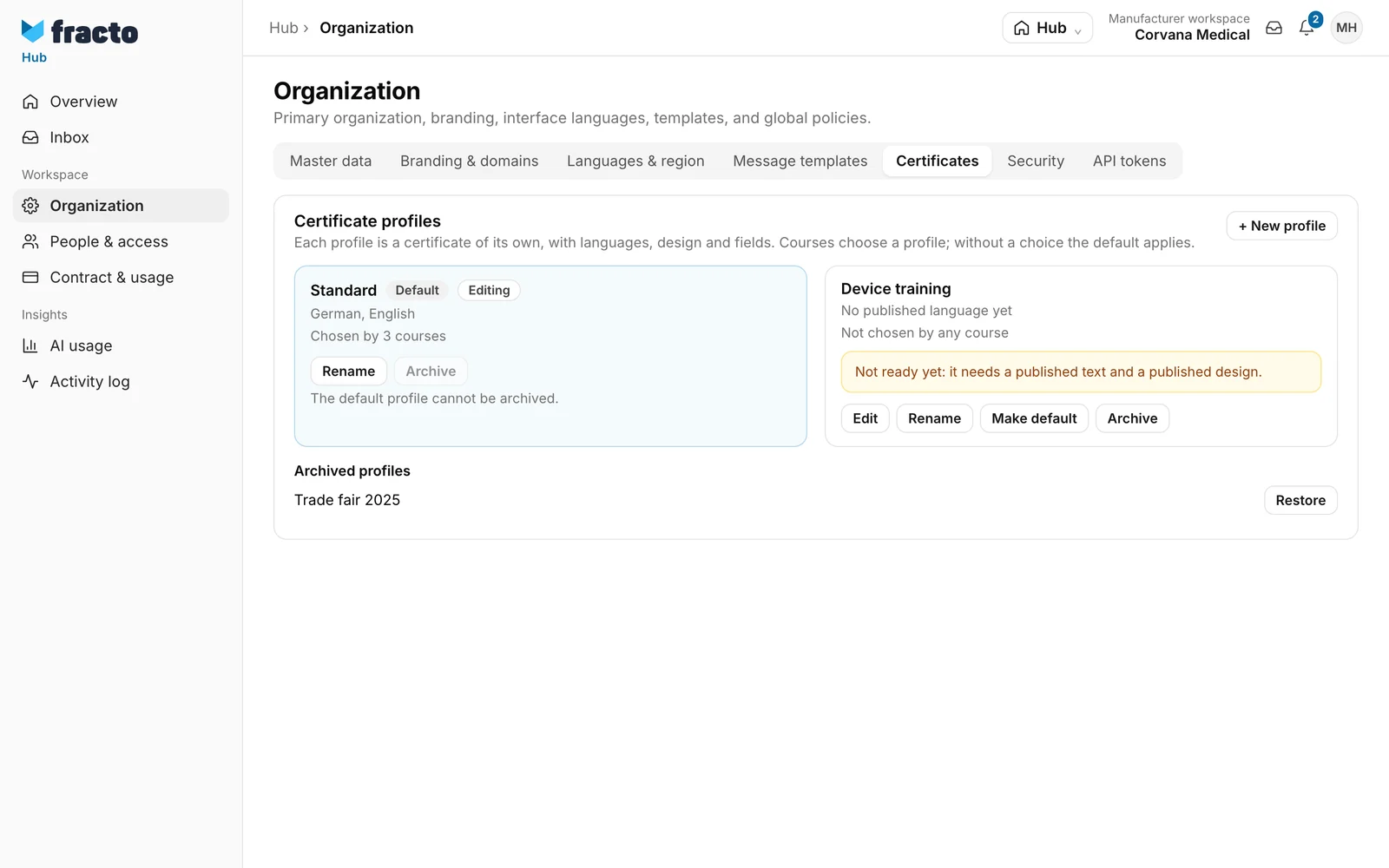
In Hub, open Organization and the Certificates tab. The Certificate profiles card is at the top.
-
Click New profile, enter a Name (at most 120 characters) and click Save. The name may appear only once among the active profiles. Fracto reports “Profile created.” The first profile that exists automatically becomes the Default. If there is no profile yet, Fracto itself creates a profile “Standard” when you first save in the editor (“No profile saved yet. The default profile appears the first time you save below.”).
-
On the new profile, click Edit. The card then shows Editing, and the editor for this profile opens below.
-
Publish what the profile needs:
- a text per language with Title, Subtitle, Footer and a Free text (at most 300 characters and 4 lines). Save draft stores a draft, Publish makes the version valid for new certificates.
- the design under Design credential. It applies to all languages. You choose Fracto Theme or Custom PDF (a PDF template up to 10 MB, upload it before publishing) and set logo, accent colour and visible fields. Save design draft stores a draft, Publish design for all languages releases the design.
-
The profile is ready when at least one text and the design are published. Until then the card shows “Not ready yet: it needs a published text and a published design.” The default profile is an exception: if you publish a text there and there is no design yet, Fracto publishes the Fracto standard design itself.
Managing profiles
- Make default: makes the profile the default. Courses without their own choice follow it from then on. The button is also active for profiles that are not ready yet. So make only a ready profile the default, otherwise the certificates of all courses without their own choice wait.
- Rename: changes the name authors see.
- Archive: Fracto asks for confirmation (“Archive …?”). Courses can no longer choose the profile afterwards. Issued certificates stay unchanged. The default profile cannot be archived (“The default profile cannot be archived.”), nor can a profile that courses have chosen (“It cannot be archived while courses use it.”). The card shows “Chosen by … courses”.
- Restore: Archived profiles are listed under Archived profiles. Restore brings them back.
How a course chooses a profile
Authors open their course’s settings in Studio. In the Certificate section there is the Certificate profile selection. “Workspace default (Name)” is preset. The choice applies to certificates issued after saving. Issued ones stay unchanged. Open design in Hub takes authors to the chosen profile.
If the chosen profile has no published design yet, Studio warns: “… has no published design yet. Completions wait until it is published.” If the text for a certificate’s language is missing, it uses the workspace fallback language in this profile (in Hub it is called Fallback language), or waits if that is missing too.
How you know it worked
The card shows the published languages and no “Not ready yet” notice. Studio no longer shows a warning in the course settings. Certificates that have been waiting are then issued.
If it does not work
| Message | What it means |
|---|---|
| An active profile already has this name. | Choose another name. The message also appears when restoring, if the name has been taken in the meantime. |
| Enter a name of at most 120 characters. | The name is empty or too long. |
| The default profile cannot be archived. | Only if the state has changed in the meantime, otherwise the button is blocked. Make another profile the default first. |
| Courses use this profile, so it cannot be archived. | Only if the state has changed in the meantime, otherwise the button is blocked. Switch the courses to another profile in Studio. |
| This certificate profile was not found. | The profile has been archived or changed in the meantime. Reload the page. |
| Upload a PDF template before publishing. | With Custom PDF, the template is missing. |
Checked on 6 November 2026 against the current Fracto release.
