
Track progress by region and partner
How to read your network’s training status in Channel by region, partner and institution, narrow it down and see where action is needed.
On the Training status tab you see how many training obligations in your network are fulfilled, by region, partner or team, and institution. You can tell where learners are overdue or waiting for a learner place.
Before you start
- You have access to the analytics: you are the network lead (Hub task “Lead network”), appointed in Channel as region, team or partner lead, or you have the Hub task “Channel reporting”. With “Manage region” or “Manage team” there is no Analytics. Appointed leads see the part of the network they are responsible for. “Channel reporting” shows the whole network.
- Channel shows only figures about organisations. You do not see individual learners or their learning history there, only in Campus.
Read the training status
-
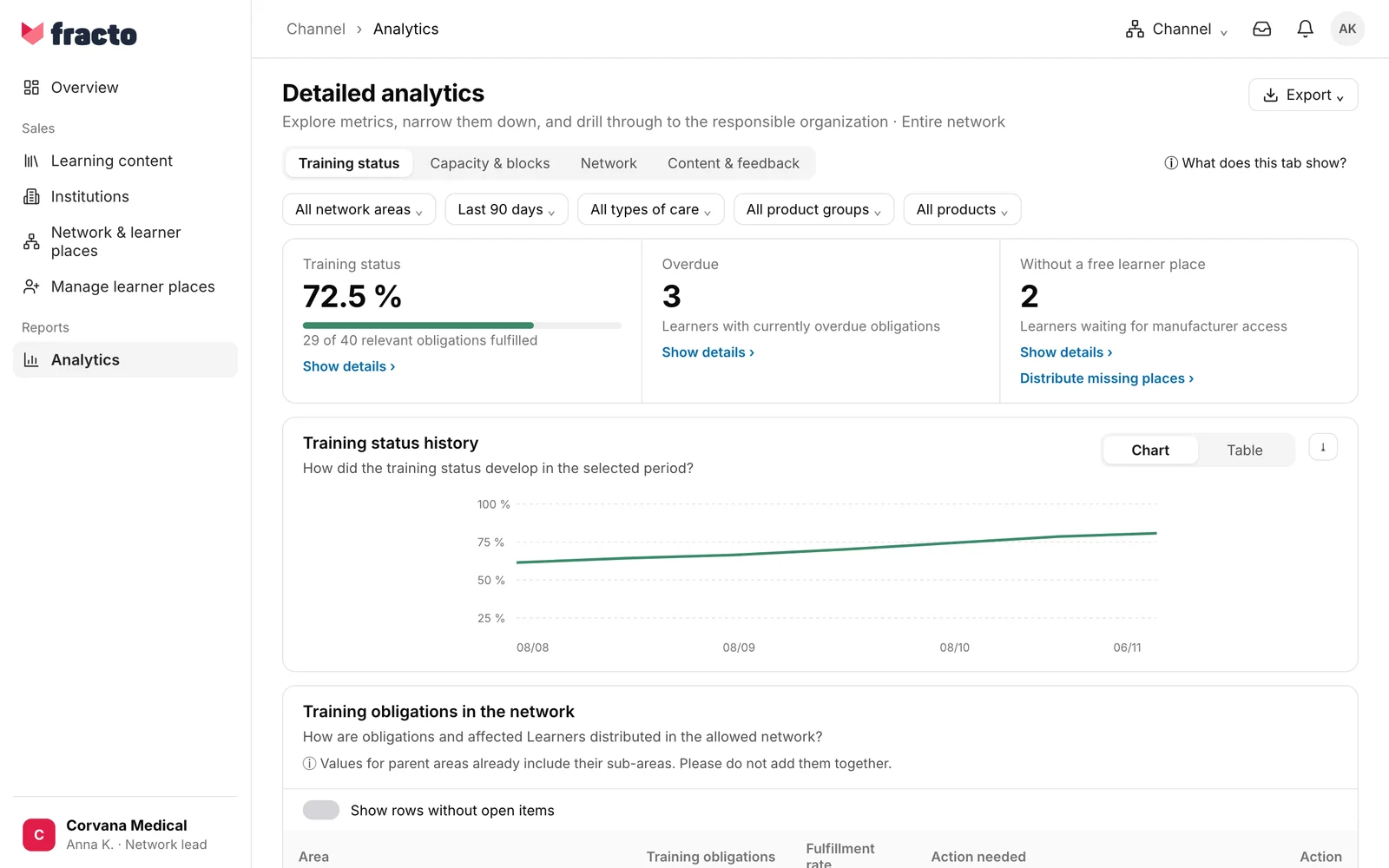
In Channel, open Analytics. The Training status tab is selected. Next to it are Capacity & blocks, Network and Content & feedback.
-
Read the three metrics at the top:
- Training status: the share of fulfilled training obligations, with “… of … relevant obligations fulfilled”.
- Overdue: learners with currently overdue obligations.
- Without a free learner place: learners waiting for manufacturer access. If you may distribute learner places, Distribute missing places appears there.
With Show details you jump to the matching table further down.
-
Narrow the analysis with the filters:
- Network scope: All network areas or a single region, team, partner or institution, as far as they are in your scope.
- The period: Last 30 days, Last 90 days (preset), Last 12 months or Learner place period. It only determines the history. The metrics and the table always show the current state.
- The type of care: All types of care, Directly served institutions or Partner-managed institutions.
- All product groups and All products. If you have chosen a product group, you can “include further tags”.
Reset filters restores the preset.
-
Check the history. The block Training status history shows how the fulfilment rate developed over the chosen period, as a Chart or a Table. The time series is reconstructed from the creation, due date and fulfilment of the obligations.
-
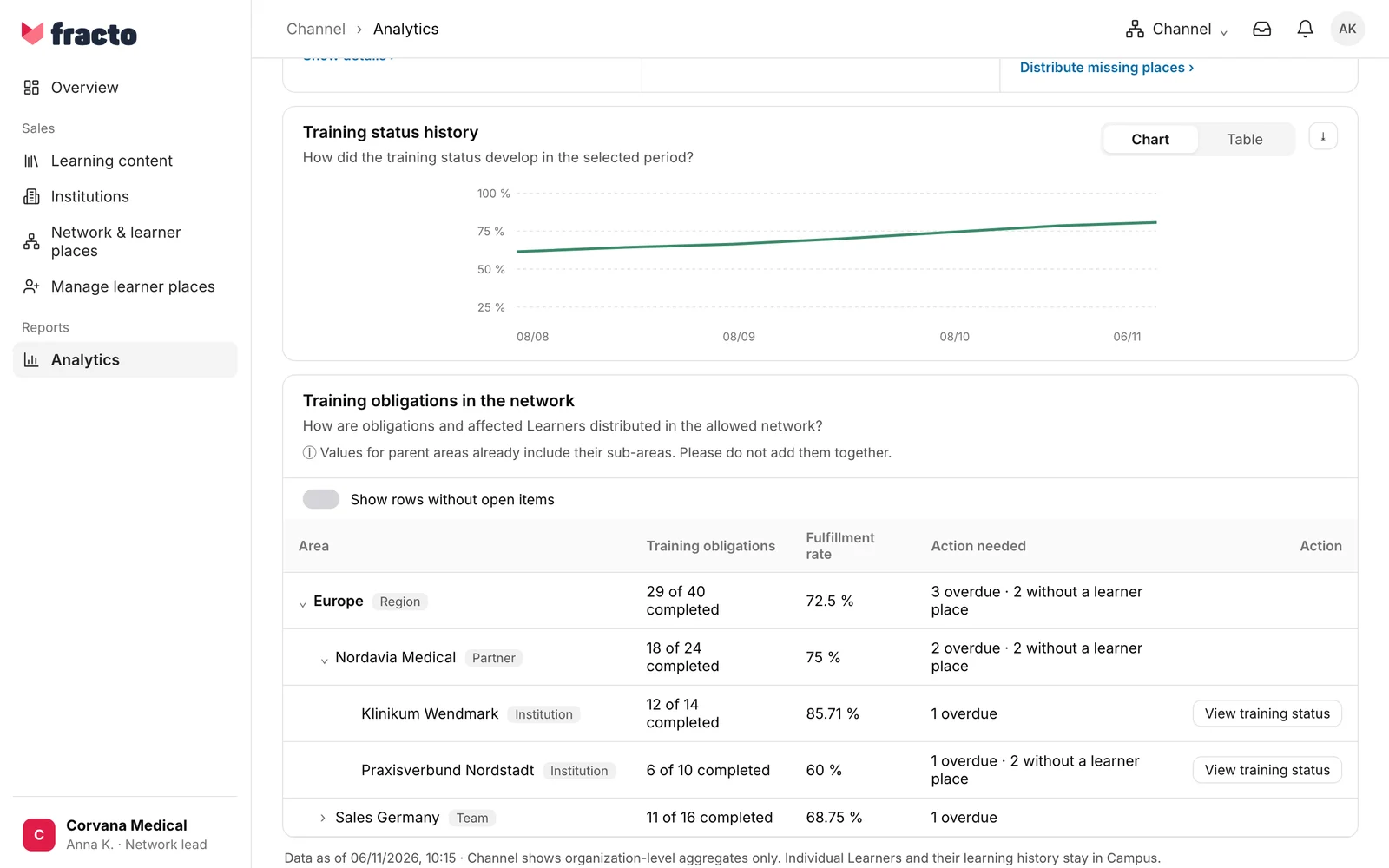
Read the table Training obligations in the network. It is a tree: region, below it team or partner, below that institution. Use the arrow to expand a row. The regions are expanded first. The columns:
- Training obligations: “… of … completed”.
- Fulfillment rate: fulfilled obligations divided by all relevant obligations.
- Action needed: “… overdue” and “… without a learner place”, otherwise “–”. Learners are counted.
-
For an institution, open View training status. The row shows “… of … training obligations completed (…)”, a status (On track or Action needed) and how many learners are Learners fully trained, Learners not started and Learners partially trained, plus of which overdue and of which without an available learner place. If you may see institutions, View institution takes you to the institution.
To tell what you are looking at: the chosen area is shown at the top and the data status with date and time at the bottom. What the other three tabs show is explained behind What does this tab show?.
What to keep in mind when reading
- Do not add them up. The values of a parent area already include its sub-areas. A region summarises its internal teams and institutions. A partner’s row summarises the institutions it supports, not its own employees.
- Obligations are not people. An obligation is a single training requirement. A learner with several trainings counts several times. People in more than one team are counted once per team.
- By default you see only where something is open. Rows without open obligations are hidden (“… rows without open obligations hidden”). Show rows without open items shows them.
- Small groups are protected. Trainings with fewer than 5 learners per institution or team are not counted in the figures. If an institution is entirely affected, it shows Protected and Values protected. If all trainings in the chosen area are that small, the history is hidden too.
If it does not work
| Message | What it means |
|---|---|
| Channel analytics could not be loaded. | The data could not be loaded. Try again loads it once more. |
| This network area is not available to you. | The chosen network area is not in your scope. Choose another one under Network scope. |
| “No results” with the note “There is no action needed in this block for the current filters.” | All rows are fulfilled or hidden. Switch on Show rows without open items to see them all. |
| No obligations | There are no training obligations for this row with the current filters. |
| Data incomplete | The training status cannot currently be fully calculated for this institution (“Projection missing”). |
Checked on 6 November 2026 against the current Fracto release.
