
Remove or pause access
How to pause or end a person's work access in Hub, or revoke all their tasks, and what happens to the seat, the account and appointments.
You have three options when a person should stop working, or stop for a while: pause their work access, revoke all their tasks, or end their work access. All three apply to your workspace only.
Before you start
- You have the Administer workspace task in Hub. Otherwise the server rejects the change. Fracto Support sees the page read-only.
- The person has current work access in your workspace, active or paused. This does not work for an open invitation without any other access. Withdraw the invitation instead (see Invite a person with a role and tasks). If the person only has appointments from Channel or Campus, End work access is still available. An open invitation is then withdrawn with it.
- The workspace needs at least one other active administrator afterwards. The last one cannot be paused, ended, or removed by revoking their tasks.
| Option | Tasks | Seat | The person |
|---|---|---|---|
| Pause work access | the tasks assigned in Hub stay stored but are blocked | stays occupied | cannot use these tasks until you resume. Appointments from Channel or Campus stay effective. |
| Revoke all tasks | are revoked | is released | stays a member and returns to the waiting room |
| End work access | are revoked | is released | no longer has work access in your workspace. You invite them again to work together later. |
How to pause or end work access
-
In Hub, open People & access and, on the Work access tab, open the person.
-
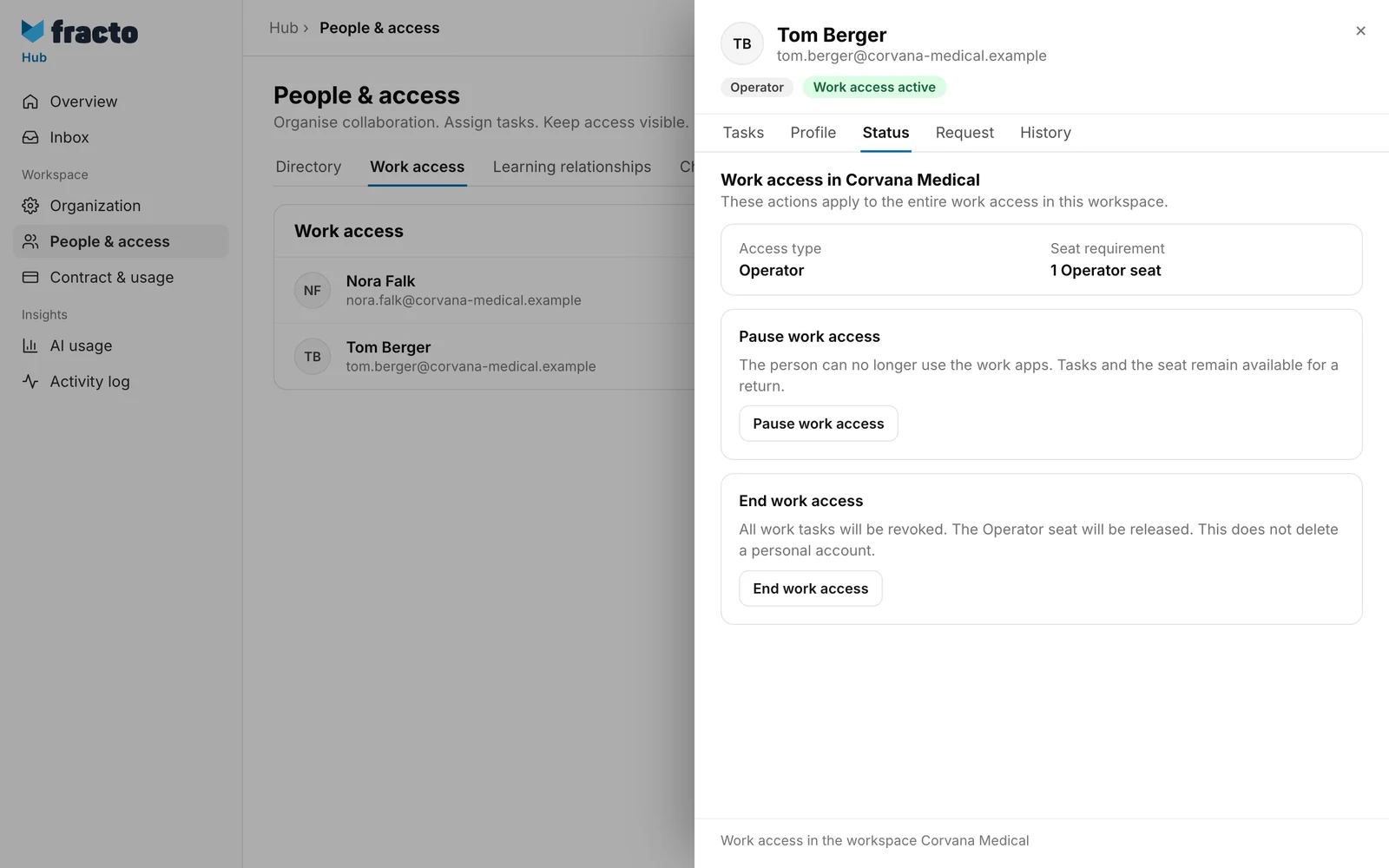
In the person’s panel, switch to the Status tab. Under “Work access in …” you find the cards Pause work access and End work access. The pause card only appears if the person has tasks. If access is already paused, it reads Resume work access.
-
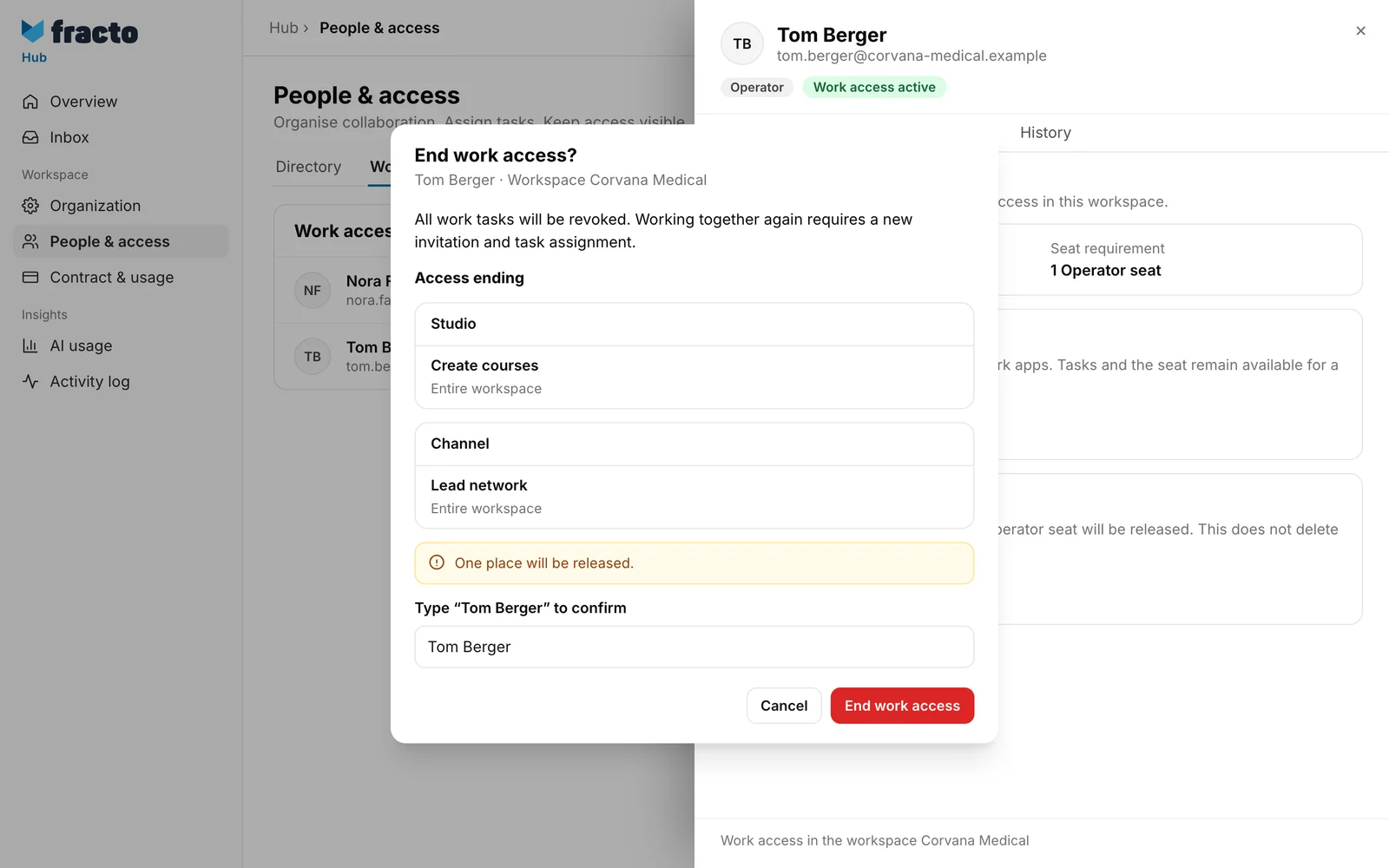
Click the button on the card: Pause work access, Resume or End work access. Fracto shows what will happen: which tasks are revoked, whether a seat is released, and what stays.
-
To end access, type the person’s name to confirm (“Type … to confirm”). Only then is End work access active in the dialog. Pausing and resuming need no input.
-
Confirm with the button in the dialog.
How to revoke all tasks
- Open the person as above and stay on the Tasks tab.
- Under “Change access type”, click Revoke all tasks. The dialog lists the tasks under “Access ending” and says how many places are released.
- Confirm with Revoke all tasks.
Only the tasks you assigned in Hub are revoked. Appointments from Channel or Campus stay (“Access remaining” in the dialog). Manage them in the respective app.
How you know it worked
- Fracto shows the message “The change was saved.”
- When pausing, the Tasks tab shows the notice “The tasks are recorded but currently blocked. The seat remains occupied during the pause.”
- After Revoke all tasks, the person shows No work access yet.
- After ending, the list switches to the archive view and shows the person there. On the Status tab it says “Work access has ended. Previous changes remain traceable in the history.” with the button Invite again.
- Each change appears in the Activity log as “Work access paused”, “Work access resumed” or “Work access ended”, and after Revoke all tasks as “Work access changed”.
What happens next
- Pausing: The tasks you assigned in Hub are blocked and stay stored for the return. Appointments from Channel or Campus stay effective (“Access remaining” in the dialog). The seat stays occupied. When you resume, Fracto first checks that the seat is still there. If not, nothing changes.
- Ending: All tasks this workspace manages end, including appointments from Channel or Campus. The seat is released. An open access request from the person is cancelled. The person’s personal account and separate learning relationships stay.
- Notifications: If the person had an open access request when you end the access, the request is cancelled and the person is notified. If you change an administrator’s access with Revoke all tasks, the other active administrators receive a fixed message in the app.
- API tokens: Fracto does not revoke the person’s tokens. They still show as Active in the list. A token acts with the rights its owner has at that moment. For rights the person keeps, for example appointments from Channel or Campus, it therefore keeps working. If the rights are missing, the interface answers with 403 ACCESS_DENIED. After resuming or a new invitation, the same token works again. So revoke tokens yourself, see Create API tokens.
If it does not work
| Message | What it means |
|---|---|
| Assign workspace administration to another person first. | The person is the last active administrator. Usually the buttons are already blocked, with the notice “… is the last active Workspace admin.” The message appears only if the state has changed in the meantime. First give Administer workspace to another person. |
| No operator seat is available. Nothing was changed. | When resuming, the seat has been taken in the meantime. Request more through Manage seats. For contributors the message reads “No contributor seat is available. Nothing was changed.” |
| Work access already has this status. Load the current state. | Someone else has already paused or resumed the access. Reload the page. |
| This person has no current work access in this workspace. Load the current state. | The access has been ended in the meantime, or the person never had it. Reload the page. |
| The invitation is still open. The person must accept it first, or you can withdraw it. | An open invitation cannot be paused or ended. |
| Another active administrator must change your access. Please contact another administrator in this workspace. | You tried to change your own access, for example with Revoke all tasks, although another administrator exists. That person has to do it. |
For other errors the access stays unchanged. Reload the page and try again.
Checked on 6 November 2026 against the current Fracto release.
