
View and share credentials
How to see your certificates and completions in the Player, download the PDF, share a credential and refresh it in time.
Under Credentials you find your certificates and completions. They belong to your personal Fracto account and stay even if your institution changes. The original issuer remains visible on each credential.
Before you start
- A certificate is issued when you pass the final exam of a course with a certificate or, depending on the course, complete the course. It is issued afterwards and can take a moment. See “Take the final exam”.
- Besides certificates, this page lists completions without a certificate, for example from live trainings, recordings or courses without a certificate. They carry the mark Completion and have neither an issuer nor the buttons PDF, Share and Verify authenticity.
- Sharing via LinkedIn opens LinkedIn in a new tab.
How to see your credentials
-
In the sidebar, open Credentials. Three numbers are at the top: Credentials in total, Valid and Expiring soon. Credentials counts certificates and completions together, Valid only certificates. A valid certificate counts as expiring soon if it expires within the next 60 days.
-
If a certificate expires soon, a notice above says so, for example “CardioPulse D200 · Operation and safety expires in 41 days”. It adds: “Refresh them in time.” The note in the app that the current one stays valid until the refresher course is completed applies only up to the expiry date of the current certificate.
-
In the All institutions menu, choose an institution. Most recently earned and By institution change the sort order.
-
Each certificate row names the course, the status, the issuer, “Earned at: …” with the date and, if the certificate has an expiry date, “valid until …”. Without an expiry date it says “valid indefinitely”; for a revoked certificate no validity is shown. A certificate is valid until the date in the row. After that, the verification page shows it as “Expired”.
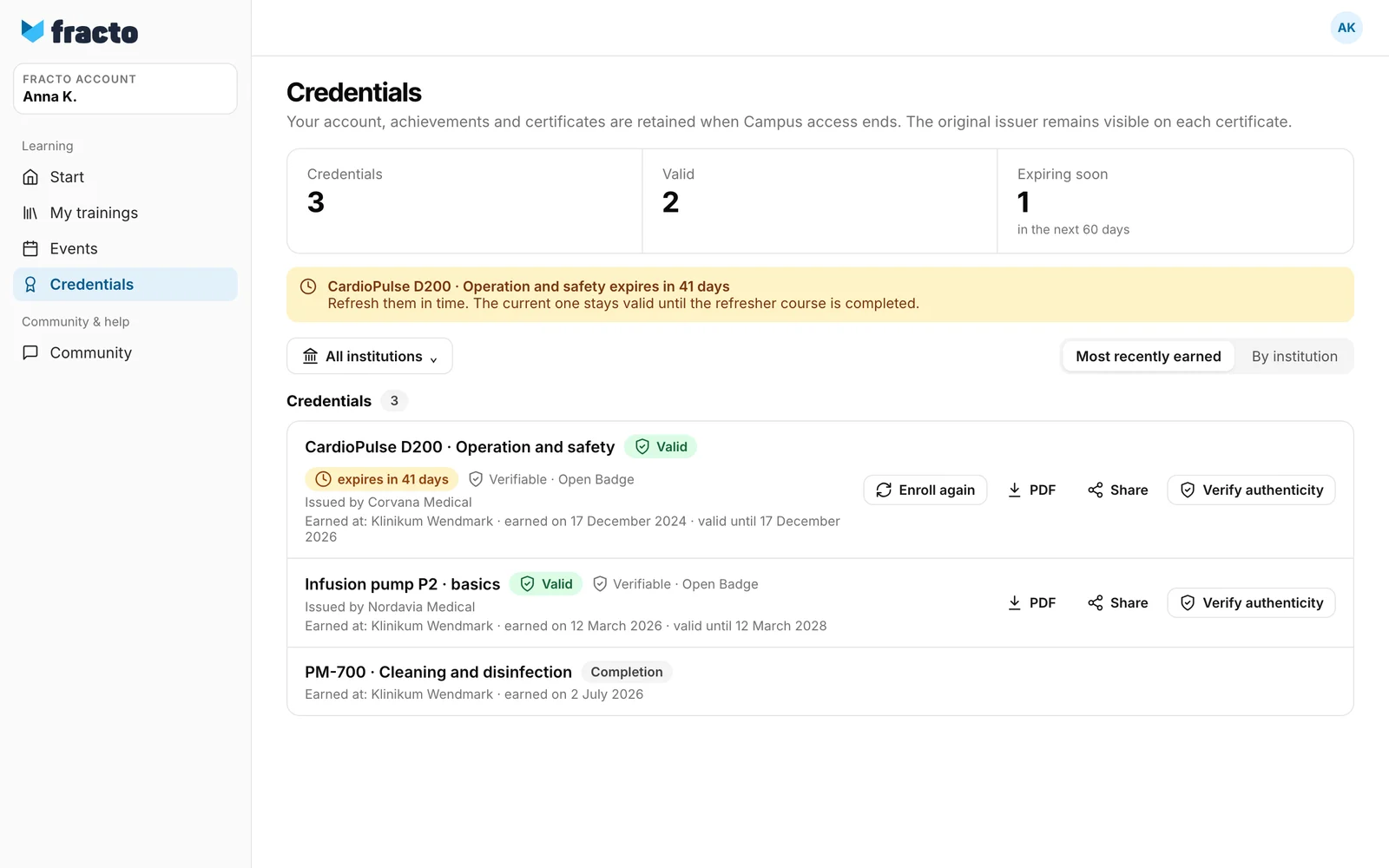
The status marks mean:
| Mark | Meaning |
|---|---|
| Valid | The certificate is valid until the date in the row. |
| Replaced by a newer one | There is a more recent refresher of the same qualification. |
| Replaced by reset | Your course was reset. A new certificate is issued only after you complete it again. |
| Revoked | The issuer withdrew the certificate. It is not valid. |
Download the PDF, share and verify
-
In the row, click PDF to download the certificate as a file. The button exists for certificates with the status Valid and Replaced by reset. While loading, it says “Loading PDF …”.
-
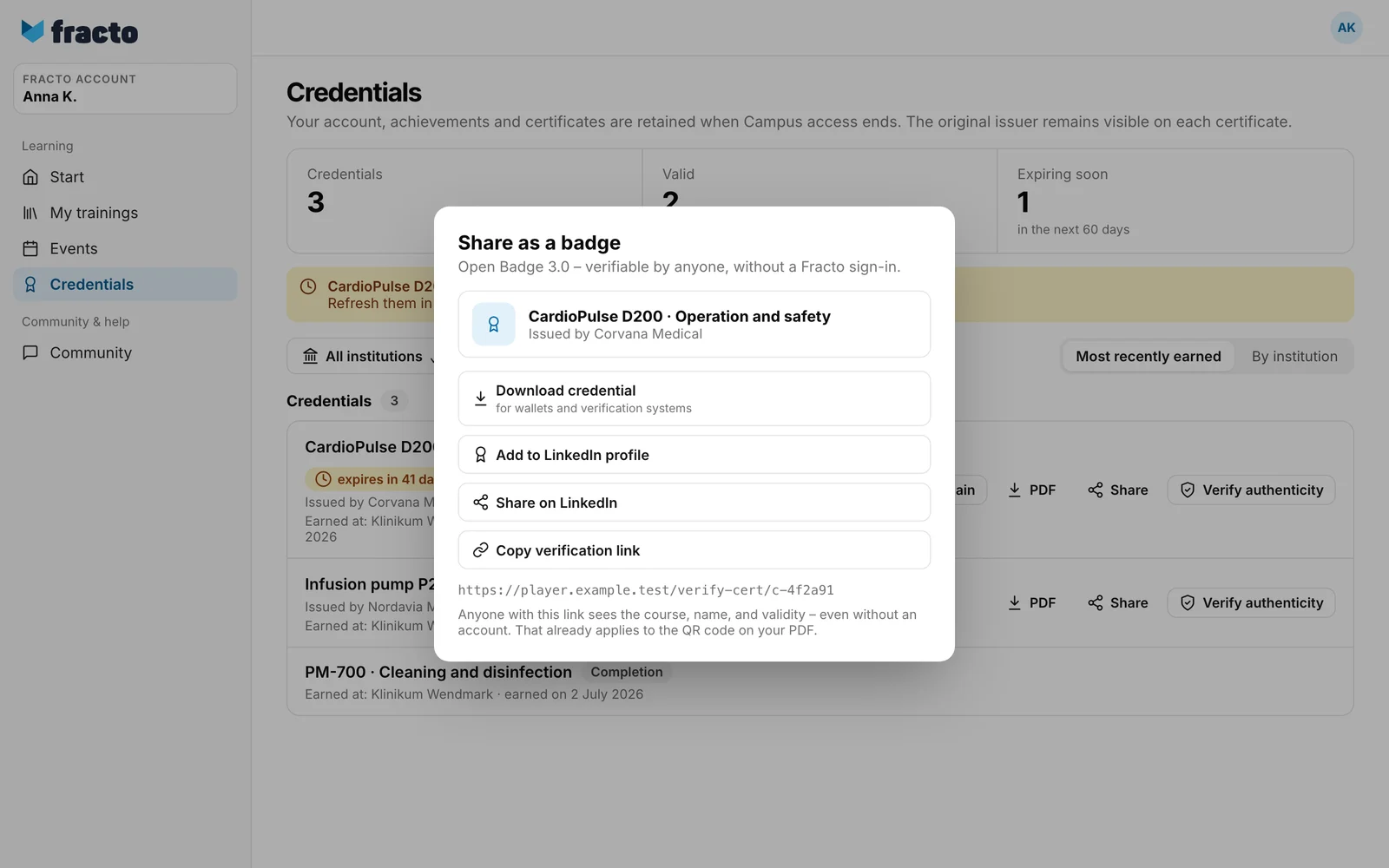
Click Share. For a certificate with the mark Verifiable · Open Badge, Share as a badge opens with these options:
- Download credential saves a badge in the Open Badge 3.0 format, “for wallets and verification systems”.
- Add to LinkedIn profile opens LinkedIn with course, issuer, issue date, expiry date if there is one, and verification link.
- Share on LinkedIn shares the verification link.
- Copy verification link copies the address to the clipboard. It then says “Link copied”.
For other credentials, the dialog is called Share and offers only the two LinkedIn options and copying the verification link. Every certificate can be shared, even a revoked or replaced one. Whoever opens the link then sees “Revoked”, after the expiry date “Expired”, or the replacement note.
-
Verify authenticity opens the verification page for this credential. It opens in the same window and shows, without a sign-in, the course, graduate, issuer, issue date, validity and verification ID, whether the credential is genuine and who holds it. It deliberately does not show where the person works. This also works for revoked and replaced credentials.
You know it worked when the PDF is in your downloads, or the verification link is copied and opens the verification page.
What happens next
- Anyone with the verification link sees the course, name and validity, even without an account. That already applies to the QR code on your PDF. You cannot withdraw the link individually.
- Add to LinkedIn profile is a link that your browser opens. It contains the course name, issuer, month and year of issue, month and year of expiry if there is one, the verification link and the verification ID. What LinkedIn shows with it is up to LinkedIn.
- If a valid certificate with an expiry date expires within the next 60 days, the row shows Enroll again. One click starts a new run of the same course in the current version and adds it to your learning list: “The refresher course was added to your learning list.” This works only with an active membership in an institution. The old certificate stays valid until its expiry date. If you complete the new run before then, the new certificate replaces it. After the expiry date the button disappears.
If it does not work
| Message | What it means |
|---|---|
| No credentials yet | You have not completed a course or live training yet. Your completed courses, live trainings and certificates appear here. |
| Your credentials could not be loaded. Please try again later or contact support. | The page did not load. Reload it later. |
| The PDF download failed. Please try again. | Click PDF again. |
| Renewal failed. | The new run was not created. Click Enroll again again. If it fails again, contact your institution. |
| Your publisher is still setting up the certificate. It will appear here later. | On a Completion: the course provider has not yet published the certificate design. The certificate follows later. |
| Your certificate will be issued once your job title has been entered. Please contact your training manager. | On a Completion: your job title is still missing. |
| No PDF or Download credential button | The PDF exists only for Valid and Replaced by reset, not for Replaced by a newer one and Revoked. The badge exists only for Valid, and only if the environment can sign it. |
Checked on 6 November 2026 against the current Fracto release.
