
Sign in and reset your password
How to sign in to Fracto with a sign-in code by email or with a password, and how to reset a forgotten password.
You sign in to Hub, Studio, Channel and Campus with the same email address. There are two ways: a sign-in code by email, or your password. You reset a forgotten password with a link in an email.
Before you start
- You have a Fracto account. For work accounts, it is created when you accept an invitation.
- The sign-in code, the reset email and the security emails go to the main address of your account. This also applies if you enter another address of your account when you sign in. The sign-in code always arrives in the language of your account, in German if you have not chosen one. The reset email and the security emails arrive in your language as far as the workspace you last worked in allows it, otherwise in that workspace’s default language.
- The sign-in code goes only to accounts with work access, that is, with a task in Hub, Studio, Channel or Campus. Someone who only learns and is a member of an institution gets an email that points to the Player instead. An account with neither gets no email at all. Learners sign in to the Player. On the sign-in page, the link Go to the Fracto Player leads there.
- The sign-in code is valid for 10 minutes.
Sign in with a sign-in code
-
Open the Fracto sign-in page.
-
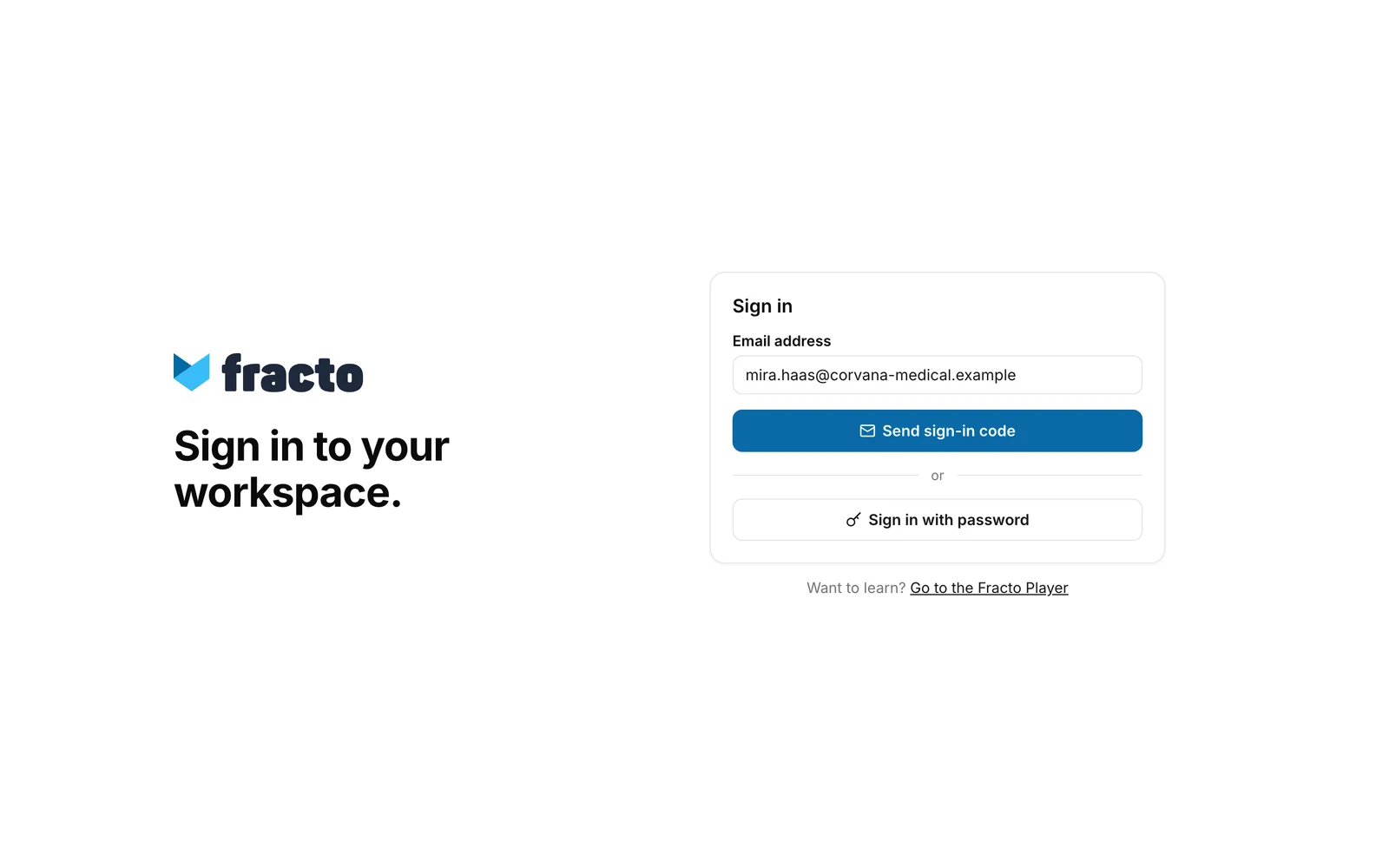
Enter your Email address and click Send sign-in code.
-
Fracto shows Enter sign-in code and “We sent a six-digit code to ….” This page also appears if there is no account for the address. If the address belongs to an account with work access, the email with the code arrives. It consists of six characters, letters and digits. Upper or lower case does not matter, and you can paste the code from the email.
-
Enter the code in the field Confirmation code (six boxes) and click Confirm and sign in.
If no code arrived, check the inbox of the main address and your spam folder. Resend code requests a new one. The previous code stays valid until it expires. Back takes you back to change the address, Sign in with password switches the method.
Sign in with a password
- On the sign-in page, click Sign in with password.
- Your Email address is already filled in and cannot be changed here. Back takes you one step back.
- Enter your Password. Trust this device is ticked. Untick it if you are not on your own device.
- Click Sign in.
Two-factor confirmation
If your account has two-factor authentication turned on, the Two-factor confirmation page follows the password or the sign-in code.
- Under Confirmation code, enter the six-digit code from your authenticator app.
- If you do not have the device with you, click Use recovery code and enter one of your recovery codes under Recovery code. Each code works only once.
- Click Confirm.
If you signed in with a password and left Trust this device ticked, Fracto does not ask for the code on this device for 30 days when you sign in with a password again. If you sign out, Fracto asks again next time. When you sign in with a sign-in code, Fracto always asks. To turn on two-factor authentication, see Set up two-factor authentication.
Afterwards
Fracto opens the app if you have exactly one work app, otherwise Hub. If you wanted to open a particular page and had to sign in first, Fracto opens that page afterwards. If you sign in with a browser Fracto does not know yet, you get a security email: “Your account was successfully signed in from a newly recognized browser. If this was not you, secure your account.” It does not come for the first browser of an account.
Reset your password
-
On the Sign in with password page, click Reset next to the field. Your Email address is already filled in.
-
Click Send reset email. The page shows Email sent and the address you entered. The email goes to the main address of your account.
-
Open the email and click the link in it. The link is valid for 30 minutes and works once. It opens the New password page.
-
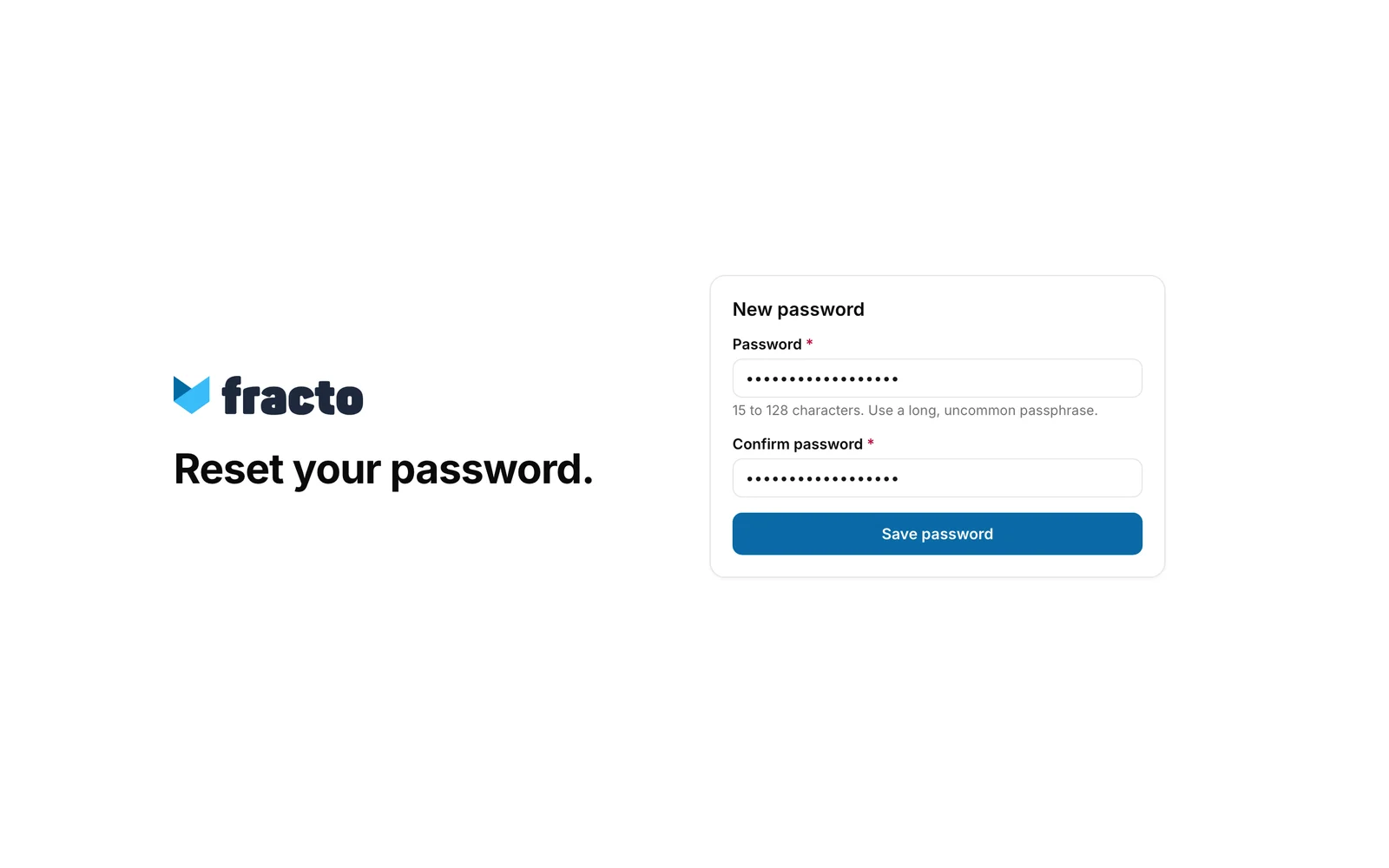
Enter the new Password and repeat it under Confirm password. The password has 15 to 128 characters. Fracto recommends a long, uncommon passphrase.
-
Click Save password.
How you can tell it worked: the page shows Password updated. Back to sign in takes you to the sign-in page.
The message Email sent always appears, even if there is no account for the address. Only if you requested too many emails within an hour does an error message appear instead. If no email arrives, check the address and your spam folder.
What happens after the reset
- Fracto ends all sessions of your account on all devices. You sign in again everywhere.
- You get an email with the subject “Account security notice” and the text “Your account password was changed. If this was not you, secure your account.” It comes in the language of your account, as far as the workspace you last used offers it, otherwise in that workspace’s default language.
If it does not work
The notice “The session has expired. Please sign in again.” is not an error message. It appears on the sign-in page when your session has ended. Just sign in again.
| Message | What it means |
|---|---|
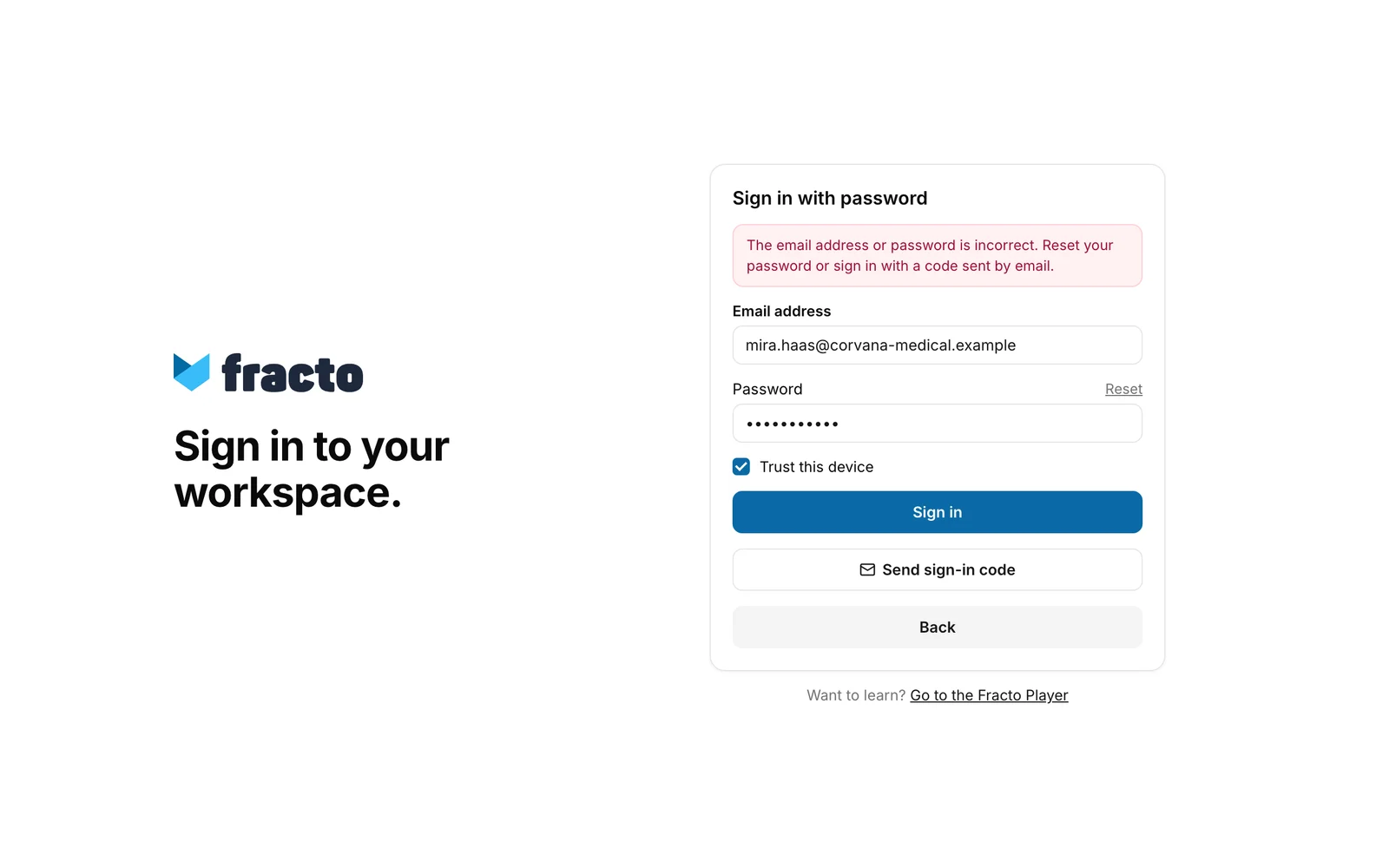
| The email address or password is incorrect. Reset your password or sign in with a code sent by email. | The details do not match. The button Send sign-in code also appears below the message. |
| This code is invalid or has expired. | The code is wrong, older than 10 minutes or already used. Request a new one with Resend code. |
| Enter the complete six-digit code. | Characters are missing from the code. |
| You have requested too many sign-in codes. Please try again in an hour at the latest. | Too many codes were requested for this address within an hour. |
| Too many sign-in attempts. Please wait a while, then request a new code. | Too many attempts in a short time, with a code, a password or a confirmation code. For the sign-in code the block can last up to an hour, and every check counts, not only wrong ones. For a password or confirmation code it is a few minutes. Wait before you try again. |
| The sign-in code could not be sent. | The request did not arrive. Try again. |
| The confirmation code is incorrect. | The code from the authenticator app or the recovery code is wrong. The app’s code changes every 30 seconds. The same message appears if you were on the Two-factor confirmation page for more than 5 minutes. Click Back and sign in again. |
| Open the invitation link from your email to activate access. | Your account has an invitation you have not accepted yet. Open the link in the invitation email. |
| The passwords do not match. | The two entries for the new password differ. |
| Use at least 15 characters. | The new password is too short. |
| Use no more than 128 characters. | The new password is too long. |
| This password is too easy to guess. Use an uncommon passphrase. | The password is too weak. Choose a longer, more uncommon passphrase. |
| This link is missing the required security code. | The link from the email is incomplete. Open it again in full or request a new one. |
| The password could not be reset. | The link has expired or was already used. Request a new one with Reset. |
| The reset email could not be sent. | The request did not arrive, or too many emails were requested for this address in the last hour. Wait a while and try again. |
On the Sign in with password page, the button Send sign-in code appears only after a rejected sign-in.
Checked on 6 November 2026 against the current Fracto release.
