
Institution and branding
How to see your institution's master data in Campus and set the logo and accent colour for your institution's emails and registration page.
Under Our institution you see your institution’s data and decide how it appears in Campus: with a logo and an accent colour.
Before you start
- You can change this with the task Manage Campus. With Manage department you only view the page: View only is shown above it, and you see the tabs Master data, Branding and Training records & privacy.
- With Manage Campus there are also the tabs Message templates, Lecturers and Access & registration. They are not covered in this article.
- Have the logo ready: PNG, JPEG or SVG, up to 512 KB. A square image of 512 × 512 pixels with a transparent background is recommended.
View master data
The Master data tab shows the section Organization (Legal name, Short name, Legal form, Description) and the sections Address, Public contact channels and Responsible contacts. If you have the Hub task Administer workspace, a note appears here that the data is maintained centrally in Organization & Settings, with the button Edit in Organization & Settings. If the master data is maintained in Campus, Edit appears at the top right. Otherwise you only view the data. What is not filled in shows as “Not on file”.
How to set logo and colour
-
In Campus, open Our institution and the Branding tab.
-
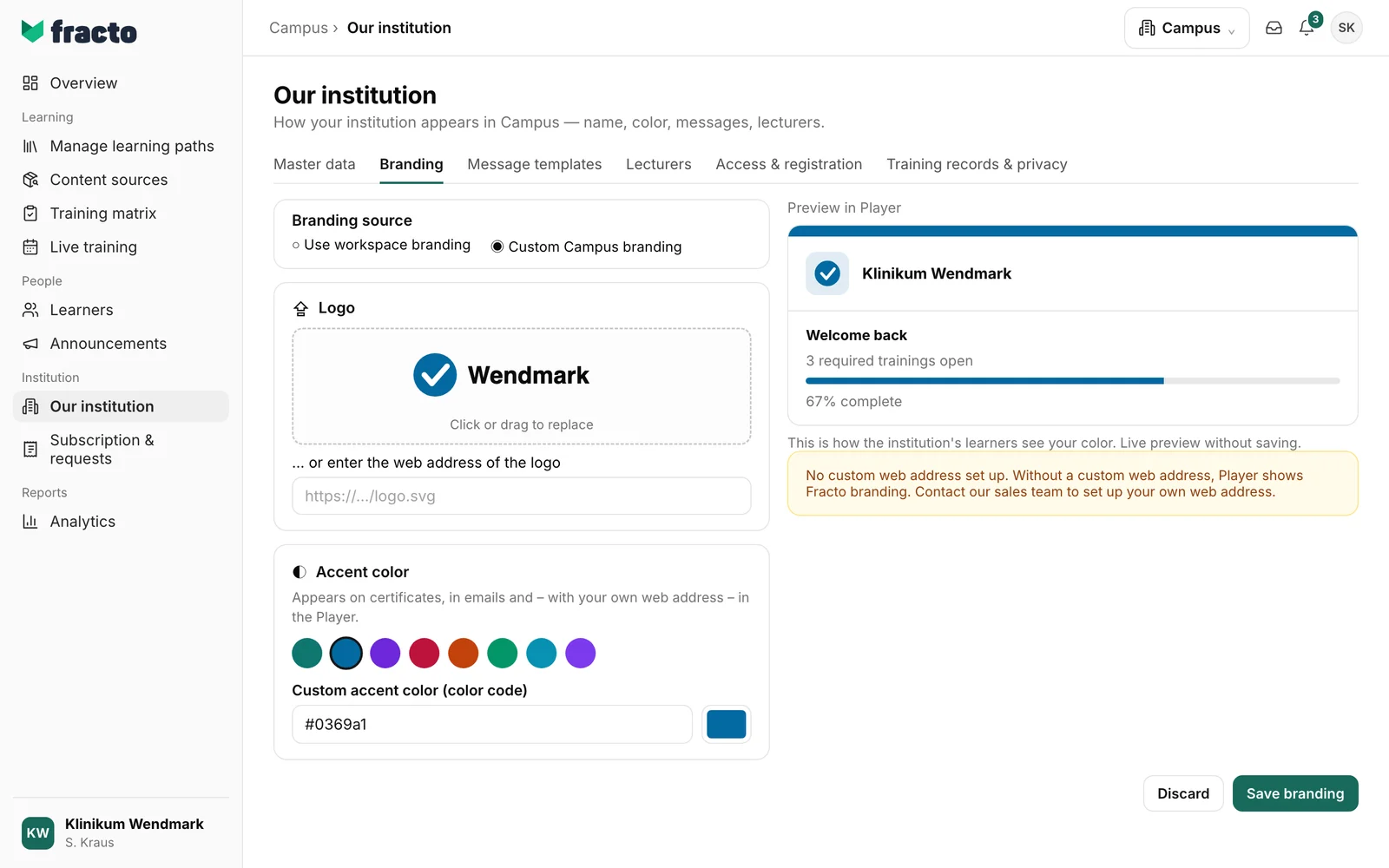
Under Logo, click Upload logo or drag the file in. Campus does not accept the field “… or enter the web address of the logo” when saving; always upload the logo as a file. The logo appears in the preview. Remove logo takes it out again.
-
Under Accent color, choose one of the eight colours or enter a colour code such as
#1A73E8under Custom accent color (color code). The field next to it opens a colour picker. -
Check the Preview in Player. It shows your institution name, the logo and the colour live, without saving.
-
Click Save branding. Discard resets to the saved state. Both buttons are active only once you have changed something.
If the colour is hard to see on light surfaces, Campus warns: “This color may be hard to see on icons and controls against light surfaces (contrast 2.1:1, recommended minimum 3:1).” You can still save.
If your institution has Campus Full and belongs to a workspace, Branding source appears at the top: Use workspace branding or Custom Campus branding. With workspace branding, logo and colour are locked and come from the workspace. Without Campus Full there is no such choice, see Campus Light and Campus Full.
What happens next
- Logo and colour appear in your institution’s emails and on your institution’s registration page.
- In the Player, learners see your logo only under a custom web address. Without one, the Player shows Fracto branding. The Preview in Player therefore shows how it would look with a custom web address, not what learners see today without one. Below the form, Campus always says “No custom web address set up.” and “Without a custom web address, Player shows Fracto branding. Contact our sales team to set up your own web address.”, even if there is one. With Campus Full, a workspace administrator sets up custom domains in the Hub, see Connect your own domain.
If it does not work
| Message | What it means |
|---|---|
| Only image files (PNG, SVG, JPEG) are allowed. / Only PNG, SVG, or JPEG allowed. | The logo has another format. |
| File is too large. Please upload a smaller logo. | The logo is larger than 512 KB. A message with the exact KB values appears if the browser checks the size before uploading. |
| Image dimensions are too large (max. 4096 × 4096 pixels). | The image has too many pixels. |
| Logo could not be uploaded. | A general error. Try again. |
| Please enter a valid color code such as #1A73E8. | The colour code needs # and six characters from 0–9 and A–F. |
| Please check the logo URL. | Campus does not accept a logo address from the internet. Upload the logo as a file. |
| Please enter a complete logo URL starting with http:// or https://. | The address in the field “… or enter the web address of the logo” is incomplete. Clear the field and upload the logo as a file. |
| Please check the highlighted fields. | At least one field is invalid. It is highlighted. |
| No permission to save. | Your task Manage Campus has been withdrawn in the meantime. Without the task, the button does not exist. |
| Branding could not be saved. | A general error. Try again. |
Checked on 6 November 2026 against the current Fracto release.
