
Switch workspace
How to switch between your workspaces, accept a pending invitation and find the entry when it is missing.
If you work in several workspaces, switch in the sidebar without signing in again. You also accept a pending invitation to another workspace there.
Before you start
- The Workspaces entry only appears if you work in at least two workspaces or have a pending invitation. With one workspace and no invitation it is missing.
- It appears in Hub, Studio, Channel and Campus. The Player has no workspace switch. If you learn, you have one account and see all your institutions there.
- The list depends on the app. In Campus it shows workspaces where you have a Campus task. In Hub, Studio and Channel it shows workspaces where you have at least one task outside Campus. A workspace where you no longer have an effective task, or no task yet, is not in the list, even if you were invited.
- Which tasks you have where is decided by the workspace admin, see Fracto at a glance: apps and roles.
How to switch workspace
-
At the bottom of the sidebar, find the row Workspaces. A number on the right counts your workspaces plus the pending invitations. On narrow screens, first open the menu at the top left (icon with three bars, Open navigation); the row is at the very bottom. In manufacturer workspaces, workspace admins see a Campus network row below it. It does not switch the workspace.
-
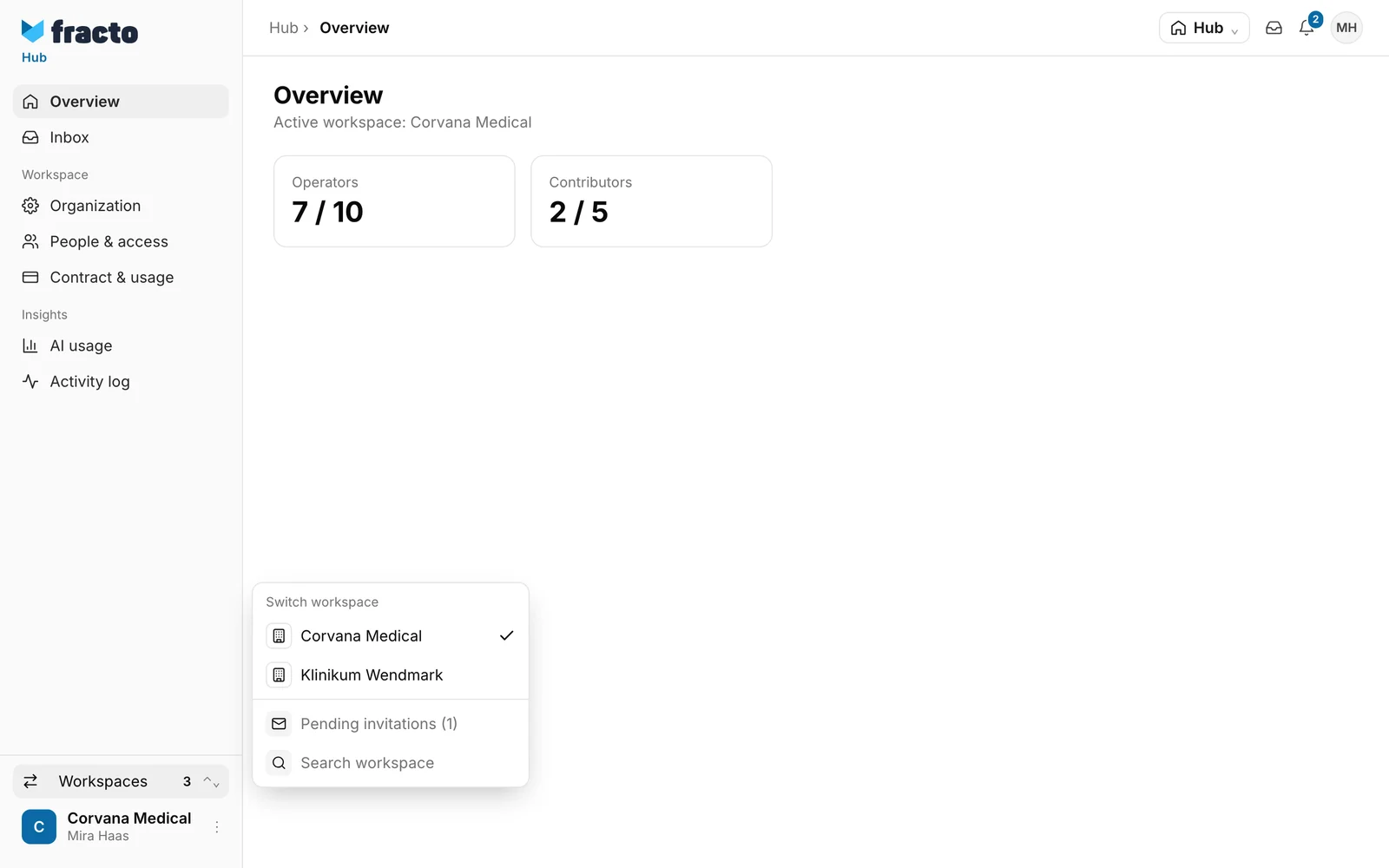
Click the row. A menu opens with the heading Switch workspace. The current workspace is at the top with a tick. The ones you used most recently come next; your browser remembers the order. The menu shows at most seven workspaces.
-
Click the workspace you want. If you have more than seven or look for a particular one, click Search workspace. The window Switch workspace opens with all workspaces. A search field only appears with more than five entries. It searches the name and the short name of the workspace.
-
In the window, the type is under each name: Manufacturer workspace or Institution workspace. The current one says Current; the others have the button Open.
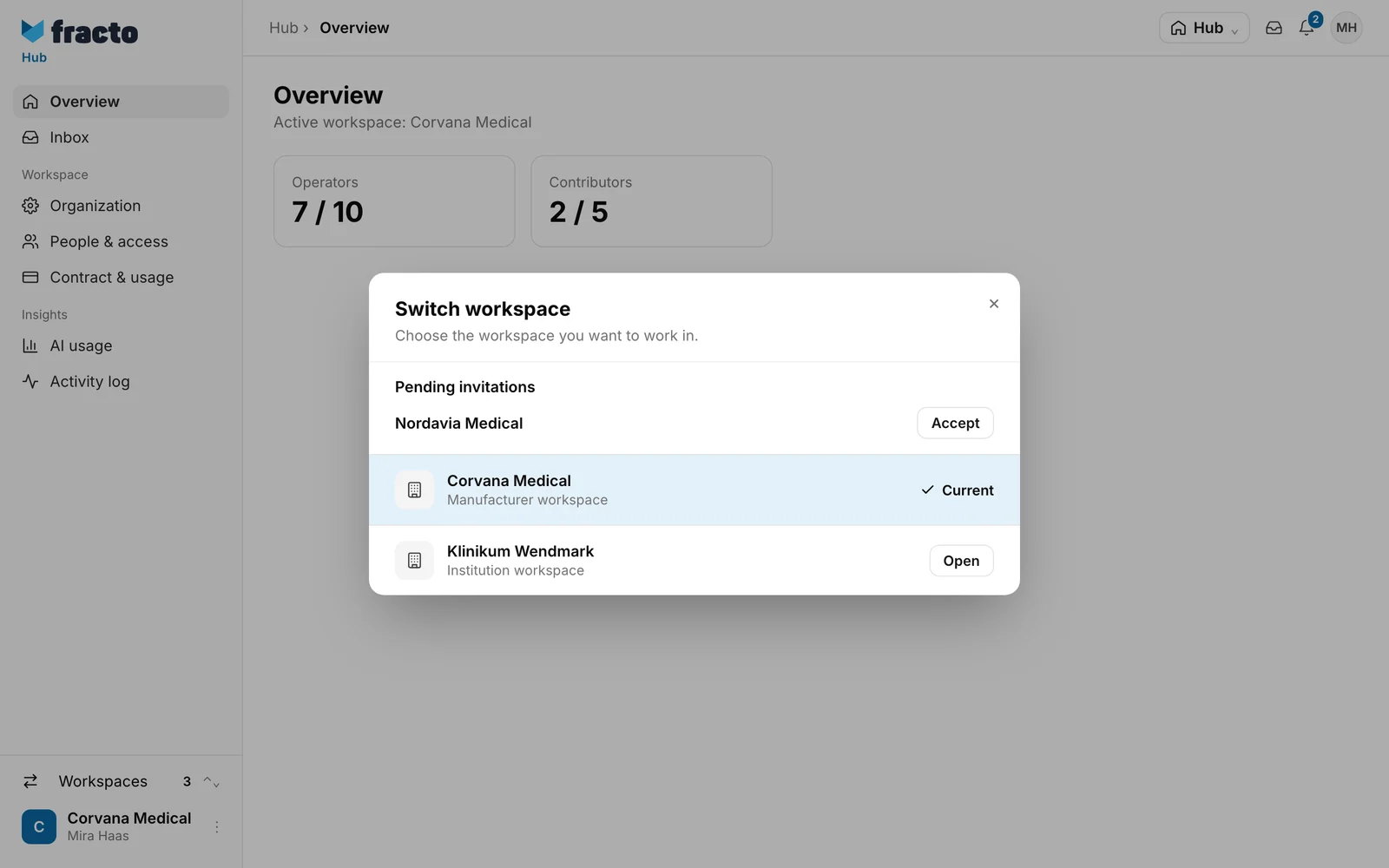
You can tell it worked when the name of the new workspace is at the bottom of the sidebar and carries the tick in the menu.
Accept an invitation
A pending invitation shows in the Workspaces row as the entry “Pending invitations” with the number in brackets, and in the window as the section Pending invitations. Only invitations addressed to your account that are still open and not expired appear. For an invitation sent to an address without an account, use the link in the email, see Invite a person with a role and tasks.
- Open the window through Search workspace or through “Pending invitations”.
- If your account has no name yet, the fields First name and Last name appear next to Accept. Fill in both. Then click Accept next to the name of the inviting workspace.
- Fracto accepts the invitation, switches to the new workspace and opens its start page.
What happens next
- Fracto opens the start page of the workspace: the app if you have exactly one of Studio, Channel or Campus there, otherwise the Hub. If you have only Review courses in Studio, you land in the review assignments. As a partner of a manufacturer, Fracto opens Channel.
- Apps, tasks and the languages you can choose apply per workspace. What you may do in one workspace does not apply in the other.
- Fracto remembers the workspace. The next time you sign in, it opens the one you last worked in, as long as your access there still exists.
- If you work as a partner for manufacturers, those manufacturers are in the list too, as “Partner · for Manufacturer”. If there are only such entries, the row reads “Which manufacturer are you working for?” and the window “Switch manufacturer”.
If it does not work
| Message | What it means |
|---|---|
| The workspace could not be switched. | The message is shown in the window Switch workspace. If you chose in the menu and nothing happens, open Search workspace: the message is there. The switch did not work. Fracto checks again whether your access exists. Try once more. If the message stays, your access may have ended. Ask a workspace admin of that workspace. If your session has expired, Fracto opens the sign-in page instead. |
| The invitation could not be accepted or loaded. Please try again. | The invitation could not be accepted or the list not loaded. Click Try again. If the invitation is still there afterwards, click Accept again. |
| Invitation accepted. Open the workspace or try again. | The invitation is accepted, only the switch failed. Click Open next to the invitation. |
| No workspace found. | The search has no match. Check the name. |
If the Workspaces row is missing altogether, you have only one workspace in this app and no invitation. In Campus only workspaces with a Campus task count, in the other apps only workspaces with a task outside Campus.
Checked on 6 November 2026 against the current Fracto release.
