
Provide a SCORM package
How to provide a finished SCORM package as external content: the path from Studio to the upload in Campus, required fields, limits and messages.
You have a finished SCORM package, for example from another authoring tool. It cannot be imported as a Studio course. In Fracto it runs unchanged as external content in Campus. Studio shows you the way, and you do the upload in Campus.
Before you start
- The package is a .zip file with SCORM 1.2 or SCORM 2004, 500 MB at most. The file imsmanifest.xml is in the root of the archive, and the launch file named in it is in the archive.
- Fracto rejects archives with more than 10,000 files or more than 2 GB unpacked, and archives with encrypted, linked, duplicate or unsafe files.
- The package stays closed. Fracto does not split it into lessons and blocks, and you cannot change it in Studio. No Studio course is created.
- Whoever has the Manage Campus task for the institution in Hub can upload (Campus manager). Anyone who can only view External content sees no upload button.
- A content producer must be set up for the institution. If it is missing, Campus says so when you upload (see below).
- Learners use a learner place for own content for a SCORM package.
How to provide a package
-
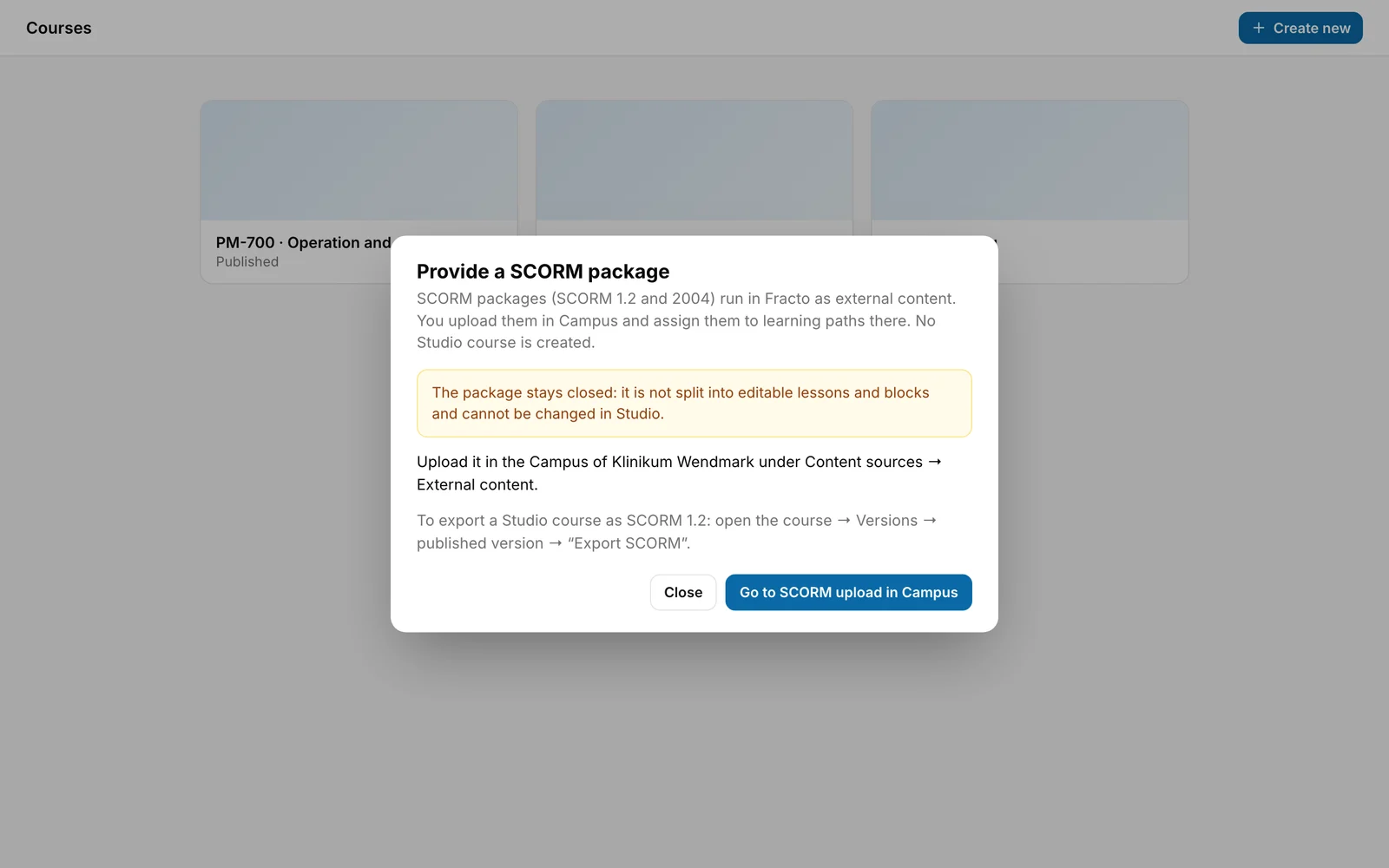
In Studio, click Create new in the course overview and choose SCORM package. The Provide a SCORM package dialog opens. It explains that the package stays closed and names the way to the upload.
-
If you may upload in Campus, it says “Upload it in the Campus of … under Content sources → External content.” Click Go to SCORM upload in Campus. If you have no access to Campus or not the Manage Campus task there, or this cannot be checked, it says instead “You can’t upload SCORM packages in the Campus of …. Ask a person who manages content sources in Campus there (Campus administration) to upload the package under Content sources → External content.” There is no button in that case. Pass the package on to that person.
-
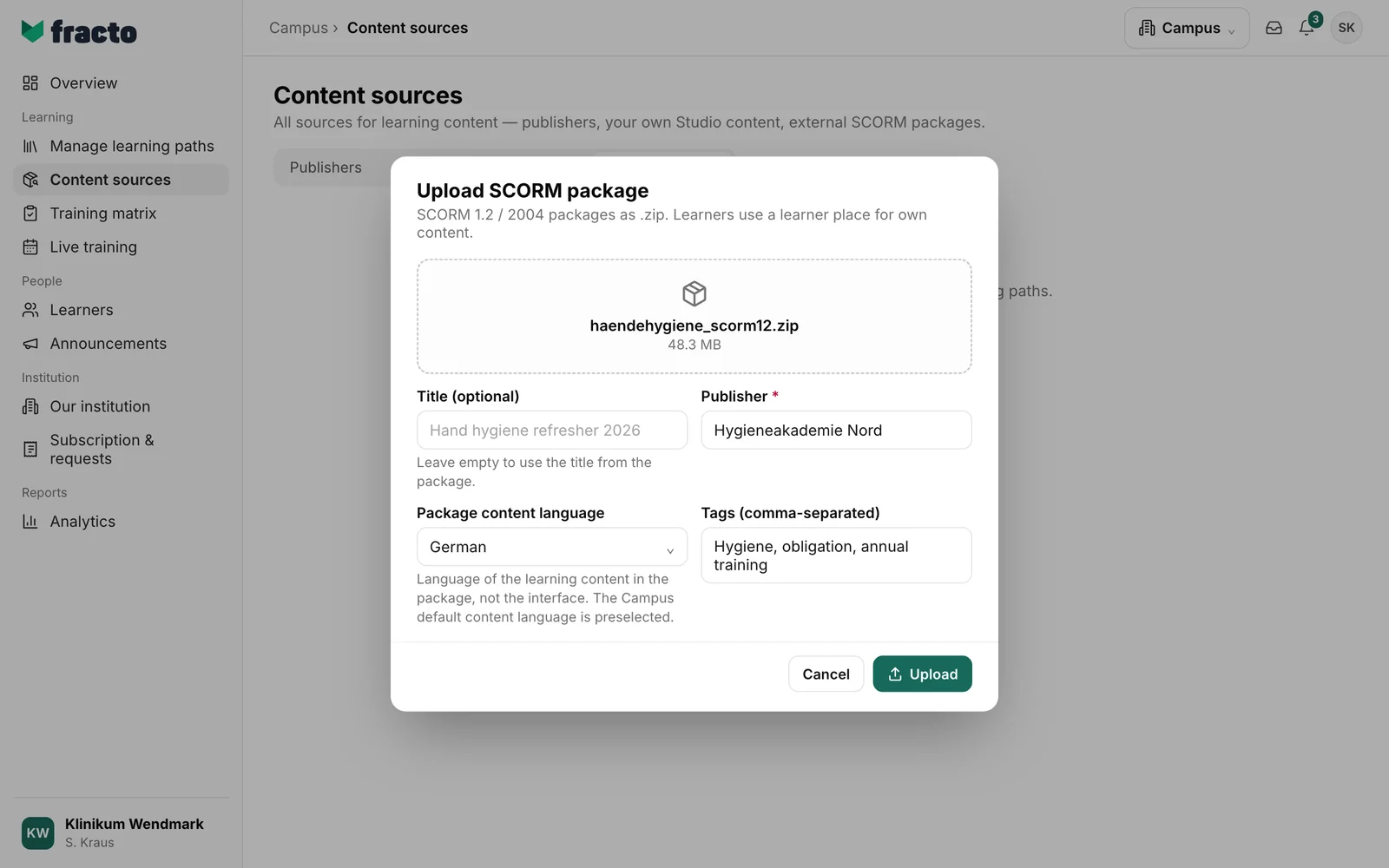
Campus opens Content sources on the External content tab, and the Upload SCORM package dialog is already open. You can also reach it without Studio: Content sources → External content → Upload SCORM package. “Upload a SCORM package” also describes the steps in the dialog. If you look after several institutions, check at the top right in Campus that the right one is chosen.
-
Drag the .zip file into the area or click it (“Drop or click SCORM ZIP”). Afterwards the file name and size are shown.
-
Fill in the fields. Publisher is required. Leave Title (optional) empty and Fracto takes the title from the package. The Package content language is the language of the learning content in the package, not the interface. The Campus default content language is preselected. In Tags (comma-separated), separate the tags with commas.
-
Click Upload. The button is disabled while the file, publisher or language is missing. While uploading it says “Uploading…”.
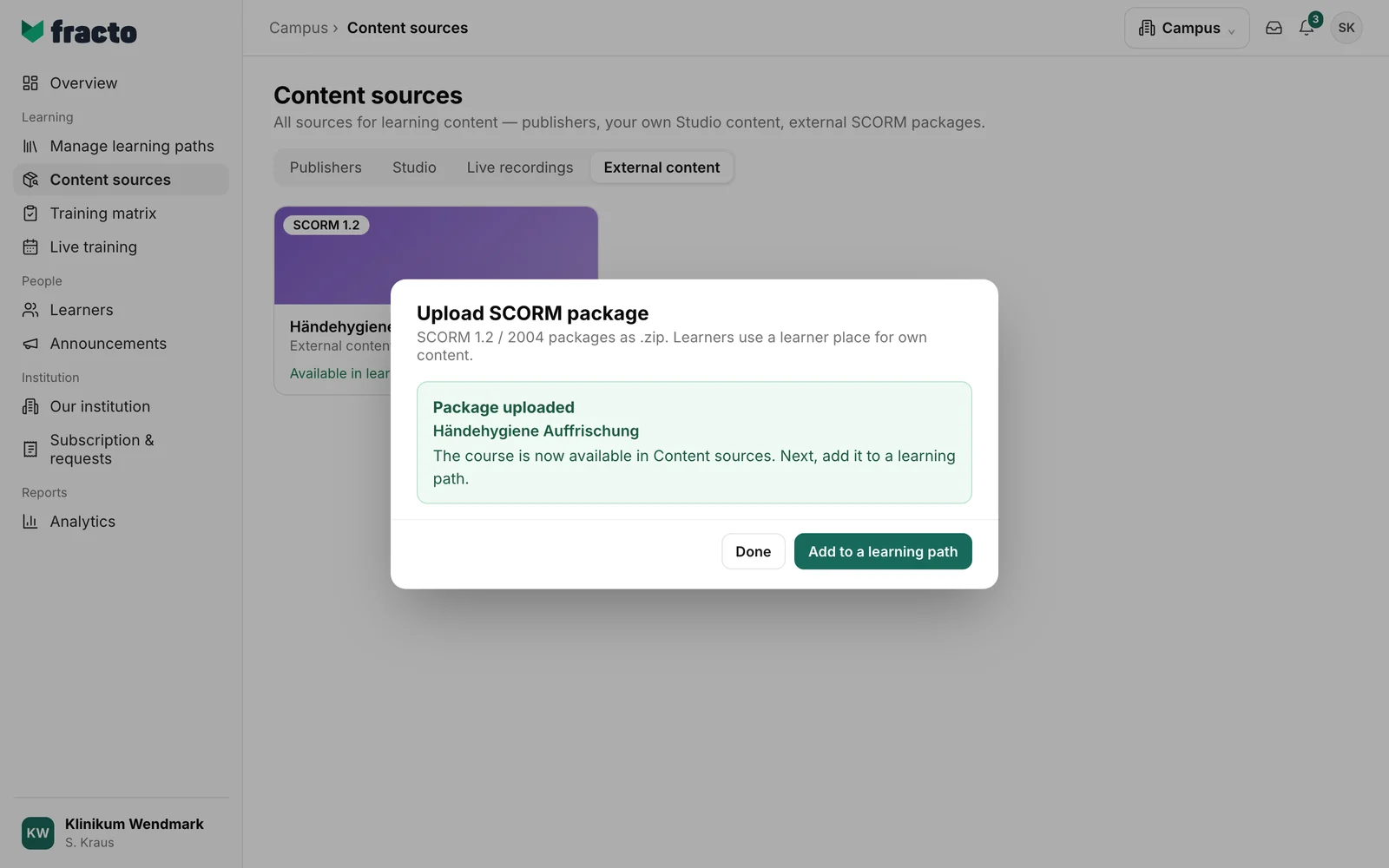
You know it worked when: the dialog says “Package uploaded” with the course title and the note “The course is now available in Content sources. Next, add it to a learning path.” On the External content tab, a card appears with title, publisher, language and “Available in learning paths”.
What happens next
- If you click Add to a learning path, Campus opens Manage learning paths. There you assign the package to a learning path (see “Create a learning path”). Done closes the dialog.
- If you upload the same file for the same institution again, Fracto does not create a second package. The dialog says “Package was already there” and shows the existing course.
- No Studio course is created, and the package cannot be changed in Studio. You change the content in the tool the package comes from and upload the new package.
- “Export a course as SCORM” describes the opposite direction, giving out a Studio course as SCORM 1.2.
If it does not work
| Message | What it means |
|---|---|
| Only .zip files (SCORM 1.2 / 2004) are accepted. | You chose another kind of file. |
| File too large for the SCORM upload. | The package is larger than 500 MB. |
| The ZIP root is missing imsmanifest.xml. Upload a SCORM 1.2 or SCORM 2004 package. | The file is not in the root of the archive, or it is not a SCORM package. If you zipped a folder instead of its contents, zip the contents again. |
| The package is not a readable ZIP archive. Upload a valid SCORM ZIP file. | The archive is damaged. |
| The imsmanifest.xml does not contain a valid launch resource. Export the SCORM package again. | The manifest names no starting point. |
| The launch file referenced in imsmanifest.xml is missing from the ZIP archive. | The launch file from the manifest is not in the archive. |
| The ZIP archive contains encrypted, linked, unsafe or duplicate files. Export the package again. | Fracto rejects the archive for security reasons. |
| The unpacked package, file count or imsmanifest.xml exceeds the allowed limits. Reduce the package size. | More than 10,000 files, more than 2 GB unpacked or a manifest that is too large. |
| The file upload is invalid. Select exactly one SCORM ZIP file. | Exactly one file did not arrive. |
| Check the title, publisher, language and tags. | One of the fields is invalid or too long. |
| No content producer is configured for this institution. Contact your administrator. | The institution cannot take SCORM packages yet. |
| No permission — Producer facet (Studio add-on) required. | You lack the Manage Campus task for this institution. The text of the message names the Studio add-on, but it means the permission. |
| Too many uploads. Please try again in a few seconds. | The server is busy. Wait a moment. |
| Upload failed. | Another error. Fracto also rejects more than five uploads per minute with this message. Wait a minute and try again. |
| External content is not available for this institution. | This message replaces the list, and there is no upload button. The area is not set up for the institution, or you lack the permission to read the learner place status. |
| Learner place status could not be loaded. | Try again loads the status once more. |
Checked on 6 November 2026 against the current Fracto release.
