
Versions and corrections
How the draft, saved versions and published versions in Studio relate, and when a change is a correction or a new version.
Studio has the draft you work on and versions: course states that were saved. Learners never work with the draft. They work with a published version.
Draft and versions
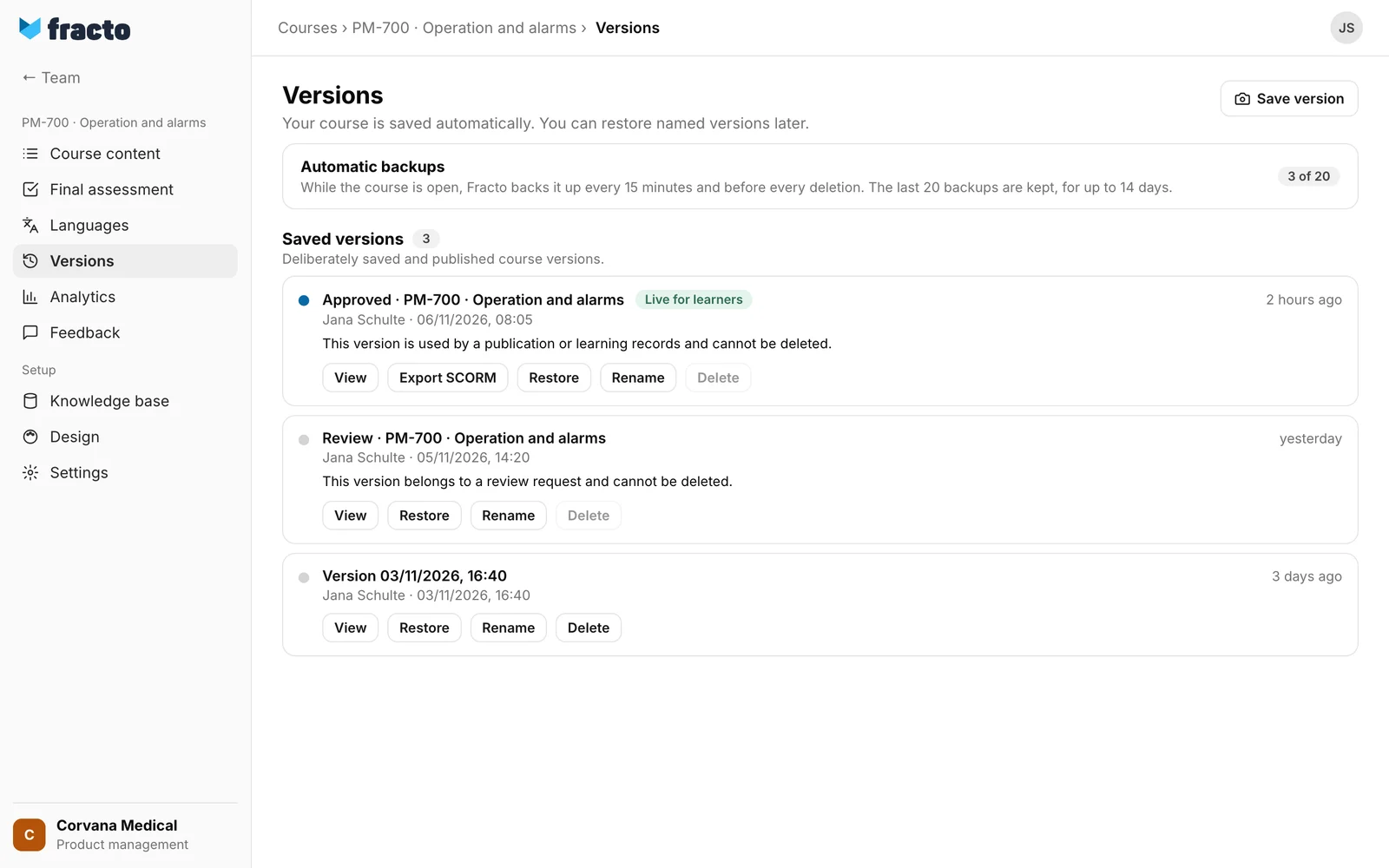
The draft is saved automatically as you work. You find versions under Versions in the course sidebar. There are three kinds.
| How it is created | Name in the list | Notes |
|---|---|---|
| You click Save version | The name you enter, otherwise “Version | You can rename, restore and delete it. |
| You submit the course for review | “Review · | Belongs to the review request and cannot be deleted. |
| You publish the course | “Approved · | The version that is currently live carries the label Live for learners. |
Authors see all versions of their own and team courses. Reviewers see only the versions of their review requests. Above the list are the Automatic backups of the draft. While the course is open, Fracto backs it up every 15 minutes and before every deletion. The last 20 backups are kept, for up to 14 days. With View and restore you bring back a deleted chapter, lesson or block, or you reset the whole course to a state.
Published version and draft
When you publish, a new version is created from the saved draft. If the course requires approval, it is created from the approved version. After that you keep editing the draft. This does not change the published version. If the draft differs from it, Studio shows “You have unpublished changes in this course”. At most one version is in force for learners at a time. A new publication replaces the previous one. After Unpublish, none is.
Correction or new version
When you publish again, Studio opens the dialog Choose publication. There you choose Publish correction or Publish new version. Both add a new entry “Approved ·
- Publish correction is for mistakes that do not change the learning path: “Text, image and presentation corrections also apply to ongoing attempts. Progress and answers are preserved. Completed attempts retain their previous edition.” Running attempts without a certificate move to the corrected version, provided they belong to the same version line, that is, the corrected version or its earlier corrections. Attempts of an older new version stay where they are. Campus leads and learners get no notice. Channel managers still receive their publication notice.
- Publish new version is required when questions, required tasks, learning structure or assessment grading change. Running attempts continue in their version. Learners deliberately start the new version as a new attempt. The Campus leads of the institutions that have the course in their library are notified, and so are the learners of those institutions who have started or finished the course. The dialog first shows a table with Institution, Started and Finished. It also holds the link to the optional change note (“What’s new”) in the course settings. Changing that note counts as a change that needs a new version.
Fracto compares the version you publish with the last published version. These changes count as a correction:
- the course’s title, description, cover image, tags and product details, and the course overview,
- a lesson’s title, chapter headings, learning objectives, description and image, and likewise a chapter’s description and image,
- text and images in heading, text, quote, callout, image, gallery, accordion, tabs, process, timeline, flashcards, table, video, audio, attachment and some other blocks, within the existing entries,
- presentation such as width, spacing and background of these blocks, and the course design,
- the knowledge base and tutor material, which are excluded from the comparison.
In other blocks, for example lists, charts, template blocks, action buttons, embeds, knowledge checks and quiz questions, only the formatting of the text is free. Any change to the wording needs a new version there.
You need a new version, for example, for:
- changed questions or answers, in lessons and in the final assessment,
- a changed pass mark or another setting of the final assessment,
- lessons that were added, deleted, hidden or reordered,
- blocks that were added, deleted, hidden or reordered, also plain text blocks, and likewise entries inside a block such as cards, markers, steps or table rows. Deleting and recreating with the same content counts too,
- changed navigation or completion settings,
- changed continuing-education settings,
- changed settings of the AI tutor. The dialog then says “Changed required tasks require a new version.”
Languages: A correction may not lose a language that was published before. If its translation is stale, it stops with “These languages will not be published: EN. Changed translations need another review.” For a new version, Studio asks instead: “Publish without these stale translations: EN?” The comparison applies to every published language. If a language is newly added, Fracto treats its translation as a change. If the course has questions, a final assessment or blocks whose wording is protected, a correction is then usually not possible. The message then names the affected part, for example “Changed required tasks require a new version.”, not the language.
If a correction cannot be published, Fracto names the reason:
| Message | What is meant |
|---|---|
| Changed exam questions require a new version. | Questions or topics of the final assessment changed. |
| Changed grading or pass mark requires a new version. | The pass mark or a setting of the final assessment changed. |
| Changed lesson structure requires a new version. | Lessons were added, deleted, hidden or reordered. |
| Changed required tasks require a new version. | Blocks, interactions or the AI tutor settings changed. This also applies if you only added or moved a text block. |
| Changed navigation or completion settings require a new version. | Settings for navigation or completion changed. |
| Changed continuing-education settings require a new version. | The continuing-education settings changed. |
| Another protected part changed. Please publish a new version. | Something else that Fracto protects changed. |
If Studio already sees when the dialog opens that no correction is possible, Publish correction is disabled and the reason is shown with it.
View, restore, rename, delete
- View shows the title and lesson overview of the version. The draft stays unchanged.
- Restore writes the version’s course data, lessons and blocks into the draft. Fracto asks first: “This restores course metadata, lessons and blocks. The final assessment, translations and knowledge base remain unchanged. Continue?” Fracto backs up the draft automatically before that (“Before restoring an earlier state”). If you restore a published version, the draft keeps its hidden lessons. Learners see nothing of it until you publish again.
- Rename replaces the name. This works for every version. The new name then also appears in the SCORM export dialog.
- Delete: Published versions can never be deleted. It is also disabled if learning records use the version (“This version is used by a publication or learning records and cannot be deleted.”) or if it belongs to a review request (“This version belongs to a review request and cannot be deleted.”). If you delete a version, its comments are deleted with it. The confirmation in the list then names the number of comments.
- Saving, restoring, renaming and deleting need the right to edit the course. Without it, you only see the list.
- Export SCORM exists only for published versions. See “Export a course as SCORM”.
Error messages: “Version could not be created. Please try again.” (also if the final assessment is invalid or the version is too large), “Version could not be restored. Please try again.”, “The draft changed. Reload the course before restoring a checkpoint.”, “Version could not be deleted. Please try again.” and “Versions could not be loaded. Please try again.”
Checked on 6 November 2026 against the current Fracto release.
