
Export Campus analytics
How to export an analysis in Campus as a CSV, Excel or PDF file, what the file contains and how long the download is available.
From Analytics you download the figures of a tab as a file, for example for an audit or a spreadsheet in your team. The export contains exactly what you set with the filters.
Before you start
- You need the task Manage Campus or Manage department. With Run training alone there is no Export button.
- Four tabs can be exported: Compliance, Exam results, Live training and Content quality. Team comparison has no export. With Manage department you get Compliance and Exam results, and Live training only if you do not also have Run training.
- Set the filters first (period, department, team; for compliance also search, status, due date and sort order, for live training search, status and sort order). They go into the file. For Exam results only department and team apply; for Content quality the filters have no effect; the export always contains all courses.
- These are exports of analyses. There is no export of a single person’s file. Learners download their certificates themselves in the Player, see View and share credentials. Their own data package is described in My data.
How to export
-
In Campus, open Analytics and choose the tab you want to export.
-
Set the filters.
-
Next to Feedback from the team, click Export and choose CSV, Excel or PDF.
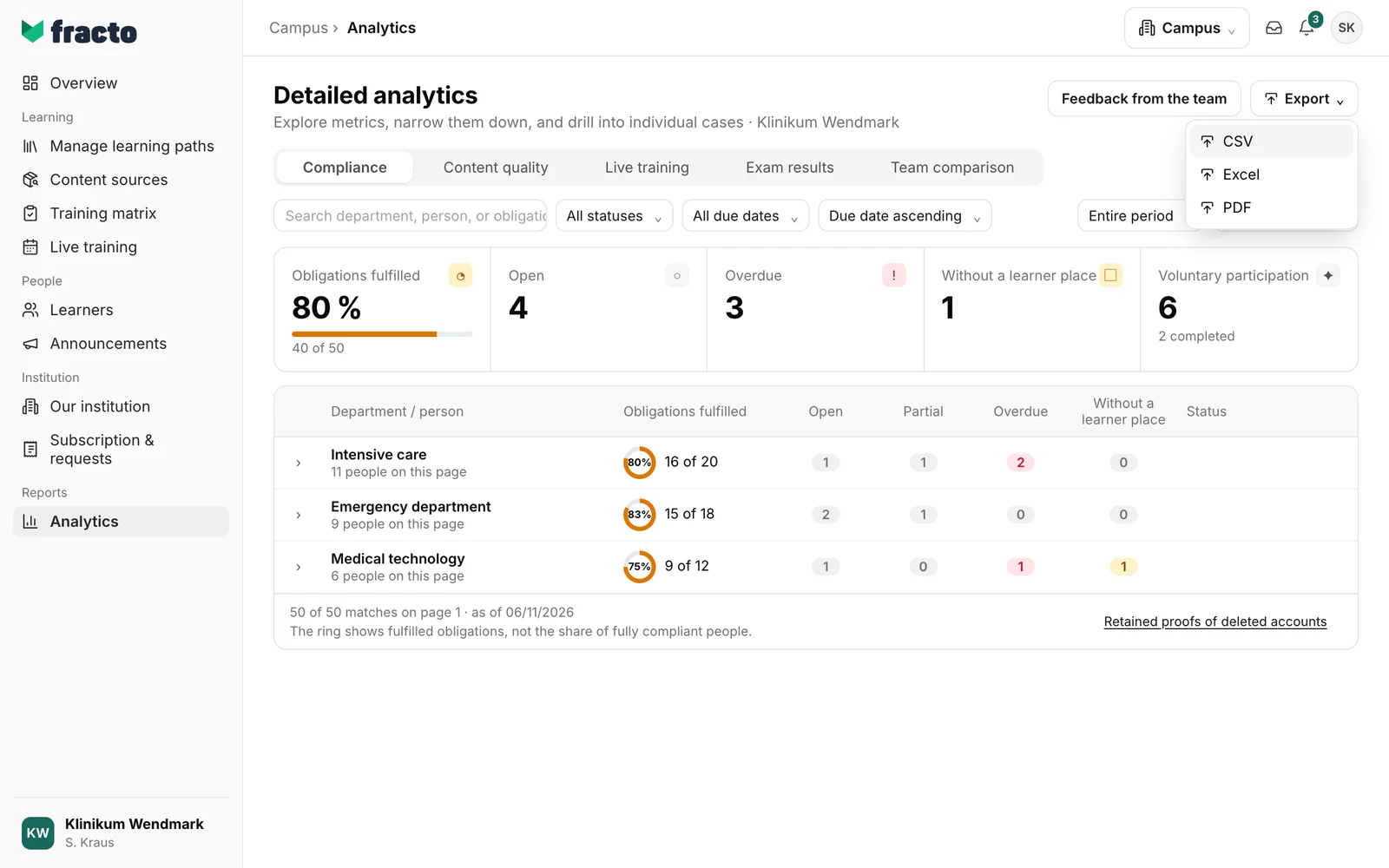
-
The button shows Export in progress…. This usually takes only seconds. Campus checks every 2.5 seconds and gives up after 30 seconds.
-
When the file is ready, the download starts by itself. The Download button appears next to it. Use it to download the file if your browser blocked the download.
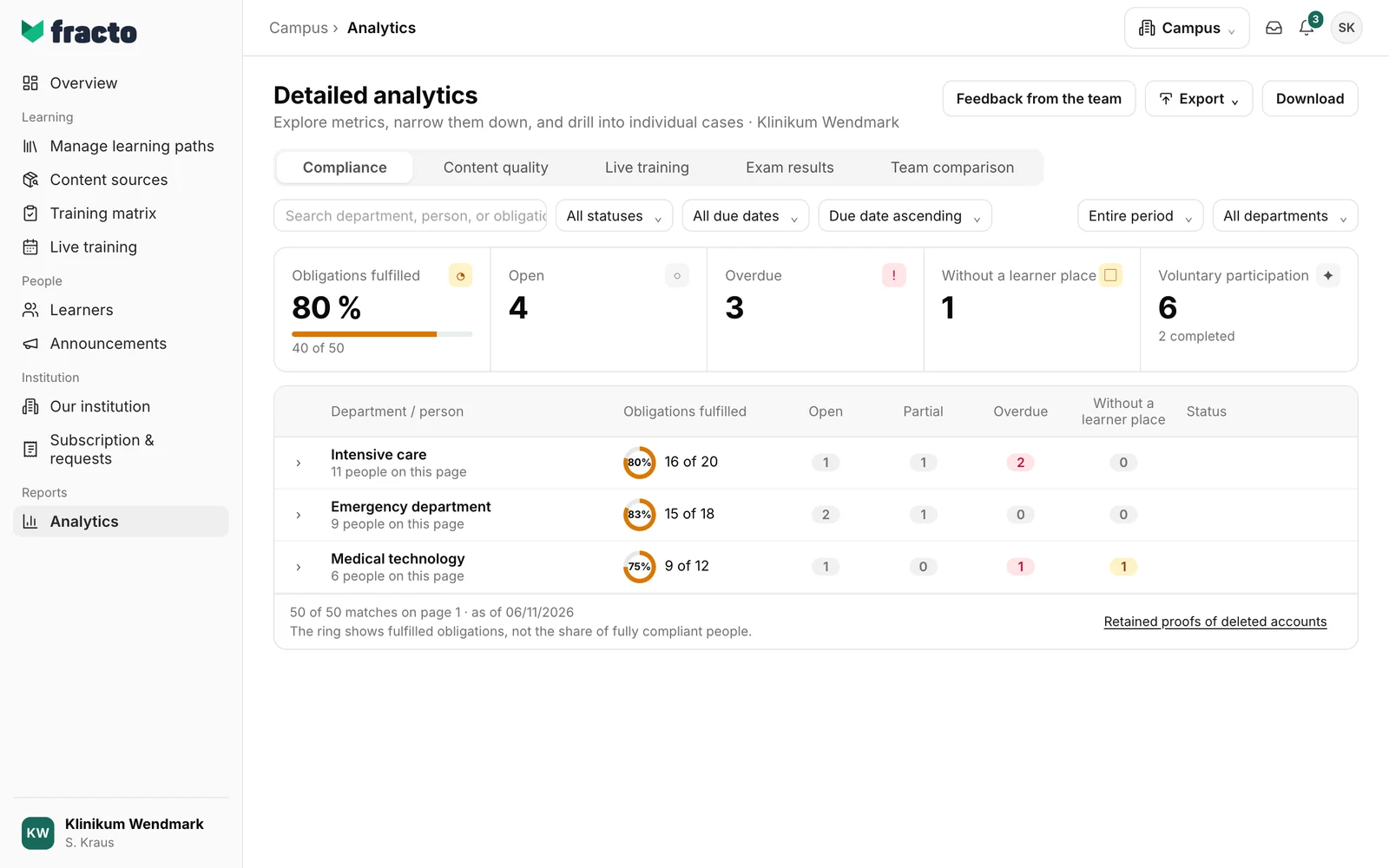
What is in the file
The PDF shows report, scope, filter and as-of date at the top and the table below.
The file name is campus-<report>-<scope>-<period>.<extension>, for example campus-schulungsstatus-klinikum-wendmark-2026-11-06.csv. The report is schulungsstatus, pruefungsergebnisse, live-training or content-qualitaet. If a period is chosen, it is in the name, otherwise the date of the export. The file name is in German even if your interface is English.
CSV and Excel (except Excel for Content quality, see below) start with four lines Report, Scope, Filter and As of, then an empty line, the column headings and the data. The language of the headings and statuses follows your interface language at the time of the export. The file contains all rows that match the filters, not only those of the current page.
| Tab | Columns |
|---|---|
| Compliance | Person, Department, Role, Obligation, Status, Due, Access, Evidence valid until |
| Exam results | Person, Department, Course / edition, Edition date, Passed on, Score (%), Finished attempts, Attempts until first pass, Certificate |
| Live training | Event reference, Event, Starts, Status, Registered, Cancelled, Attended, Absent, Completed, Recordings, Potential reach, Quiz rate |
| Content quality | Course, Learning states, Completed, Completion rate (%), Ø progress (%) |
For Content quality, the Excel file has two sheets: the results and the sheet “Definitions & data status” with report, scope, filter and as-of date.
What happens next
- The file is available for download for 30 minutes and is then deleted. For a new file, export again.
- Only you can download the file.
- When the file is created, Fracto checks your permissions and your scope again. If either has changed in the meantime, you get no file.
- The request, completion and download are logged.
If it does not work
| Message | What it means |
|---|---|
| The export could not be created. Please try again. | The export failed or took longer than 30 seconds. The button is then called Try again. Possible reasons: more than 50,000 matching rows (narrow the filters) or changed permissions. |
| The Export button is missing. | The tab is Team comparison, or you lack the task, see above. |
If the export only took longer, choose the same format after Try again; it may be finished by now. If the message comes back, change a filter or reload the page. Only then is a new export created. If you otherwise request the same format with the same filters on the same page again, you get the same file, not newly calculated figures; after the 30 minutes the error message appears.
Checked on 6 November 2026 against the current Fracto release.
