
Finish a lesson: what is still open
How to read the footer of a lesson to see what is still open, finish it and move on to the next lesson.
A lesson is finished when nothing is open any more. The footer at the bottom tells you what is missing and takes you there with one click.
Before you start
- You have started the course and opened a lesson. See “Start your first course”.
- The course decides what a lesson requires. A lesson without required blocks, for example one with only text and images, is finished as soon as you have opened it.
What keeps a lesson open
- Opening and exploring: Accordion, Tabs, Flashcards, Labelled graphic, Process and Timeline. Every element must have been open once.
- Video: only if the course requires you to watch it to the end. Any other video keeps nothing open.
- Questions: Knowledge check, True/false question, Multiple-choice question, Fill in the blanks and Matching. Every question must be answered. Submit each answer with the check button of the question: Check answer (choice, true/false), Check answers (fill in the blanks), Check matching (matching) or Check (knowledge check). The question then shows feedback, for example “Correct.” The answer has to be correct only if the course requires that. The attempts per question can be limited.
- Course evaluation: It must be submitted. This applies to the rounds “Before the course” and “Once”, not to “After the course”. That round opens only after the exam is passed. The footer then says “Confirmation pending”.
- H5P content: The result must be reported, unless the course only shows the content for viewing. Then opening it is enough. Otherwise the footer says “H5P result pending”.
How to see what is missing and finish the lesson
-
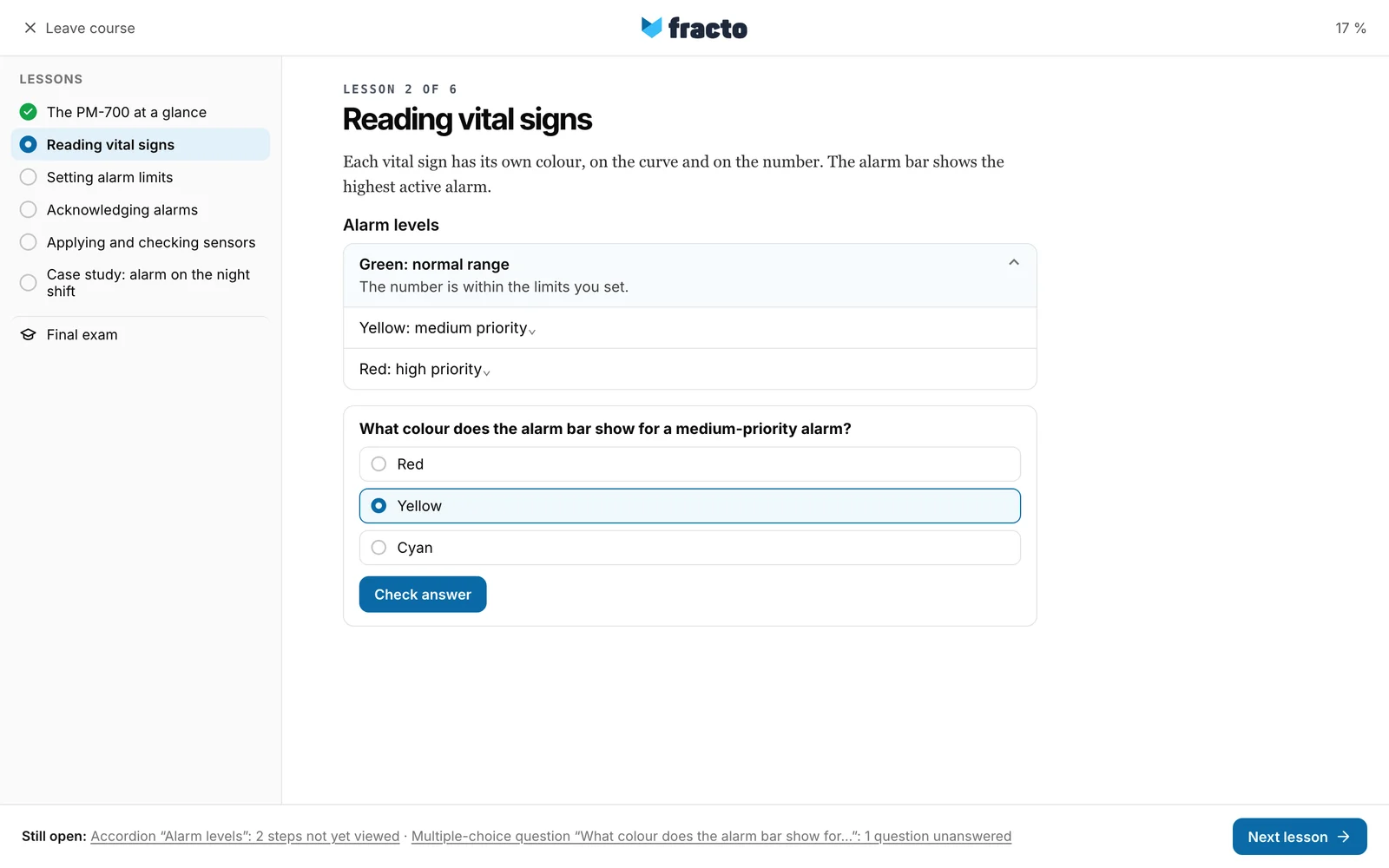
Read the footer at the bottom. If it says Still open:, the open items follow one after another, separated by “ · ”, for example “Accordion “Alarm levels”: 2 steps not yet viewed” or “Multiple-choice question “What colour does the alarm bar show for…”: 1 question unanswered”. Names over 40 characters are shortened.
-
Click an item. The lesson jumps to the block and highlights it for two seconds.
-
Open the missing elements. Answer each question and submit the answer with the check button of the question, for example Check answer.
-
Some courses offer I have worked through this lesson in the footer next to Next lesson. The button covers reading, expanding sections and videos. You still need to answer the questions. It appears only if the course allows it and it would close an open item. Fracto saves the confirmation with the time.
-
When nothing is open, the footer says Lesson complete.
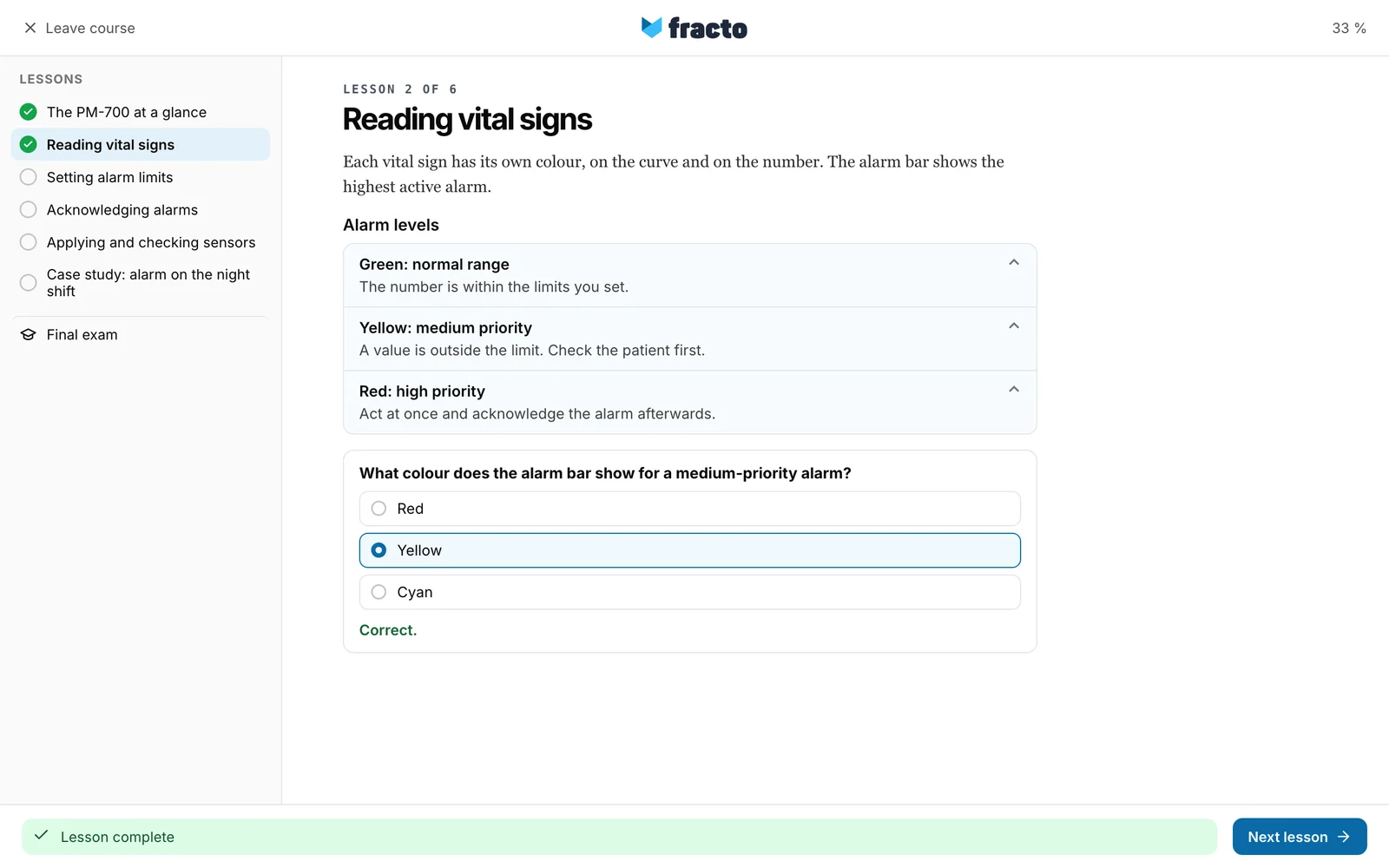
You know it worked when the footer is green, the lesson has a tick in the lesson bar and the course progress rises. On the course page, the tick also appears in the Lessons list.
Moving on to the next lesson
- Next lesson is normally always active, even if something is still open. Open items stay visible in the footer but do not hold you back.
- A lesson counts towards the course progress only if it was opened and nothing is open any more. If you move on with open items, you will not reach 100 %.
- If the course sets a fixed order (setting Restrict navigation), a lesson opens only once the previous one is done. Next lesson is then grey until Lesson complete appears. Going back always works.
- In the last lesson, the button Go to exam replaces Next lesson if the course has a required exam, otherwise Back to course. It becomes active only when nothing is open.
- If the course has a final exam, all lessons are done and the exam is not yet passed, the course page shows “Course content completed” with the Go to exam button. For an optional exam the message is “Course completed”. See “Take the final exam”.
If it does not work
| Message | What it means |
|---|---|
| This lesson has no content yet. | The course has not added anything to this lesson. Go on to the next lesson. |
| Content unavailable: This content is unavailable here. You can continue with the next learning unit. | A single block is not shown in this view. |
| This lesson becomes available after the previous lessons. | The search in the course names a lesson that is still locked. Work through the previous lessons first. |
| You have used all available attempts for this question. | The question cannot be answered again. |
| No attempts left. | The same for fill in the blanks and matching. |
| This lesson could not be loaded. Please try again later or contact support. | The lesson did not load. Try again later. |
Checked on 6 November 2026 against the current Fracto release.
