
Translate a course into another language
How to have the AI translate a course into another language in Studio: choose the language, create a draft and open it for review.
Requires: AI translations must be switched on for the workspace (on by default, Fracto sets the switch)
The AI translates the title, outline, lessons and final assessment of a course into another language. The result is a draft. Learners only get a translation once it has been reviewed and published with the course.
Before you start
- The switch for AI translations applies per workspace and is on by default. If it is switched off for your workspace, the button Translate with AI is missing. Fracto switches it on; contact Fracto. Without the switch you can translate by hand (Add). In the translation editor, Translate block is then missing too.
- You need the Studio right to edit courses to add or delete languages. For Translate with AI you also need the right for AI translation. People who can only review do not see the Languages view.
- The translation uses AI credit of your workspace.
- You set the source language when you create the course. It can only be changed by the owner of the course and only in the first 24 hours.
- The article describes normal courses. SCORM packages with Rise texts have other buttons and are not described here.
How to translate a course
-
Open the course and choose Languages.
-
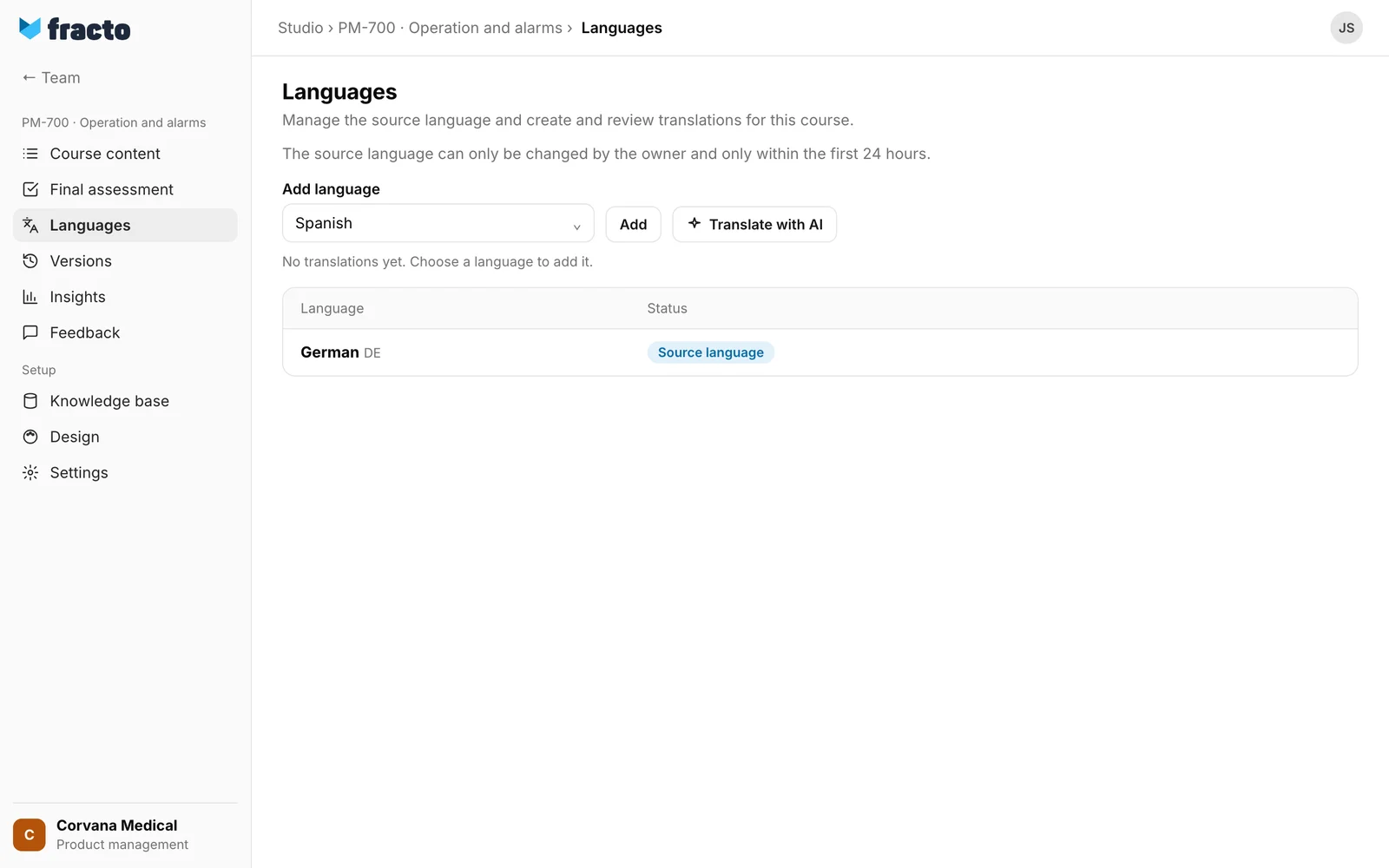
Under Add language, choose the target language. To search, type in the list.
-
Click Translate with AI. The row of the language shows Translating and a progress display. You can keep working in another area in the meantime.
-
When the translation is finished and you stayed in Languages, the app says “ES translation is ready for review.” (with the language code). If you switched area, you see the result on the row of the language. It shows Draft. Open the draft with Review translation.
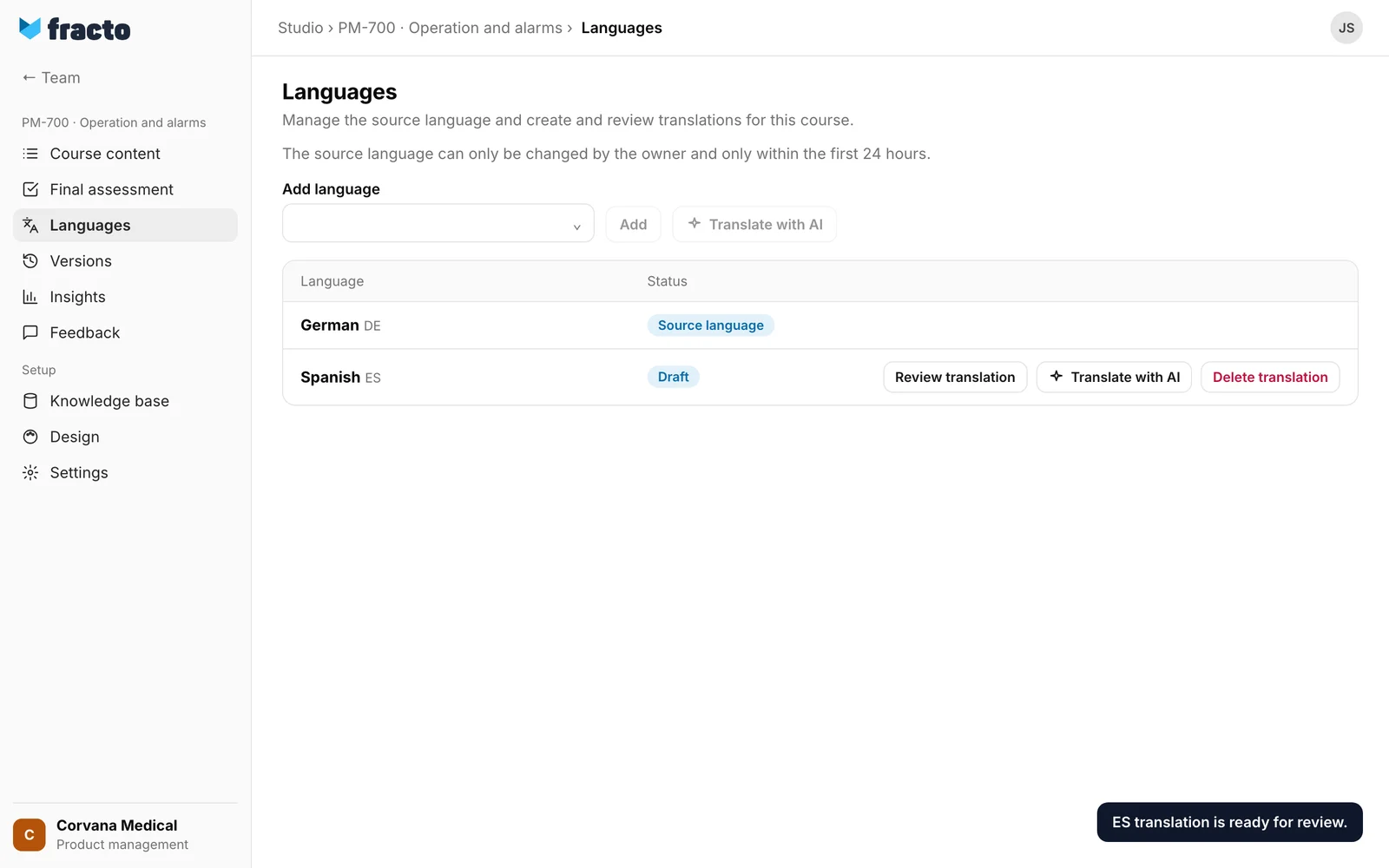
You know it worked when the row of the language shows Draft and Review translation is there. How the review works is in the article “Review and mark a translation as reviewed”.
If you want to translate yourself, click Add instead of Translate with AI. The language then shows Not started, and you enter the texts by hand (Edit).
What is translated
The AI translates the course title with its outline, every lesson and the final assessment. If a part is too large for a request or fails, it is not translated. On the first run it stays empty. On a repeated run the app keeps the existing target text for it. The app names the parts (“Translation only partly created. Not translated: …”). The draft is saved anyway. The row then also shows in red “AI translation failed. Please try again.” This hint stays until the translation is fully created or marked as reviewed. Translate again, or complete the passages in the translation editor. If a repeated run fails completely, the previous state is kept, and a reviewed translation stays reviewed.
The statuses in the table
| Status | Meaning |
|---|---|
| Source language | The language the course is written in. There are no buttons here. |
| Not started | The language has been added but has no text yet. |
| Translating | The AI is working. You see this for a language that is not yet published. |
| Draft | A translation exists. If it is marked as reviewed and the language is not yet published, Ready to publish appears below. |
| Needs review | The source text changed after the review, and the language is not yet published. Review the translation again. |
| Published | The translation is in a published course version. |
| Published · new draft | The language is published and a newer draft exists, also after a change of the source text. The last published version is still delivered. |
What happens afterwards
- Only reviewed, complete translations that match the current source text go into a published course version. A draft or a translation with changed source text stays out.
- If you change the course after the review, the language must be reviewed again. For a language that is not yet published it then shows Needs review, for a published one Published · new draft.
- If you click Translate with AI again for a reviewed language, the app asks Replace reviewed translation?. The new AI translation replaces the reviewed one including your manual edits and must be reviewed again. For a draft or for Needs review the app does not ask. Your corrections in newly translated parts are then lost.
- Delete translation asks Delete translation?. The translation and all manual edits are deleted permanently.
If it does not work
| Message | What it means |
|---|---|
| AI translation failed. Please try again. | General error. It also appears when Add or Delete translation fails, and can mean that the AI credit of the workspace is used up. Try again or ask your administrator. |
| Translation only partly created. Not translated: …. Translate again or complete them in the review. | Some parts are untranslated. See above. |
| Another person has changed this course in the meantime, so your latest change was not saved. Copy any text you want to keep before you load the current version. | The course changed during your action. Reload the view. |
| Translations could not be loaded. | The languages could not be loaded. Reload the page. |
| Translation is not available for this SCORM package. | There is no translation for this SCORM course. |
Checked on 6 November 2026 against the current Fracto release.
