
Post an announcement
How to post an announcement to your learners in Campus: set text and audience, look at the preview and publish it.
Requires: Campus Full
An announcement is a short message to your learners, for example when a new course is available. It appears on the Player start page and in the bell.
Before you start
- Announcements are part of Campus Full. Without Campus Full, Announcements does not appear in the menu. Through a direct link, it says “This area is part of Campus Full” with a button to Subscription & requests. There, Campus managers request Campus Full with Request Campus Full and a dedicated Studio. This guide applies to institutions. A manufacturer workspace has the area even without Campus Full.
- Campus managers publish announcements. Only they see this area.
- You know who should see the announcement: all learners of your institution, or certain roles or departments.
- If a button should lead to a course, learning path or live training, that content already exists.
Post an announcement
-
In Campus, open Announcements and click Create announcement.
-
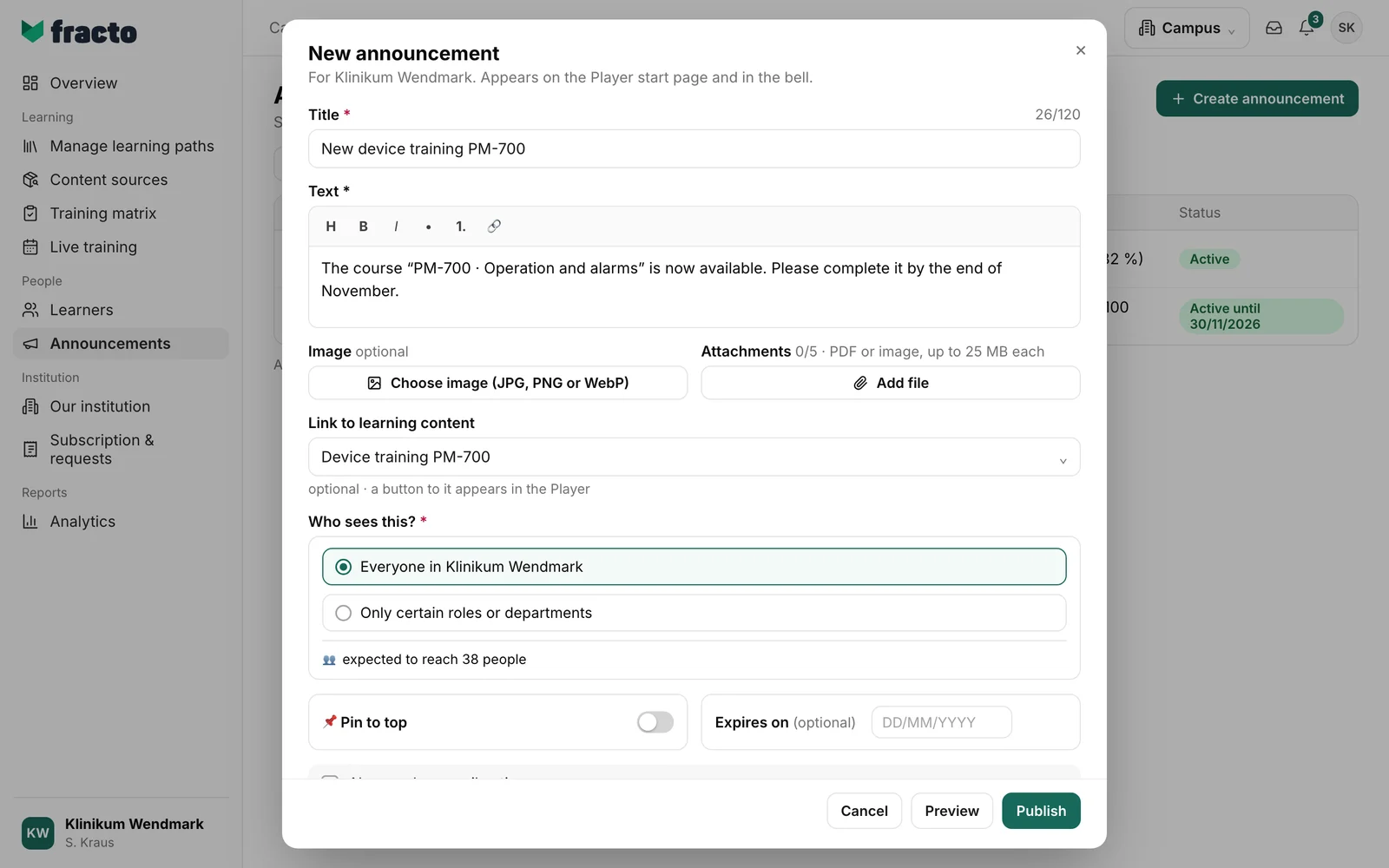
Enter the Title. It may have at most 120 characters. Under Text, write what your learners should know. The editor offers Heading, Bold, Italic, List, Numbered and Link. Title and text are required.
-
Under Image you can choose an image (JPG, PNG or WebP, at most 10 MB). Under Attachments, Add file adds up to five files: PDF, PNG or JPG, each up to 25 MB.
-
Under Link to learning content you can choose a course, a learning path or a live training. A button to it then appears in the Player. For a course or learning path, if not all recipients have the content, Campus tells you how many will not see the button. For a live training, the Player always shows the button.
-
Under Who sees this?, set the audience: “Everyone in” your institution or Only certain roles or departments. With the second choice, click the roles and departments. Anyone with one of the selected roles or departments sees the announcement, including people who join later. Below, it says how many people the announcement is expected to reach.
-
With Pin to top, the announcement stays at the top. Under Expires on you can set a date. The announcement expires at the end of that day. The date must not be in the past; today is allowed. After that it counts as expired and is no longer delivered.
-
Tick Also send an email notice if people should also get an email. It contains the title and a link to the Player, not the full text. The email is only sent when you publish.
-
Preview shows how learners see the announcement in the Player. Back to editing takes you back.
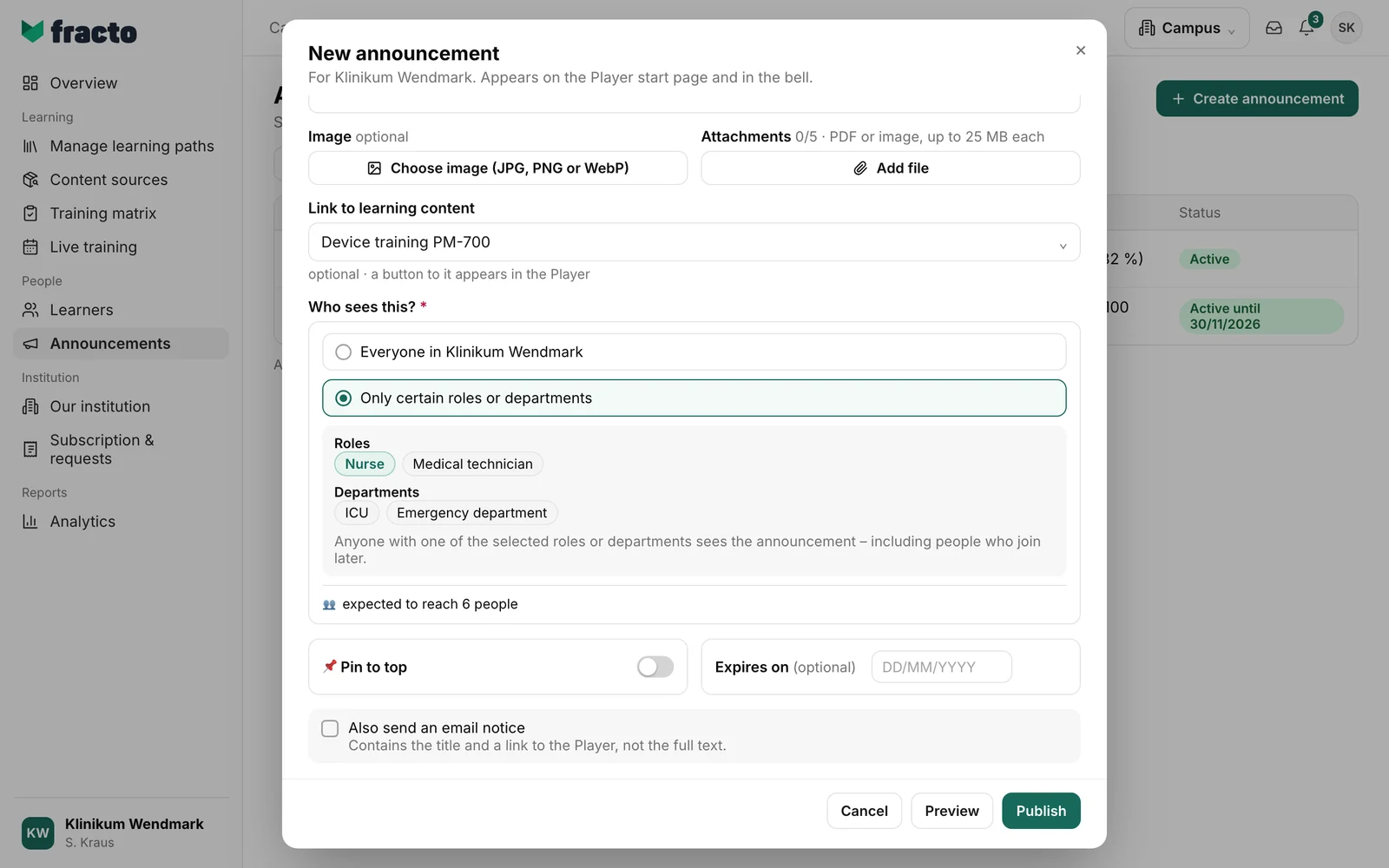
- Click Publish. The button only becomes active when title and text are filled in, at least one role or department is chosen for the audience, the expiry date is not in the past and no upload is still running.
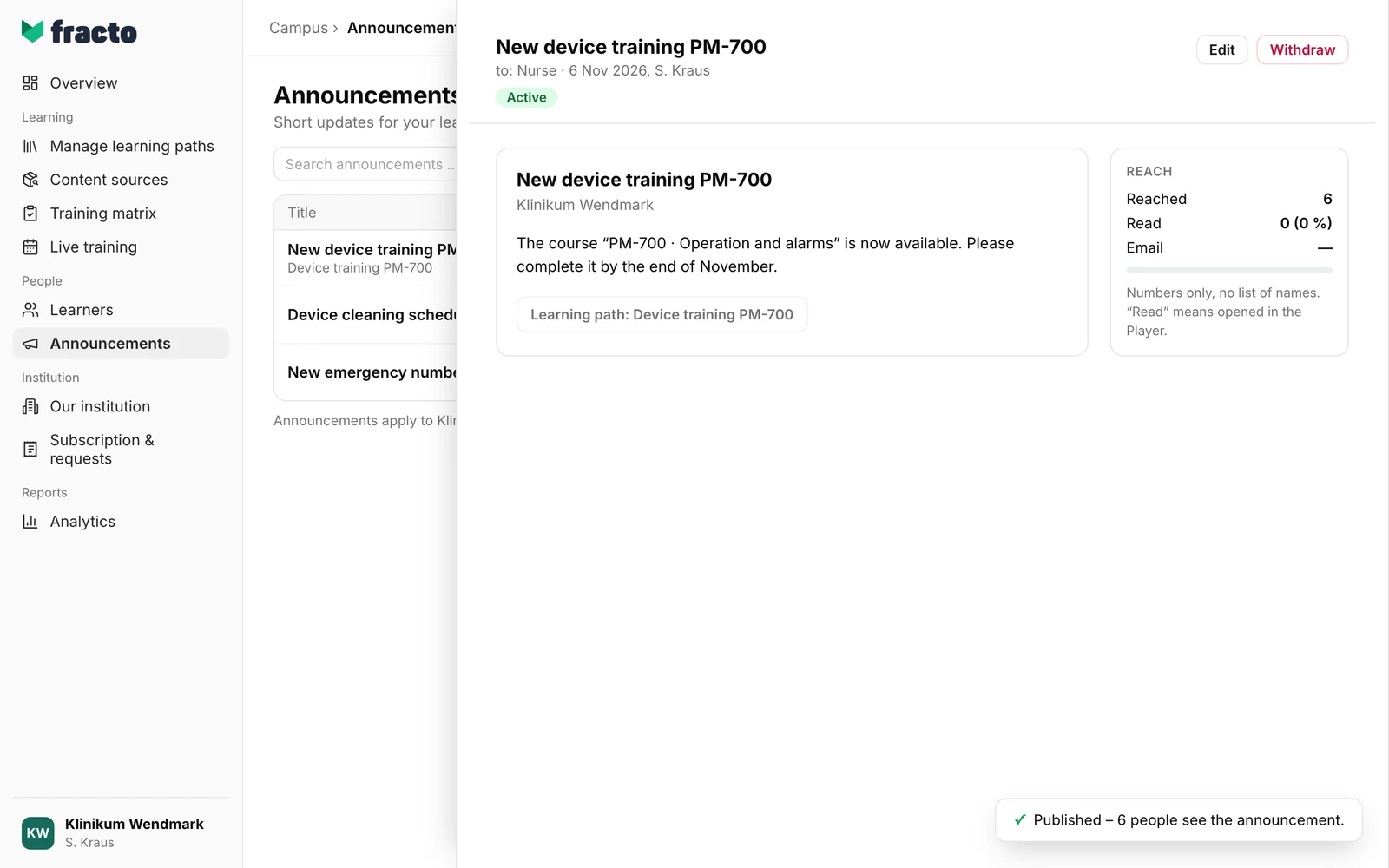
How you can tell it worked: the message “Published – 6 people see the announcement.” appears. The announcement’s details open, with the reach.
What happens next
- The announcement appears on the Player start page. Only the recipients at the time of publishing get a notification in the bell (and by email); anyone who joins later gets none. Only people with an email address get an email, and only if you ticked the box.
- Under Reach you see how many people the announcement Reached and how many have read it. Read means opened in the Player. There are only numbers, no list of names.
- With Edit you correct an active announcement. Corrections are marked “edited”. Learners are not notified again, and the email is not sent again.
- With Withdraw you take an active announcement back. It disappears from the Player at once and loses its pin. In Campus it stays visible as Withdrawn, but only in the filter All (including expired). Restore makes it visible again without anyone being notified again. It is not pinned again.
- After the expiry date, the announcement is listed as Expired. By default the list shows active announcements. With the filter All (including expired) you see all of them, including withdrawn ones.
- For each announcement, the list shows the audience, the publishing date, Read and the status Active, Expired or Withdrawn.
If it does not work
| Message | What it means |
|---|---|
| The expiry date must be in the future. | The date under Expires on is in the past. Choose today or a later date. |
| The announcement could not be saved. Please check your entries. | Check title, text and audience and try again. |
| The file could not be uploaded. Allowed: PDF, PNG, JPG (images also WebP), up to 25 MB. | The file has the wrong format or is too large. Attachments: PDF, PNG, JPG. Image: JPG, PNG or WebP, at most 10 MB. |
| This institution has no roles or departments yet. | Only certain roles or departments needs at least one role or department. Choose “Everyone in” your institution or create one. |
| The announcement could not be withdrawn. | Try again. |
| The announcement could not be restored. | Try again. |
| Announcements could not be loaded. | Click Try again. |
Checked on 6 November 2026 against the current Fracto release.
