
Restore an earlier version
How to bring back deleted chapters, lessons or blocks in Studio, or reset the draft to a backup or a saved version.
In Studio you bring back a deleted chapter, lesson or block. Or you reset the whole course to an automatic backup or a saved version. This changes the draft only. Learners see none of it until you publish again.
Before you start
- You have the right to edit the course. It belongs to the Hub task “Create courses”. Without it you see the lists but no buttons to restore, and the server refuses the actions.
- If you have only just deleted something, the quickest way is the notice that appears after you delete a chapter, a lesson or a block (“Chapter "
" deleted.”, “Lesson "<title>" deleted.” or “Block deleted.”, plus “A backup is available under Versions.”). It has an Undo button. If the notice is gone or undoing does not work, use the backup as described below. - While a person with the edit right has the course content or the lesson editor open, an “Automatic backup” is made every 15 minutes. Before every deletion Fracto backs up the draft. The backup is called “Before deleting the lesson "
"", “Before deleting the chapter "<title>"" or “Before deleting a block in "<lesson>"".
Restore a deleted chapter, lesson or block
-
Open the course and click Versions in the sidebar. The Automatic backups section is at the top.
-
Choose the backup that still contains the deleted part and click View and restore. Each entry shows the kind of backup, date, time and the person.
-
Studio shows “The course as of
”. Parts that no longer exist are marked Deleted since. Deleted lessons and lessons with deleted blocks are expanded. The rest of the course stays as it is. 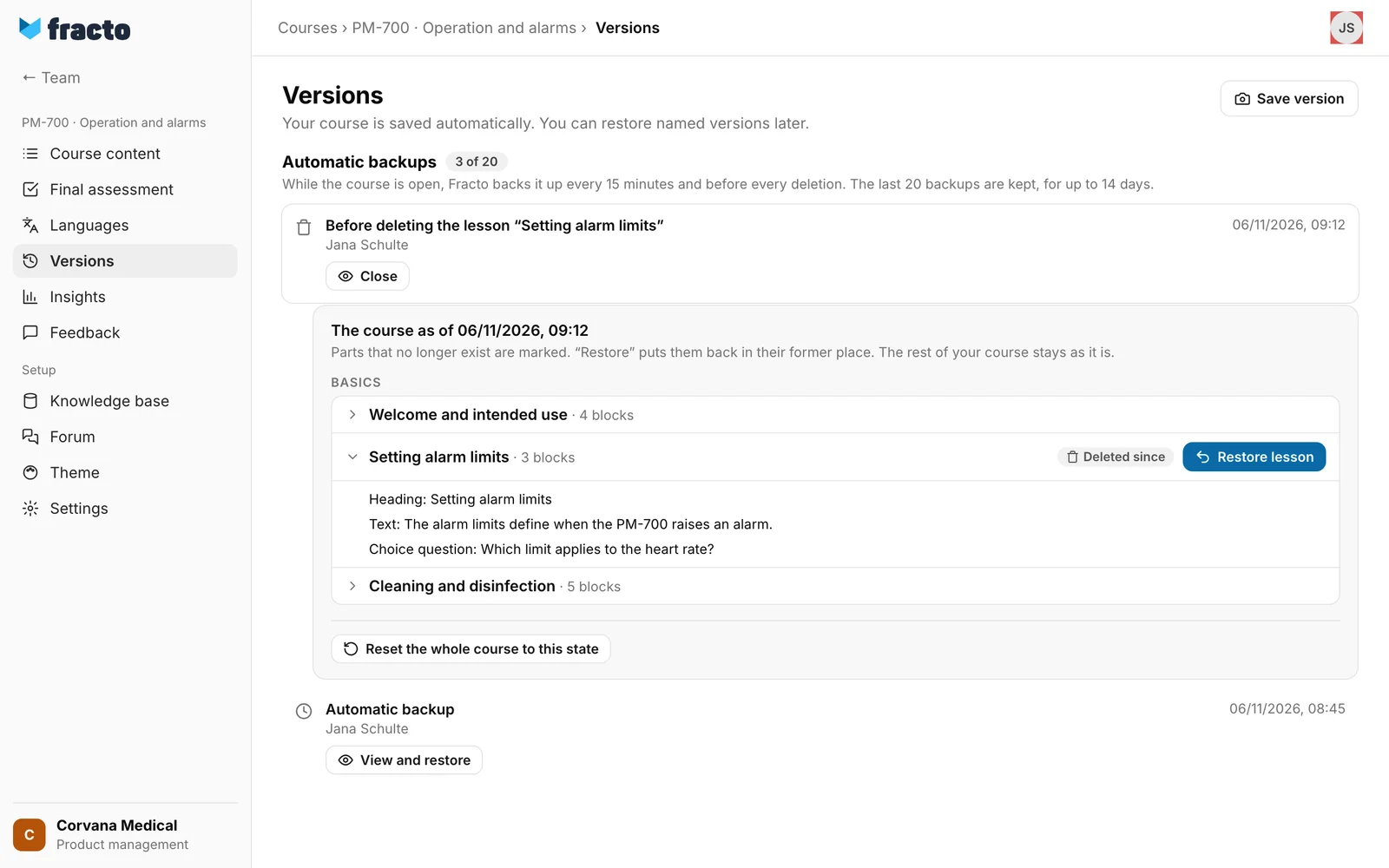
-
At the deleted part click Restore chapter, Restore lesson or Restore block.
- For a deleted chapter, restore the chapter. Its lessons come with it: lessons that still exist move back into the chapter, deleted ones return with their blocks.
- Restore a lesson on its own if its chapter is still there.
- Restore a block if its lesson is still there. If the lesson is missing, restore it first.
You know it worked when: the view reloads. The part is back in the course content, and the backup no longer shows it as Deleted since. Fracto puts the part after the nearest earlier neighbour that still exists. If there is none, it goes before the nearest later one, otherwise at the end.
Reset the whole course to a backup
- Open the backup with View and restore as above.
- Click Reset the whole course to this state at the bottom.
- Fracto asks: “Title, outline, lessons and blocks are replaced with the state of
. Final assessment, translations and knowledge base stay unchanged. We back up the current state first, so you can go back.” Confirm with Reset whole course or stop with Cancel.
The page then reloads and shows the reset course. The theme stays unchanged. The text of the course overview also comes from the backup, if it contains one. Today’s state is kept as the backup “Before restoring an earlier state”. Use it to go back.
Restore a saved or published version
- Under Versions, in the Saved versions section, click Restore at the version you want. View first shows the title and lesson overview without changing the draft.
- Fracto asks: “This restores course metadata, lessons and blocks. The final assessment, translations and knowledge base remain unchanged. Continue?” Click Restore or Cancel.
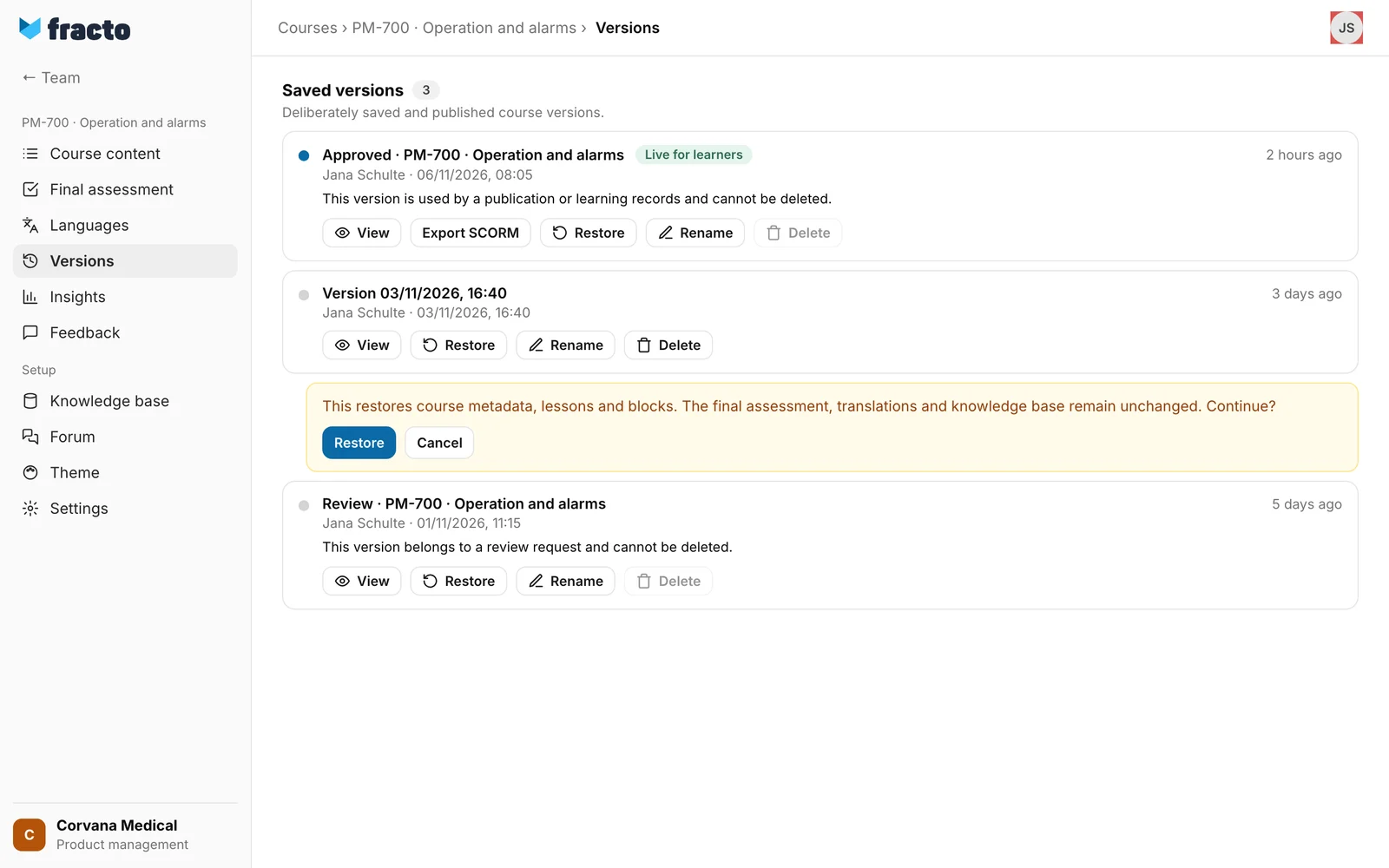
“Course metadata” means title, description, cover image and product details. The theme of the course is reset as well (see “Adjust the course theme”). If you changed the theme after this version, you lose that change in the draft. Fracto backs up the draft automatically first. That backup is made even if the restore then fails. If you restore a published version, the draft keeps its hidden lessons. More about versions is in “Versions and corrections”.
What happens next
- The draft has changed. The published version, and so everything learners see, stays the same until you publish again.
- If the course requires approval, the same applies to the reset draft as to any draft change: only an approved version is published. See “Publish a course”.
- Restoring does not touch the final assessment, translations or knowledge base.
Limits of the backups
- The last 20 backups are kept, for up to 14 days. If there are more, automatic backups go first, then those taken before a restore, and last those taken before a deletion.
- Backups are made while a person with the edit right has the course open. If the draft has not changed since the last backup, no new automatic backup is made. The backups before deleting and before restoring are always made.
- If the list is empty, it says “No backup yet. The first one is created as soon as you edit the course.”
- A backup holds title, course overview, outline, lessons and blocks, not the theme, the final assessment, translations or knowledge base.
- Backups are made only while the course content or the lesson editor is open, not in the settings or in the theme.
If it does not work
| Message | What it means |
|---|---|
| The course has changed in the meantime. Reload the page and try again. | The draft changed after you opened the page, for example through another person. Reload. This message appears when restoring from a backup. |
| The draft changed. Reload the course before restoring a checkpoint. | The same when restoring a saved version. |
| This part is already back in the course. | The chapter, lesson or block is already in the draft, for example because you have already restored it. |
| This block’s lesson no longer exists. Restore the lesson first. | The block belongs to a deleted lesson. |
| Restoring did not work. Please try again. | General error when restoring from a backup, also if the backup has been cleaned up in the meantime or a Microlearning course would get more than one lesson. |
| Undo did not work. You can find the backup under Versions. | Undoing straight after the deletion failed. Restore the part from the backup. |
| The backups could not be loaded. | The list or the view of a backup could not be loaded. |
| Version could not be restored. Please try again. | General error when restoring a version. It also appears for a Microlearning course if the version would have more than one lesson. |
Checked on 6 November 2026 against the current Fracto release.
