
Review status in the knowledge base
How the knowledge base of a course is reviewed and approved in Studio: whole or individual review, page status, four-eyes rule and withdrawing.
The knowledge base of a course has a draft and an approved version. Learners and the AI tutor only see the approved version. A setting of the workspace decides how it comes about.
Two ways of approving
In the Hub, under Organization, there is the setting Knowledge base review. It applies to all courses of the workspace.
- B: Approve the whole knowledge base (default): the whole review. New content stays in draft. Learners see the last approved version. You approve the entire draft in one step.
- A: Review each page individually: the individual review. Each page needs explicit approval and complete evidence.
Each mode has its own approval. If you switch back to the whole review, the last whole approval applies again, even an older one, unless it was withdrawn. If you switch to the individual review, the pages that are already Verified apply at once. After a switch, check what is delivered. The setting is changed by whoever has the Hub task Administer workspace.
What learners and the tutor see
- Whole review: the last approved state. Pages that you change or rebuild afterwards stay in draft. Flagged and withdrawn pages are missing. A page that was already archived before the approval is not included. If it is archived only afterwards, it stays in the approved version.
- Individual review: only pages with the status Verified and complete evidence. The overview of a topic only appears if the topic has the status Verified. You verify a topic in the topic’s panel with Verify.
- An approval takes effect at once. You do not have to publish the course again for it.
- If no section with evidence is delivered, the course’s AI tutor is not available in either mode, the server rejects its requests. This is the case without a whole approval, after withdrawing, in the individual review without a verified page and when all delivered pages are flagged.
The status of a page
Each knowledge page has a status, which you see at the top of the page panel.
| Status | Meaning |
|---|---|
| Unverified | Newly built or reset. In the individual review, learners do not see the page. In the whole review it belongs to the draft and is approved with the whole approval. |
| Verified | A person approved the page with Verify. This only works if every text section and every image has a current, matching original reference. |
| Corrected | The title or text was edited. That removes the page’s approval. In the individual review, learners only see the page again after a new approval. |
| Flagged | Someone reported an error with Report problem, with the reason Factually incorrect, Outdated, Misleading, Taken out of context or Other. A flagged page is delivered in no mode. Reset status makes it Unverified again. |
| Archived | The page was archived. It no longer goes into a new whole approval. An approval already given keeps it. |
In the whole review window, each page also shows how it came about: Raw source material, AI draft, Manually edited or Preparation failed.
Whole review: how to approve
-
Open the Knowledge base. The box Review and approve the knowledge base shows “Previously approved: …” or “No approved version yet.” and, if something has changed, “Draft has changes to review”. As long as there are no pages and no approval, the box is missing. Click Open review.
-
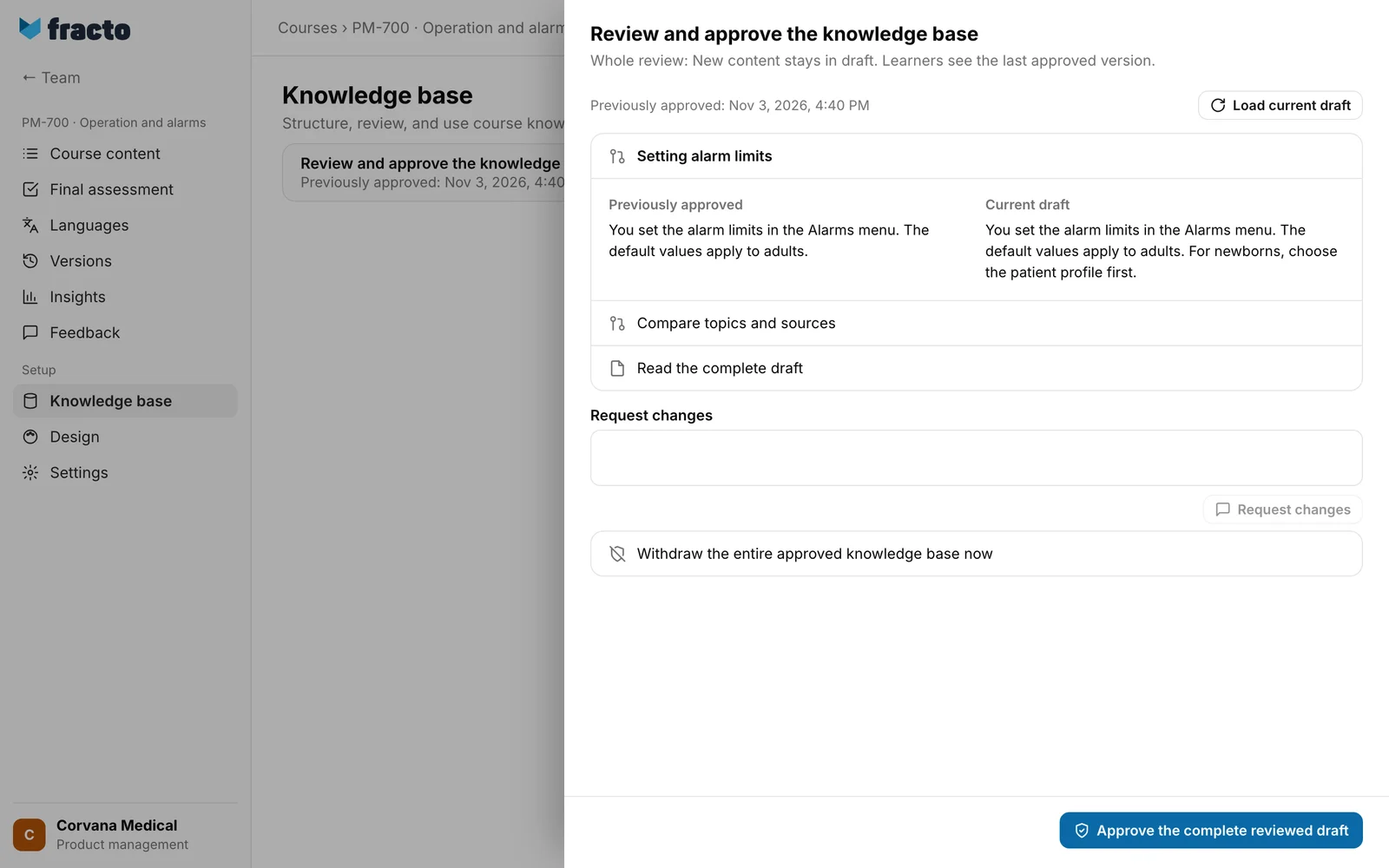
In the side panel you compare each changed page: Previously approved on the left, Current draft on the right. Below are Removed pages, Compare topics and sources and Read the complete draft. If there is nothing to review, it says “No changes from the approved version.” Load current draft fetches the latest state.
-
If something is missing, write it in the field Request changes and click Request changes. An open change request blocks the approval. Mark change request as resolved closes it.
-
Click Approve the complete reviewed draft at the bottom. The button is active when there are pages, every page has complete evidence, no change request is open, all sources are Ready and the last preparation has finished. The server also requires that no page has the status Preparation failed. The interface does not check that. You only find out at the click, with the message “This is not possible for the current draft right now …”.
You know it worked when Fracto shows “Saved. The current review was loaded.” and the box names the new date at “Previously approved”.
Individual review: how to approve a page
-
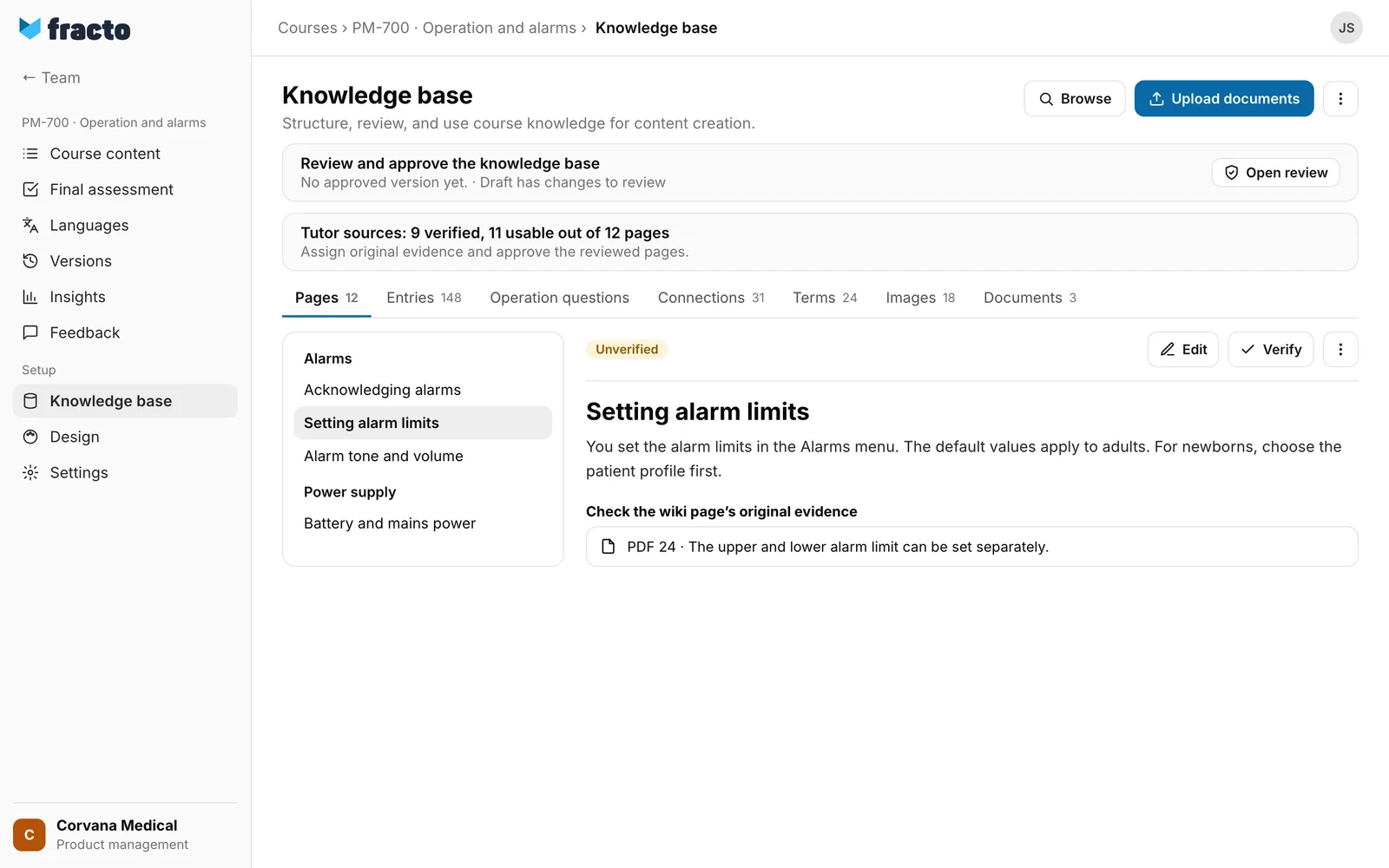
Open the Knowledge base and the tab Pages. The box “Tutor sources: … verified, … usable out of … pages” shows the state. Next to it: “Assign original evidence and approve the reviewed pages.” In the individual review, the box Review and approve the knowledge base always says “No approved version yet.” and shows “Draft has changes to review”. There is no whole approval here, that is normal.
-
Open a page. Under Check the wiki page’s original evidence check each section against the original and, if needed, assign the right passage with Assign original reference.
-
Click Verify. If a reference is missing, Fracto refuses: “Approval blocked: every text section and image needs a current, matching original reference from the PDF.”
-
If you changed a page with Edit, save first. The page then has the status Corrected. Check the evidence and click Verify again. Changing and approving in one step does not work.
Who may do what
- Viewing, approving, verifying, flagging, withdrawing and requesting changes need the Hub task Create courses. Whoever only has the task Review courses does not see the knowledge base. Only its owner edits a private course. If the owner has changed something, then under the four-eyes rule possibly nobody in the workspace can approve.
- The interface shows Mark change request as resolved to everyone with Create courses. The server only lets the person who wrote the request, and the owner of the course, resolve it. Others get an error message.
Four-eyes rule in the whole review
Whoever changed the knowledge base since the last approval cannot approve it themselves. The same applies to withdrawing: whoever changed the last approved version may not do it. A change is every write action by a person in Studio:
- editing pages, Verify, Report problem and Reset status
- Assign original reference
- uploading documents, Reprocess and Delete
- editing terms and topics, preparing pages with AI and starting a rebuild, also with Retry failed steps
- applying or rolling back patches
The automatic preparation in the background does not count. So whoever assigns missing evidence before the approval to make the button active may not approve afterwards. Do not assign evidence or verify pages if you want to approve yourself. The interface does not lock the button. Fracto only refuses at the click: “You do not have permission for this knowledge base review.”
In the individual review the rule does not exist for Verify. The same person can edit a page and then verify it themselves.
Withdrawing
As soon as there is an approval, the side panel shows Withdraw the entire approved knowledge base now. In the individual review the entry is always there. Below it, each page has the button Withdraw page now.
- In the whole review, learners no longer see the knowledge base or the page afterwards. For the whole version the side panel shows Withdrawn. For a single page only its button is locked. A new whole approval delivers the knowledge base again.
- In the individual review the pages become Flagged. When you withdraw the whole knowledge base, this affects all pages of the course, including unverified and archived ones. Afterwards you have to reset each page with Reset status and verify it again.
If it does not work
| Message | What it means |
|---|---|
| You do not have permission for this knowledge base review. | You lack the task Create courses, or the four-eyes rule applies because you changed the knowledge base yourself. Ask another person. |
| The review note status could not be changed. Please try again. | You tried to mark a change request as resolved but may not: only the person who wrote it and the owner of the course may. |
| This is not possible for the current draft right now. Load the current draft and check open change requests, processing and evidence. | The draft has changed, a change request is open, the preparation is not finished, evidence is missing or a page has the status Preparation failed. Click Load current draft and check these points. |
| The knowledge base or page was not found. Load the current draft. | The page no longer exists. Load the current draft. |
| The knowledge base review could not be loaded. Please try again. | The side panel could not be loaded. |
| The action could not be completed. Please try again. | The action did not work, without Fracto naming the reason. Try again. |
| All sources must be processed and all pages must have complete evidence before approval. (n) | n pages do not yet have complete original evidence. The approval stays blocked. A source that is not finished also blocks the button but does not trigger this hint. |
| Some pages could not be prepared. They are marked as failed below. | Click Retry failed steps if you have the task Create courses. |
| The last knowledge base preparation did not finish. | The preparation was interrupted. Retry failed steps starts it again. Until then it blocks the approval. |
| Approval blocked: every text section and image needs a current, matching original reference from the PDF. | The page can only be verified once every reference is assigned. |
Checked on 6 November 2026 against the current Fracto release.
