
Ask the AI tutor
How to ask the AI tutor a question in your course, read the sources behind the answer and know what it will not answer.
The AI tutor answers questions about your course and shows where the answer comes from.
Before you start
- The tutor belongs to a course. You find it on the course page and in the lessons, not on Start or in My trainings. During an exam it is locked.
- It answers from the published version of your course and its approved sources, for example the instructions for use. It does not search the internet.
- If the AI tutor button is missing, the tutor is switched off for this course or not available for this course version.
- Do not enter patient data.
How to ask a question
- Open a lesson or the course page. The AI tutor button is at the bottom right.
- Click AI tutor. A panel opens on the right with the line “Answers with course sources”. The course sets the name of the tutor and the welcome text. Below are four buttons:
- Getting started leads step by step through the verified first steps, with Next.
- Key facts shows selected course topics.
- Ask a question puts the cursor in the input field.
- Practice with the tutor starts review questions about the course.
- Write your question in the field “Ask a question about the course …” and click the send button (paper plane) or press Enter. While the tutor searches, it says “Searching the knowledge base …”.
- Read the answer. A superscript number such as ¹ points to the source with the same number.
- Click Sources. It shows the title and page, an excerpt of the passage and the file name. If the answer relies on a figure, it appears visibly right below the answer text, above Sources, for example “Figure · p. 42”. Without a page number it is called “Figure from the course”.
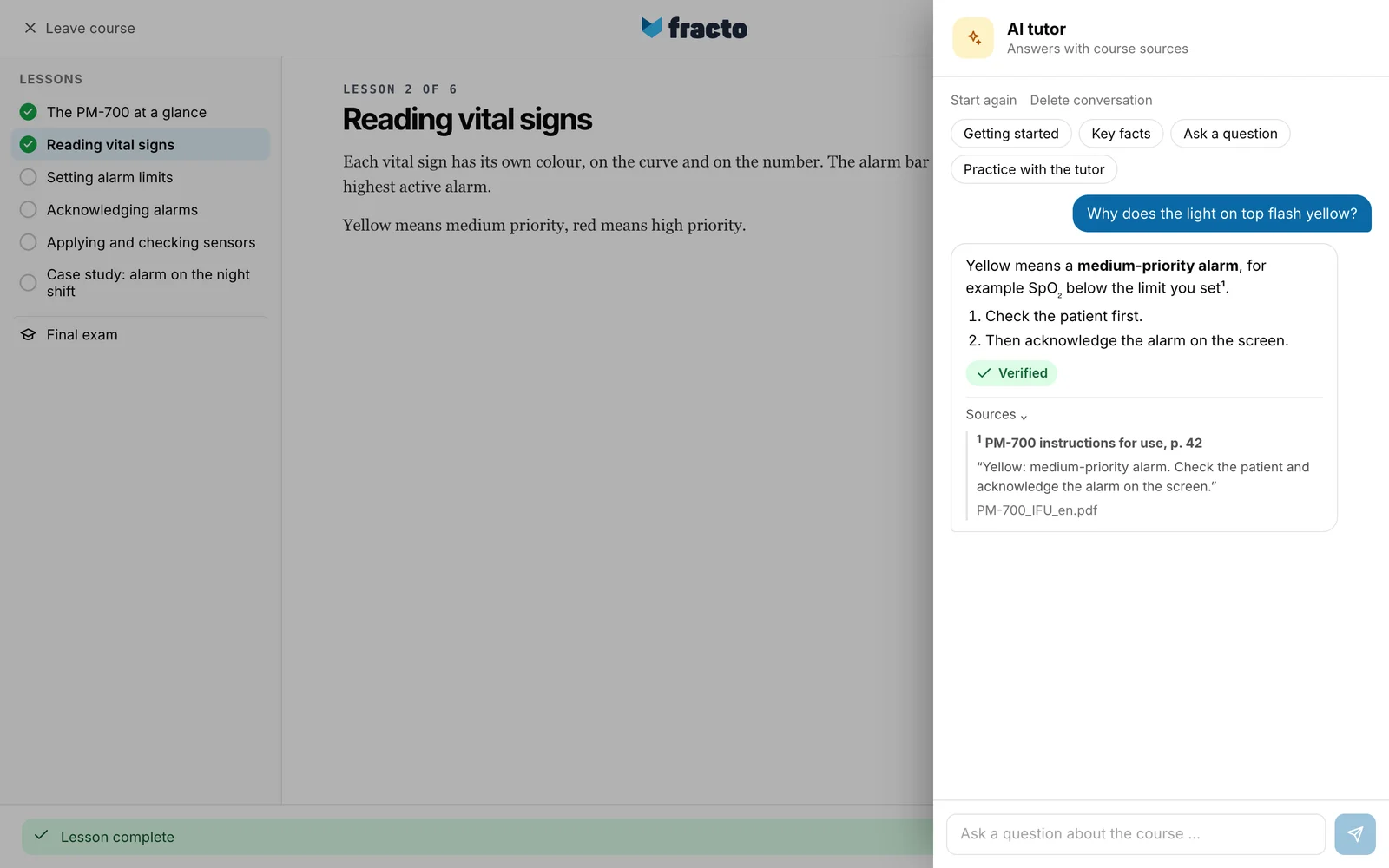
You know it worked when an answer appears under your question with the mark Verified or Unverified and, if the tutor found a passage, the entry Sources.
How to judge the answer
- Verified means the tutor backed the answer with passages from the course sources.
- Unverified means that did not work. The tutor then says, for example, “The course knowledge base does not contain enough information to answer that safely.” or “I do not want to give you the wrong instructions. I found a relevant course passage, but it does not support a reliable answer yet. Check “Sources” or ask me about one step.” Older answers without a saved check status also show Unverified. So do fixed replies, for example turning away a patient or exam question. That is not an error.
- For devices, read the source before you act. The tutor does not replace the instructions for use or the instructions of your institution.
What the tutor does not answer
- Always, regardless of any setting: questions that ask it to set a therapy, dose or device setting for a specific patient. It replies: “I can’t choose a treatment or device setting for a specific patient. …” It still answers questions about general device operation. The detection works only for clear wording. For treatment decisions, always ask the responsible physician. If the same question contains emergency words such as “unresponsive” or “not breathing”, the tutor replies “This sounds like an emergency. …” even without the switch.
- Always: the solution of the final exam. It replies: “I won’t reveal the final exam answer. I can give you a hint or ask a similar practice question. …”
- Only if the workspace of the course provider has switched it on: an extra check of your question and a check of the answer. Both are off by default. The question check turns away emergencies, further clinical advice questions, exam questions, questions about the platform, questions outside the course and manipulation attempts with fixed replies. If it fails, the question is answered without a check. The answer check shows a small check line with scores under the answer, for example “Sources”, “Question answered” and “Device matches”. It can withhold an answer and replace it with a fixed text (“Answer withheld: device does not match (0.12)”), add a missing warning from the source (“Warnings: added”) or report: “Check unavailable – answer unchecked”. Do not rely on the question check being active.
- The AI tutor is not suitable for emergencies. Trigger your institution’s emergency alarm or call the emergency number.
What happens next
- Fracto saves your conversation per course version. If you do not use the tutor for 30 days, the conversation starts afresh the next time you open it. Turned-away questions, such as patient and exam questions, are not saved and are missing after a reload. When you open the tutor again, it says “Your last conversation is back.” Start again begins a new conversation, Delete conversation removes it.
- For follow-up questions the tutor can take the last six entries of the conversation into account, questions and answers together.
If it does not work
| Message | What it means |
|---|---|
| The AI tutor is temporarily disabled. | The tutor’s AI function is switched off right now. Try again later. |
| The AI limit has been reached. Please try again in 30 seconds. | The tutor’s limit is reached for now. The time in the message is the waiting time; it can also read “in 2 minutes” or “later”. |
| AI usage cannot be checked safely right now. Please try again later. | The limit could not be checked. Try again later. |
| The tutor could not be loaded. Please try again. | Click Try again. |
| Your session could not be loaded or saved securely at this time. | Your conversation was not saved or loaded. Click Try again. |
| No verified initial step sequence is available for this course version yet. | The course offers nothing under Getting started. Ask a question instead. |
| No compact fact lists are available for this course yet. Feel free to ask me about a topic. | There is no list under Key facts yet. Ask a question. |
Checked on 6 November 2026 against the current Fracto release.
